Tute M01 Materials SAGA: Difference between revisions
No edit summary |
Chris Huxley (talk | contribs) |
||
| (5 intermediate revisions by the same user not shown) | |||
| Line 1: | Line 1: | ||
| ⚫ | |||
== Introduction == |
== Introduction == |
||
This page details the method for using SAGA to create the GIS based material types (land use areas). Once the GIS layers are setup (in this section), surface roughness or bed-resistance values (e.g. Manning's n) are assigned to each of these land use areas (in the main tutorial module, [[Module1_test#Define_the_Materials_.28Surface_Roughness.29|here]]). |
This page details the method for using SAGA to create the GIS based material types (land use areas). Once the GIS layers are setup (in this section), surface roughness or bed-resistance values (e.g. Manning's n) are assigned to each of these land use areas (in the main tutorial module, [[Module1_test#Define_the_Materials_.28Surface_Roughness.29|here]]). |
||
The '''Module_Data\Module_01\SAGA\''' folder |
The '''Module_Data\Module_01\SAGA\''' folder contains the materials files that we will use. |
||
== Method == |
== Method == |
||
| ⚫ | |||
<li>Open the aerial photo from the '''Module_Data\Aerial_Photos\SAGA\Aerial_Photo_M01.sgrd'''</li> |
<li> Open the aerial photo from the '''Module_Data\Aerial_Photos\SAGA\Aerial_Photo_M01.sgrd'''</li> |
||
| ⚫ | |||
| ⚫ | |||
| ⚫ | |||
| ⚫ | |||
| ⚫ | |||
| ⚫ | |||
[[File:Tute M01 SAGA 2d mat 1.png|frame|none]] |
[[File:Tute M01 SAGA 2d mat 1.png|frame|none]] |
||
<li>This will have created a new map window, with the material objects (these are regions). By default SAGA will give all of these objects the same style, something like the below.</li> |
<li> This will have created a new map window, with the material objects (these are regions). By default SAGA will give all of these objects the same style, something like the below.</li> |
||
[[File:Tute M01 SAGA 2d mat 2.png|frame|none]] |
[[File:Tute M01 SAGA 2d mat 2.png|frame|none]] |
||
<br> |
<br> |
||
<li>Each of the regions contains an integer value that defines the land use type. To make this more obvious in SAGA, we can colour using the attribute. To do this |
<li> Each of the regions contains an integer value that defines the land use type. To make this more obvious in SAGA, we can colour using the attribute. To do this |
||
*Select the 2d_mat_M01_002_R shape in the workspace tab |
*Select the 2d_mat_M01_002_R shape in the workspace tab |
||
*In the ''Object Properties'' window select the ''Settings'' tab |
*In the ''Object Properties'' window select the ''Settings'' tab |
||
| Line 31: | Line 28: | ||
[[File:Tute M01 SAGA 2d mat 3.png|frame|none]] |
[[File:Tute M01 SAGA 2d mat 3.png|frame|none]] |
||
You may notice that the open pasture land-use that covers most of the study area has not been defined. This will be our default land use type |
You may notice that the open pasture land-use that covers most of the study area has not been defined. This will be our default land use type. To save time we only need to define the areas where the land use differs from the default.<br> |
||
'''<u>NOTE:</u>''' The material attribute associated with each polygon is an integer number specific to a type of land-use. In the next step we link the material ID (integer) to a roughness coefficient. A table is provided below for reference.<br> |
'''<u>NOTE:</u>''' The material attribute associated with each polygon is an integer number specific to a type of land-use. In the next step we link the material ID (integer) to a roughness coefficient. A table is provided below for reference.<br> |
||
| Line 50: | Line 47: | ||
|10|| Vegetated Creek|| 0.03 |
|10|| Vegetated Creek|| 0.03 |
||
|} |
|} |
||
</ol> |
|||
| ⚫ | <li> |
||
<ol> |
|||
| ⚫ | |||
<u>Alternatively</u> if you would like to create your own material inputs rather than using the supplied dataset. |
|||
| ⚫ | |||
| ⚫ | <li> Load the empty (template) file named '''2d_mat_empty_R.shp''' from '''TUFLOW\Model\saga\empty\'''and save this in the '''TUFLOW\model\saga\''' folder as as '''2d_mat_M01_002_R.shp''', add this to a map window with the aerial photo and edit the shape, digitise your own material polygons ensuring to assign a Material ID to each polygon using the land use types in the table above. |
||
</ol> |
</ol> |
||
== TUFLOW Geometry Control (TGC) File Updates == |
|||
In order to read in the GIS layer created above. Enter the following text into the TGC file:<br> |
|||
<font color="blue"><tt>Set Mat </tt></font> <font color="red"><tt>== 1</tt></font> <font color="green"><tt> ! Set every cell to a material ID of 1 (Pasture)</tt></font><br> |
|||
<font color="blue"><tt>Read GIS Mat </tt></font> <font color="red"><tt>==</tt></font><tt> mi\2d_mat_M01_002_R.shp</tt><br><br> |
|||
The <font color="blue"><tt> Set Mat </tt></font> command sets all 2D cells to a Material ID of 1, which is used for pasture. The <font color="blue"><tt>Read GIS Mat </tt></font> command updates any 2D cells that fall within the polygons in the 2d_mat layer with the Material attribute value of each polygon. As discussed for the cell code values in the previous section, the order of these Mat commands is important.<br> |
|||
| ⚫ | |||
| ⚫ | |||
Latest revision as of 21:34, 5 January 2017
Introduction
This page details the method for using SAGA to create the GIS based material types (land use areas). Once the GIS layers are setup (in this section), surface roughness or bed-resistance values (e.g. Manning's n) are assigned to each of these land use areas (in the main tutorial module, here).
The Module_Data\Module_01\SAGA\ folder contains the materials files that we will use.
Method
- Open the aerial photo from the Module_Data\Aerial_Photos\SAGA\Aerial_Photo_M01.sgrd
- Copy the 2d_mat_M01_002_R files from the Module_Data\Module_01\SAGA\ directory to TUFLOW\Model\Saga\. There should be four (4) files, with the extensions dbf, prj, shp and .shx.
- Load the TUFLOW\Model\Saga\2d_mat_M01_002_R.shp file.
- In the Data tab of the Workspace window, select both the Aerial_Photo_M01 and 2d_mat_M01_002_R items, right click on either of them and select show:
- This will have created a new map window, with the material objects (these are regions). By default SAGA will give all of these objects the same style, something like the below.
- Each of the regions contains an integer value that defines the land use type. To make this more obvious in SAGA, we can colour using the attribute. To do this
- Select the 2d_mat_M01_002_R shape in the workspace tab
- In the Object Properties window select the Settings tab
- In the Colors section set the Type to Lookup Table'
- In the Lookup Table that appears, select, table and click on the ... at the right of the prompt.
- Select Load and at the prompt select the following file Module_01\SAGA\2d_mat_M01_002_R_colour_table.txt
- This will bring up a list of attributes and colours. Select Okay.
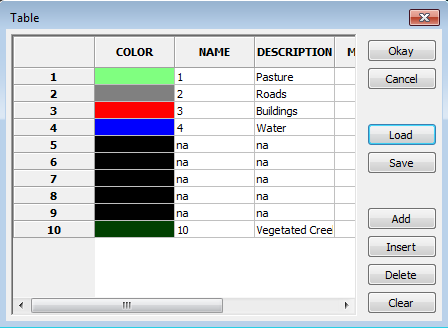
- In the Object Properties window uncheck the Outline setting in the Display Section and select Okay.
The region objects should now be colour coded based on the material ID attribute.
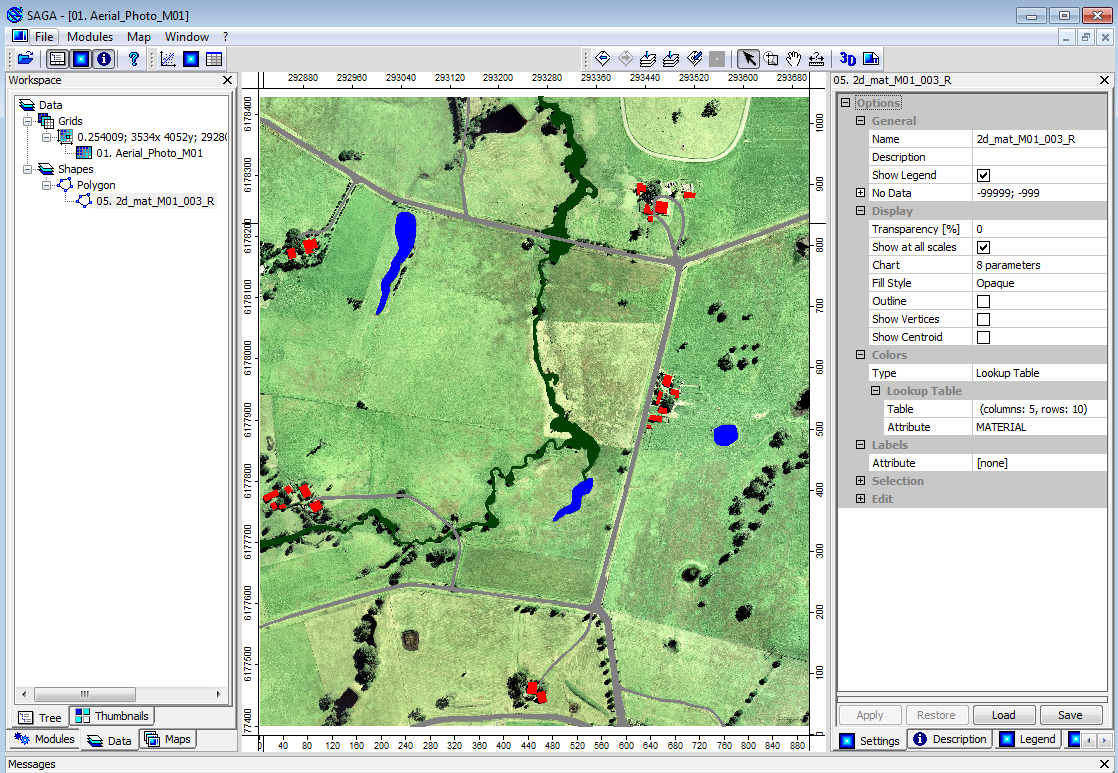
You may notice that the open pasture land-use that covers most of the study area has not been defined. This will be our default land use type. To save time we only need to define the areas where the land use differs from the default.
NOTE: The material attribute associated with each polygon is an integer number specific to a type of land-use. In the next step we link the material ID (integer) to a roughness coefficient. A table is provided below for reference.
Material ID Land Use Manning's n 1 Pasture 0.06 2 Roads 0.022 3 Buildings 3.0 4 Ponds and other water 0.03 10 Vegetated Creek 0.03


-
Alternatively if you would like to create your own material inputs rather than using the supplied dataset.
- Load the empty (template) file named 2d_mat_empty_R.shp from TUFLOW\Model\saga\empty\and save this in the TUFLOW\model\saga\ folder as as 2d_mat_M01_002_R.shp, add this to a map window with the aerial photo and edit the shape, digitise your own material polygons ensuring to assign a Material ID to each polygon using the land use types in the table above.
TUFLOW Geometry Control (TGC) File Updates
In order to read in the GIS layer created above. Enter the following text into the TGC file:
Set Mat == 1 ! Set every cell to a material ID of 1 (Pasture)
Read GIS Mat == mi\2d_mat_M01_002_R.shp
The Set Mat command sets all 2D cells to a Material ID of 1, which is used for pasture. The Read GIS Mat command updates any 2D cells that fall within the polygons in the 2d_mat layer with the Material attribute value of each polygon. As discussed for the cell code values in the previous section, the order of these Mat commands is important.
Conclusion
SAGA has been used to view or create a 2d_mat layer which defines the spatial extents of the land use categories. Material commands have been added to the TGC. Please return to Tutorial Module 1.