Tute M06 QGIS 2D lfsch Archive: Difference between revisions
Jump to navigation
Jump to search
Content deleted Content added
No edit summary |
Anne.Kolega (talk | contribs) |
||
| Line 43: | Line 43: | ||
</li> |
</li> |
||
Save your edits. The attributes are described completely in the <u>[https://docs.tuflow.com/classic-hpc/manual/latest/ TUFLOW Manual]</u>. Note that L1, L2, and L3 refer to varying layers, as described in Section 4.7.2.3. We are setting: |
Save your edits. The attributes are described completely in the <u>[https://docs.tuflow.com/classic-hpc/manual/latest/ TUFLOW Manual]</u>. Note that L1, L2, and L3 refer to varying layers, as described in Section 4.7.2.3. We are setting: |
||
* Enter an "Invert" value of 99999 to leave the Zpt levels unchanged ( |
* Enter an "Invert" value of 99999 to leave the Zpt levels unchanged (i.e. use the Zpt elevations modified by the 2d_zsh layer above). |
||
* Percentage blockage below the obvert to account for any blockages perpendicular to the direction of flow (in this case 6% to account for the average blockage due to the bridge piers). |
* Percentage blockage below the obvert to account for any blockages perpendicular to the direction of flow (in this case 6% to account for the average blockage due to the bridge piers). |
||
* A Form Loss Coefficient (FLC) below the obvert (in this case to account for sub-grid scale losses around piers). Note that the treatment of the FLC is different depending on the object used to define the flow constriction, i.e. a line or a polygon. The reason for this is to permit the flow constriction to be independent of the model cell size. See the <u>[https://docs.tuflow.com/classic-hpc/manual/latest/ TUFLOW Manual]</u> for more information. In this case, a polygon has been used and the FLC specified is the form loss ''per metre length'' in the predominant direction of flow. FLC values are dependent not on the flow width, but on the length of travel in the direction of flow. Our intention for this study, is to apply a total FLC of 0.3 below the obvert of the bridge. The value entered is therefore 0.3 / 15m which gives a value of 0.02. Refer to latter sections of this tutorial for guidance on how to check the applied FLC. |
* A Form Loss Coefficient (FLC) below the obvert (in this case to account for sub-grid scale losses around piers). Note that the treatment of the FLC is different depending on the object used to define the flow constriction, i.e. a line or a polygon. The reason for this is to permit the flow constriction to be independent of the model cell size. See the <u>[https://docs.tuflow.com/classic-hpc/manual/latest/ TUFLOW Manual]</u> for more information. In this case, a polygon has been used and the FLC specified is the form loss ''per metre length'' in the predominant direction of flow. FLC values are dependent not on the flow width, but on the length of travel in the direction of flow. Our intention for this study, is to apply a total FLC of 0.3 below the obvert of the bridge. The value entered is therefore 0.3 / 15m which gives a value of 0.02. Refer to latter sections of this tutorial for guidance on how to check the applied FLC. |
||
| Line 59: | Line 59: | ||
<br> |
<br> |
||
</li>[[File:M06_QGIS_2d_Lfcsh_P.png|1000px]] |
</li>[[File:M06_QGIS_2d_Lfcsh_P.png|1000px]] |
||
</li> |
|||
Add the following attributes to the new points: |
Add the following attributes to the new points: |
||
{| align="center" class="wikitable" width="25%" |
{| align="center" class="wikitable" width="25%" |
||
| Line 75: | Line 75: | ||
| L3_Depth || 1 || 1 |
| L3_Depth || 1 || 1 |
||
|} |
|} |
||
</li> '''''Tip:''''' |
</li> '''''Tip:''''' |
||
It is helpful to make the nodes along the polygon perimeter visible when snapping nodes along its boundary. Right click on '''2d_lfcsh_M06_bridge_001_R''' in the layers section and select properties. In the ''Style'' tab, select the Add Symbol layer tool [[File:Add Symbol.PNG]]. This adds a second symbol layer for the same file. For the first layer set the following options: |
|||
* Set the ''Symbol Layer Type'' to '''Outline: Marker Line''' |
* Set the ''Symbol Layer Type'' to '''Outline: Marker Line''' |
||
* Set the ''Marker placement'' to '''On Every Vertex''' |
* Set the ''Marker placement'' to '''On Every Vertex''' |
||
Latest revision as of 11:59, 2 April 2026
In the following steps we will be adjusting the elevations of the road crest as well as using a 2D zsh layer to lower the zpt elevations at the location of the 2D bridge.
Method
Lower the 2D Elevations Through the Bridge Opening
- Copy the 2d_zsh_M06_NorthRd_001_R from Module_Data\Module_06\M2D_Bridge folder into the TUFLOW\model\gis folder. We will use this layer to remove the road embankment at the 2D Bridge location.
- Open the newly saved layer 2d_zsh_M06_NorthRd_001_R in QGIS. Observe the single polygon contained in this shapefile. The polygon intersects the model zpts where we want to modify the elevations and remove the road embankment. We will remove the embankment by creating a GIS layer of point features that instruct TUFLOW to interpolate zpt elevations within the two shapes using the zpt elevations either side of the embankment. Additionally, the GIS layer will be designed such that TUFLOW does not use the zpt elevations intersecting the road embankment. Refer to the TUFLOW Manual for more information on this procedure.
- From the model\gis\empty\ folder, open the 2d_zsh_empty_P shapefile and save a copy called 2d_zsh_M06_NorthRd_001_P into the model\gis\ folder. Add this shapefile to QGIS, and close the 2d_zsh_empty_P shapefile. Right-click, and Toggle Editing on 2d_zsh_M06_NorthRd_001_P.
- Enable snapping to the layer 2d_zsh_M06_NorthRd_001_R by selecting Settings >>> Snapping Options.... Select the check-box next to the 2d_zsh_M06_NorthRd_001_R item. Set the tolerance to 5 map units (5 metres) and select apply. Create four points snapped to each of the polygon nodes that are circled in red in the second image below.
- We need to update the Z attribute of all four points. Open the attribute table for the 2d_zsh_M06_NorthRd_001_P shapefile.
- We can use the Field Calculator to update all attributes at once. Type -99999 into the field highlighted in the figure below. Ensure the Z field has been specified to the left and the operator has been set to =. Select Update All. You should see that the four points in the attribute table now show -99999 as their Z attribute. These points instruct TUFLOW to ignore the zpt elevations where the polygons intersect the embankment.
- Toggle Editing and save your changes when prompted. The 2D zsh at the bridge is now ready for TUFLOW.


Create the 2D Layered Flow Constriction
- Copy the two 2d_lfsch layers from the Module_Data\Module_06\2D_Bridge folder into the TUFLOW\model\gis folder.
- Start QGIS and open both of the newly saved shapefiles along with the the Digital Elevation Model provided in the Module_Data\DEMs folder. The 2D cells within the layered flow constriction shape are those that we are going to modify to represent the layers of the bridge in the 2D model domain. We will first define the form loss and blockage associated with three layers in the polygon object. After we have defined the layer characteristics on the 2d_lfsch polygon object, we will then define the elevations at which each layer occurs using points.
- Make sure the 2d_lfcsh_M06_bridge_001_R layer is visible and start editing the layer. Add the following attributes to the shape, leaving other attributes unchanged.
Attribute Value INVERT 99999 L1_PBLOCKA 6 L1_FLC 0.02 L2_pBlockage 100 L2_FLC 0.13 L3_PBLOCKA 10 L3_FLC 0.06 Notes Northern_Bridge
Save your edits. The attributes are described completely in the TUFLOW Manual. Note that L1, L2, and L3 refer to varying layers, as described in Section 4.7.2.3. We are setting:
- Enter an "Invert" value of 99999 to leave the Zpt levels unchanged (i.e. use the Zpt elevations modified by the 2d_zsh layer above).
- Percentage blockage below the obvert to account for any blockages perpendicular to the direction of flow (in this case 6% to account for the average blockage due to the bridge piers).
- A Form Loss Coefficient (FLC) below the obvert (in this case to account for sub-grid scale losses around piers). Note that the treatment of the FLC is different depending on the object used to define the flow constriction, i.e. a line or a polygon. The reason for this is to permit the flow constriction to be independent of the model cell size. See the TUFLOW Manual for more information. In this case, a polygon has been used and the FLC specified is the form loss per metre length in the predominant direction of flow. FLC values are dependent not on the flow width, but on the length of travel in the direction of flow. Our intention for this study, is to apply a total FLC of 0.3 below the obvert of the bridge. The value entered is therefore 0.3 / 15m which gives a value of 0.02. Refer to latter sections of this tutorial for guidance on how to check the applied FLC.
- Blockage from the obvert level to the top of level 2 (in this case 100% to account for the bridge deck).
- A form loss for level 2, the bridge deck (in this case a total of 1.95 to account for the deck and the water level rising to and exceeding the deck). The attribute value entered is 1.95 / 15m giving a value of 0.13.
- A blockage from the top of the deck to the lop of layer 3 (in this case 10% to account for fence rails above the deck).
- A form loss from the top of the deck to the top of layer 3 (in this case 0.06 to account for sub-gird scale losses around the railings).
- Open and make the 2d_lfcsh_M06_bridge_001_P layer editable, by right-clicking on the layer and selecting Toggle Editing. This layer contains point data snapped to nodes on the layered flow constriction. We are using points along the perimeter of the shape because their use allows us to vary the height and depth of layers 1 to 3 within a single shape if required. For simplicity, in this tutorial we have left the bridge soffit and deck at a constant height however the point functionality can be modified if you wish to experiment. Most of the points are already provided together with their attributes.
- Finish the lfcsh points layer by using the Add Feature tool
 to digitise two points snapped to the nodes at the locations shown in the second figure below. Begin by enabling snapping to the lfcsh region. Select Settings >>> Snapping Options... Select the check-box next to the 2d_lfcsh_M06_bridge_001_R item. Set the tolerance to 5 map units (5 metres) and select apply.
- Set the Symbol Layer Type to Outline: Marker Line
- Set the Marker placement to On Every Vertex
- The above edits and layers result in the below bridge configuration:
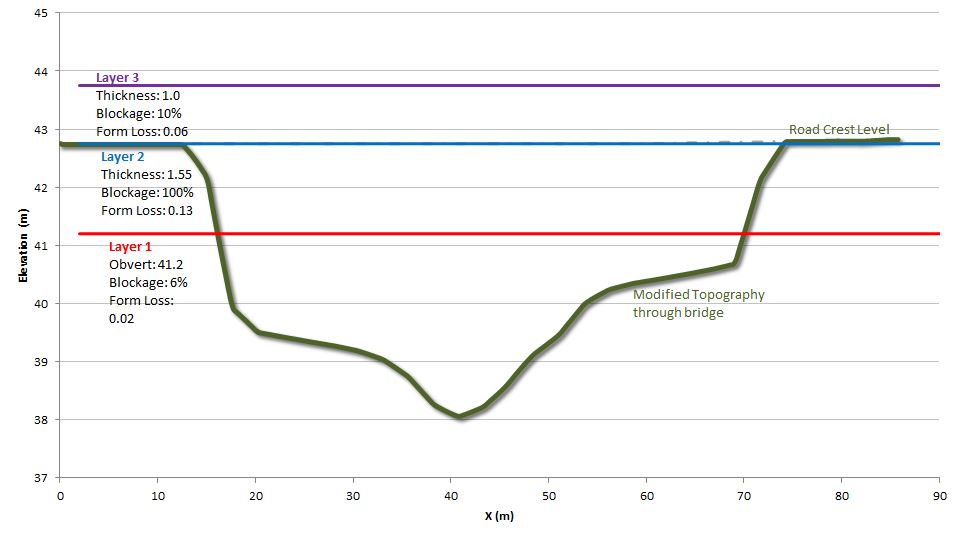
- Stop editing the layer by using the Toggle Editing button. When prompted, save the 2d_lfcsh_M06_bridge_001_P layer. The layered flow constriction shapefiles are now ready for use with the TUFLOW model.


 Add the following attributes to the new points:
| Attribute | Point 1 | Point 2 |
|---|---|---|
| Invert | 99999 | 99999 |
| L1_Obvert | 41.2 | 41.2 |
| L2_Depth | 1.55 | 1.55 |
| L3_Depth | 1 | 1 |
 . This adds a second symbol layer for the same file. For the first layer set the following options:


Conclusion
The layered flow constriction layers have been created to model the new bridge on the northern road. Please return to the main page of module 6.