MI Creating Google Earth KMZ: Difference between revisions
Jump to navigation
Jump to search
Content deleted Content added
Chris Huxley (talk | contribs) No edit summary |
No edit summary |
||
| (One intermediate revision by the same user not shown) | |||
| Line 10: | Line 10: | ||
<li> Set the export options to the folder location and filename you desire. <br> |
<li> Set the export options to the folder location and filename you desire. <br> |
||
[[File:MapInfo_to_Google_Earth_005.JPG|300px]]<br> |
[[File:MapInfo_to_Google_Earth_005.JPG|300px]]<br> |
||
</ol> |
|||
{{Tips Navigation |
|||
|uplink=[[Google_Earth_Tips| Back to Google Earth Tips]] |
|||
}} |
|||
{{Tips Navigation |
|||
|uplink=[[MapInfo_Tips| Back to MapInfo Tips]] |
|||
}} |
|||
Latest revision as of 11:41, 8 January 2026
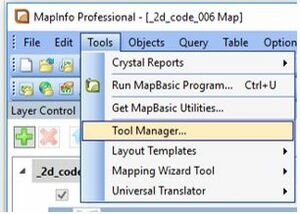
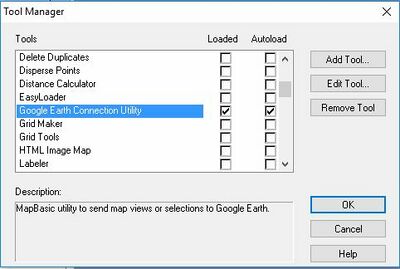
- Load the Google Earth Connection Utility using Tools >> Tool Manager...
- Open the MapInfo table containing the data you wish to export to Google Earth.
- Select the object or objects you wish to export to Google Earth.
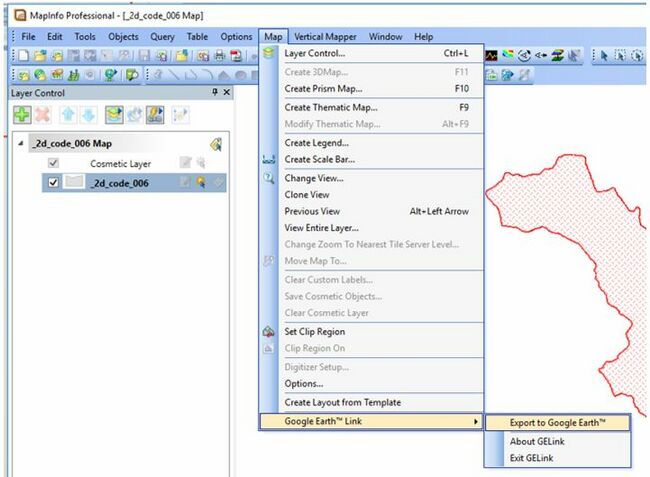
- Select "Export to Google Earth" via the Map Options.
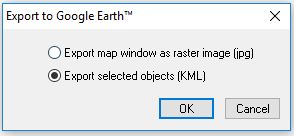
- Select "Export selected objects (KML)"
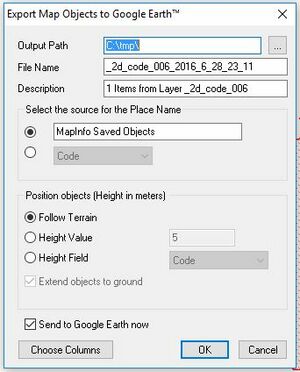
- Set the export options to the folder location and filename you desire.


| Up |
|---|
 Back to Google Earth Tips Back to Google Earth Tips
|
| Up |
|---|
| Back to MapInfo Tips
|