TUFLOW Viewer - Exporting An Animation: Difference between revisions
Ellis Symons (talk | contribs) No edit summary |
|||
| (5 intermediate revisions by 2 users not shown) | |||
| Line 1: | Line 1: | ||
===Tool Description=== |
===Tool Description=== |
||
Animations can be exported from TUFLOW Viewer for all accepted result types (map outputs, time series, particles etc). The process for animation creation is the same regardless of the result type. The tool will export an image for each timestep in a given range and then use ffmpeg to convert the images into a video. TUFLOW Viewer offers the additional functionality of adding dynamic plots and dynamic time text. It also offers convenience functionality for adding items such as a legend, images etc, however these can also be added manually in the print layout.<br> |
Animations can be exported from TUFLOW Viewer for all accepted result types (map outputs, time series, particles etc). The process for animation creation is the same regardless of the result type. The tool will export an image for each timestep in a given range and then use ffmpeg to convert the images into a video. TUFLOW Viewer offers the additional functionality of adding dynamic plots and dynamic time text. It also offers convenience functionality for adding items such as a legend, images etc, however these can also be added manually in the print layout.<br> |
||
<b>Note:</b> Since v3.10, it is possible to select a netCDF grid result for animation or a GPKG time series result (in the active scalar result dropdown). The GPKG time series result will be temporally updated if present in the map window and not required to be selected for it to update (e.g. if a 2D result is selected instead), however selecting the GPKG time series simply allows users to animate the results if no 2D results are desired. |
|||
The following steps through the process of creating an animation with TUFLOW Viewer.<br> |
The following steps through the process of creating an animation with TUFLOW Viewer.<br> |
||
| Line 8: | Line 10: | ||
* TUFLOW Viewer will take care of all the interaction with ffmpeg and the user is not required to learn how to use ffmpeg |
* TUFLOW Viewer will take care of all the interaction with ffmpeg and the user is not required to learn how to use ffmpeg |
||
<li> Open the export animation tool via '''Export >> Export Animation'''<br> |
<li> Open the export animation tool via '''Export >> Export Animation'''<br> |
||
[[File: |
[[File: TUFLOW Viewer_Exporting an Animation_1a.png]] |
||
<li> Set the '''General''' settings<br> |
<li> Set the '''General''' settings<br> |
||
[[File: |
[[File: TUFLOW Viewer_Exporting an Animation_2a.png]]<br> |
||
<ol> |
<ol> |
||
<li> '''Start Time''' - The output time to start on |
<li> '''Start Time''' - The output time to start on |
||
| Line 31: | Line 33: | ||
<li> Use '''Custom Layout''' using the template file |
<li> Use '''Custom Layout''' using the template file |
||
</ol> |
</ol> |
||
[[File: TUFLOW Viewer_Exporting an Animation_3a.png]] |
|||
[[File: Animation_Export_Animation_Layout_Settings.PNG]] |
|||
<li> Assuming the above workflow, the '''Default Layout''' lets the user specify some items to add to the layout. Starting with the first three, each of these has the ability to add an additional label to the item and set properties such as the font, background colour, background border, and position in the layout (all of these properties can be changed later in the print layout): |
<li> Assuming the above workflow, the '''Default Layout''' lets the user specify some items to add to the layout. Starting with the first three, each of these has the ability to add an additional label to the item and set properties such as the font, background colour, background border, and position in the layout (all of these properties can be changed later in the print layout): |
||
<ol> |
<ol> |
||
| Line 38: | Line 40: | ||
<li> '''Legend''' - A legend item - can be added / modified later in the print layout<br> |
<li> '''Legend''' - A legend item - can be added / modified later in the print layout<br> |
||
</ol> |
</ol> |
||
[[File: |
[[File: TUFLOW Viewer_Exporting an Animation_4a.png | 450px]] |
||
<li> The next layout item is '''Plots'''. These are dynamic plot objects that will be added to the animation. To add a plot, the plot must already be available in one of the TUFLOW Viewer plotting windows<br> |
<li> The next layout item is '''Plots'''. These are dynamic plot objects that will be added to the animation. To add a plot, the plot must already be available in one of the TUFLOW Viewer plotting windows<br> |
||
[[File: |
[[File: TUFLOW Viewer_Exporting an Animation_5a.png | 450px]] |
||
<ol> |
<ol> |
||
<li> Use the add button [[File: Animation_add_button.PNG | 20px]] to add a plot |
<li> Use the add button [[File: Animation_add_button.PNG | 20px]] to add a plot |
||
| Line 48: | Line 50: | ||
<li> Set the plot properties. When the user clicks this button, TUFLOW Viewer will calculate the min/max for the plot axes. For lines on the cross-section and vertical profile plots, this can take some time as TUFLOW Viewer will need to step through every timestep to find the min/max values.<br> |
<li> Set the plot properties. When the user clicks this button, TUFLOW Viewer will calculate the min/max for the plot axes. For lines on the cross-section and vertical profile plots, this can take some time as TUFLOW Viewer will need to step through every timestep to find the min/max values.<br> |
||
: ''<b>Note: since v3.3 cross-section plots will now longer trigger an automatic min/max calculation</b>'' |
: ''<b>Note: since v3.3 cross-section plots will now longer trigger an automatic min/max calculation</b>'' |
||
[[File: |
[[File: TUFLOW Viewer_Exporting an Animation_6a.png | 450px]] |
||
<ol> |
<ol> |
||
<li> '''Plot Title''' - can be useful to indicate where the plot was extracted from by aligning the title with labels in the print layout |
<li> '''Plot Title''' - can be useful to indicate where the plot was extracted from by aligning the title with labels in the print layout |
||
| Line 82: | Line 84: | ||
<li> Once all layout items have been chosen and added, clicking '''Preview''' will allow the user to view how it's going to look<br> |
<li> Once all layout items have been chosen and added, clicking '''Preview''' will allow the user to view how it's going to look<br> |
||
[[File: Animation_Preview_Button.PNG | 450px]] |
[[File: Animation_Preview_Button.PNG | 450px]] |
||
<li> Clicking the preview button will open up the layout in the QGIS print layout. |
<li> Clicking the preview button will open up the layout in the QGIS print layout. If any of the plot properties have not been manually set by the user or previously calculated, they will now be automatically calculated as the first stage of generating the animation or animation preview.<br> |
||
: ''<b>Note: Since v3.3 if there are any cross-section plots that have not been set previously, the user will now be given the option to auto calculate the limits (which can be a slow process), use the limits in the cross-section/long profile plotting window in TUFLOW Viewer, or to cancel and go set the plot axis limits manually.</b>''<br> |
|||
In this layout, the user can modify, move, resize, add, and remove items in the layout. The following items must retain their IDs: |
|||
* The dynamic time text must have an ID 'time' |
* The dynamic time text must have an ID 'time' |
||
* Dynamic plots will have an ID 'plot_<n>' where <n> is the plot index (starting at index 0) based on the order they were added in the '''Default Layout''' |
* Dynamic plots will have an ID 'plot_<n>' where <n> is the plot index (starting at index 0) based on the order they were added in the '''Default Layout''' |
||
Latest revision as of 15:40, 24 June 2025
Tool Description
Animations can be exported from TUFLOW Viewer for all accepted result types (map outputs, time series, particles etc). The process for animation creation is the same regardless of the result type. The tool will export an image for each timestep in a given range and then use ffmpeg to convert the images into a video. TUFLOW Viewer offers the additional functionality of adding dynamic plots and dynamic time text. It also offers convenience functionality for adding items such as a legend, images etc, however these can also be added manually in the print layout.
Note: Since v3.10, it is possible to select a netCDF grid result for animation or a GPKG time series result (in the active scalar result dropdown). The GPKG time series result will be temporally updated if present in the map window and not required to be selected for it to update (e.g. if a 2D result is selected instead), however selecting the GPKG time series simply allows users to animate the results if no 2D results are desired.
The following steps through the process of creating an animation with TUFLOW Viewer.
- Download ffmpeg - https://ffmpeg.org/download.html
- ffmpeg is a free and powerful (and open source) video converter and manipulator. TUFLOW Viewer will call ffmpeg as the last step to create the video
- TUFLOW Viewer will take care of all the interaction with ffmpeg and the user is not required to learn how to use ffmpeg
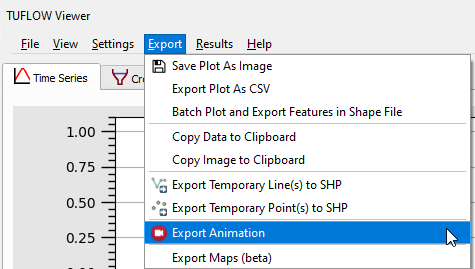
- Open the export animation tool via Export >> Export Animation
- Set the General settings
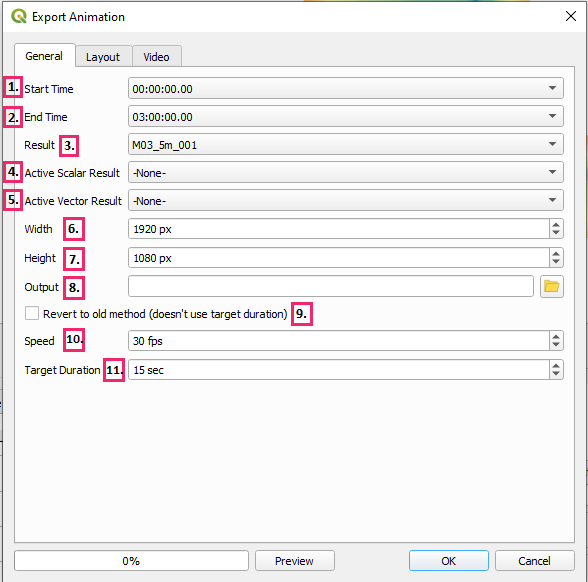
- Start Time - The output time to start on
- End Time - The output time to end on
- Result - The result to animate - currently can only animate one result (result types with the same name (time series, particles - particles will have _ptm in its name) will be included in the same animation
- Active Scalar Result - Active scalar result type to animate - can only choose one, can select -None- to not use any
- Active Vector Result - Active vector result type to animate - can only choose one, can select -None- to not use any
- Width - Animation video width - can be changed later in the print layout - will be overriden by template if one is specified
- Height - Animation video height - can be changed later in the print layout - will be overriden by template if one is specified
- Output - Output location of video file
- Revert to old method - Kept for backward compatibility - will ignore Target Duration and the duration will be determined by number of output timesteps (i.e. the frames) and the speed
- Speed - Animation video frames per second (fps) - unless using the 'old method' this will not affect the video duration. Will not interpolate between frames, however can still produce a smoother video in some situations over the 'old method'
- Target Duration - Animation duration - this setting is ignored if using the 'old method'
- On the layout tab, the user has the option to use a Default Layout or a Custom Layout. A cusom layout uses a Print Layout Template (.qpt) as an input. The recommended workflow is to:
- Use the Default Layout as a starting point
- Customise the layout using the print layout in QGIS
- Export the print layout as a template (.qpt)
- Use Custom Layout using the template file
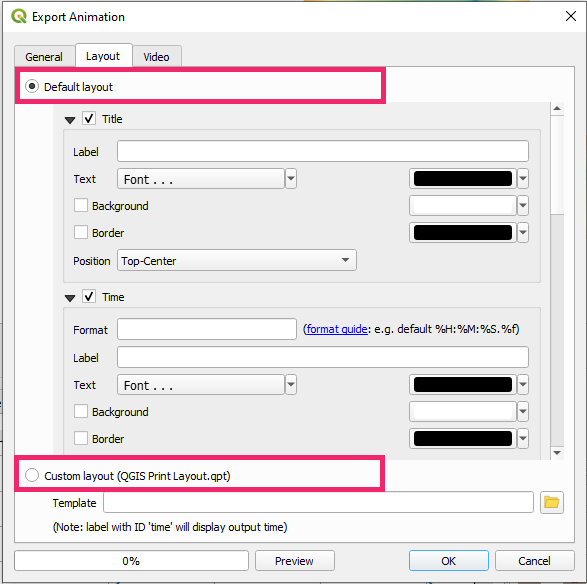
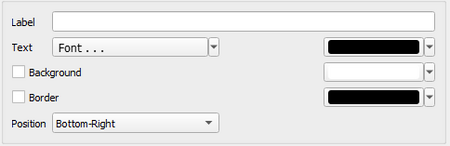
- Assuming the above workflow, the Default Layout lets the user specify some items to add to the layout. Starting with the first three, each of these has the ability to add an additional label to the item and set properties such as the font, background colour, background border, and position in the layout (all of these properties can be changed later in the print layout):
- Title - Text that will be added to the layout - can be added later in the print layout
- Time - Dynamic text to show the current time - will use date-time format if Show as dates is on. This can be added later, however it's recommended to add it through the Default Layout. It can be added later manually in the print layout by adding a label item and giving it an id 'time' (note id is not the same as the label text).
- Legend - A legend item - can be added / modified later in the print layout
- The next layout item is Plots. These are dynamic plot objects that will be added to the animation. To add a plot, the plot must already be available in one of the TUFLOW Viewer plotting windows
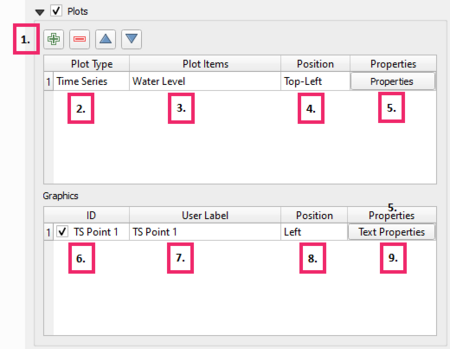
- Use the add button
 to add a plot
- Select the source of the plot lines that will be added (i.e. time series, cross section etc.)
- Select the plotting lines to add to the plot. Users can add more than one line or split the lines onto multiple plots. If the line is on secondary axis, this will be retained unless the need for the secondary axis becomes redundant (e.g. it's the only line on the plot)
- Set the position. This is only the starting position and can be moved later in the print layout
- Set the plot properties. When the user clicks this button, TUFLOW Viewer will calculate the min/max for the plot axes. For lines on the cross-section and vertical profile plots, this can take some time as TUFLOW Viewer will need to step through every timestep to find the min/max values.
- Note: since v3.3 cross-section plots will now longer trigger an automatic min/max calculation
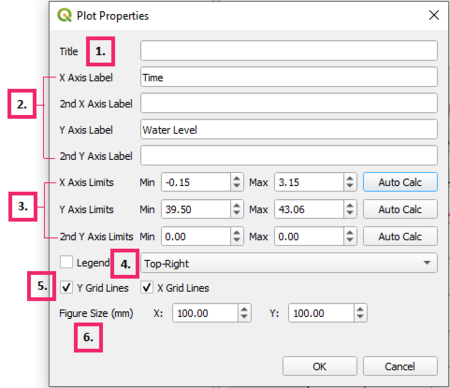
- Plot Title - can be useful to indicate where the plot was extracted from by aligning the title with labels in the print layout
- Axis labels - will be populated with default values
- Axis Limits - will be populated with calculated extents and the extents can be recalculated using Auto Calc
- Note: since v3.3 cross-section plots no longer have the option to auto calculate min/max. An option to pull the current limits from the cross-section/long profile plot in TUFLOW Viewer replaces the auto calculate option. Users are able to adjust the limits of the plot in TUFLOW Viewer without having to close the Export Animation dialog.
- Legend - legend can be added or removed. Legend location options are not as extensive as the TUFLOW Viewer itself, most notably 'Auto' is not available. 'Auto' can cause the legend to change location during the animation which is undesirable behaviour.
- Grid lines - can be toggled on/off
- Figure Size - will default to 100 x 100. This can be changed in the print layout and the plot will be re-rendered prior to the animation to fit the desired size.
- If the plot point/line was drawn by the user (not a vector layer), a graphic object will be added to the appropriate location to indicate the extraction location. This can be toggled off by unchecking this box.
- Label for the graphic object - this can be changed later in the print layout
- Label position relative to the graphic object
- Label properties:
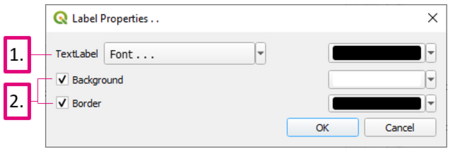
- Label font settings
- Background and box settings
- Use the add button
- Last item in the Default Layout options is the ability add images to the layout. Adding images can also be added / edited later in the print layout
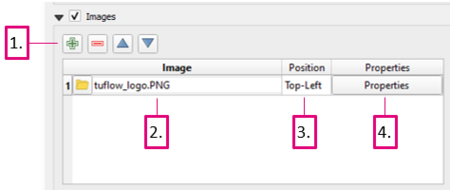
- Use the add button to add an image
- Browse or copy the file path location of the image to be added
- Position - this is the starting position and can be changed later in the print layout
- Image properties:
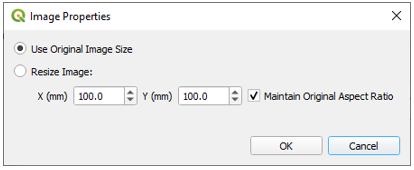
- Image size options - this can be changed later in the print layout
- Use the add button
- Once all layout items have been chosen and added, clicking Preview will allow the user to view how it's going to look
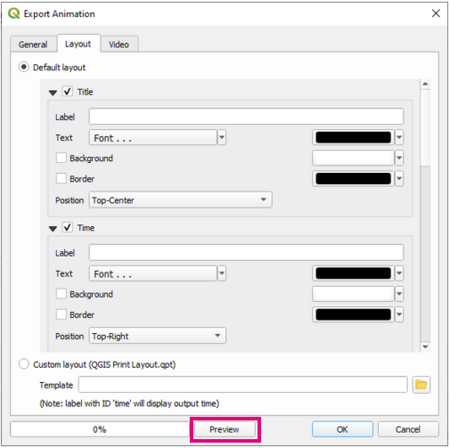
- Clicking the preview button will open up the layout in the QGIS print layout. If any of the plot properties have not been manually set by the user or previously calculated, they will now be automatically calculated as the first stage of generating the animation or animation preview.
- Note: Since v3.3 if there are any cross-section plots that have not been set previously, the user will now be given the option to auto calculate the limits (which can be a slow process), use the limits in the cross-section/long profile plotting window in TUFLOW Viewer, or to cancel and go set the plot axis limits manually.
- The dynamic time text must have an ID 'time'
- Dynamic plots will have an ID 'plot_<n>' where <n> is the plot index (starting at index 0) based on the order they were added in the Default Layout
- The graphic objects have an ID corresponding to their ID in the Default Layout
- All plot items are listed in the 'Items' box and their corresponding ID. Items can be selected in this box to show their properties and allow users to edit them (they can also be selected in the print layout).
- Item properties can be edited using the Item Properties tab below the 'Items' box.
- Use the tool Interactly Edit Map Extent
 to edit the zoom and position of the map in the print layout
 - When the map zoom and extents are adjusted the graphic objects will no longer be in the correct position, however that's ok because the next time either the preview is clicked or if the animation tool is run, they will be placed in their correct posistion
- Use the tool Select / Move Item
 to move and resize items in the print layout
 - Use the Resize Layout to automatically resize the layout to the items
- Use Add Item menu to add other custom items such as a north arrow or scale bar
- Note: Since v3.3 if there are any cross-section plots that have not been set previously, the user will now be given the option to auto calculate the limits (which can be a slow process), use the limits in the cross-section/long profile plotting window in TUFLOW Viewer, or to cancel and go set the plot axis limits manually.
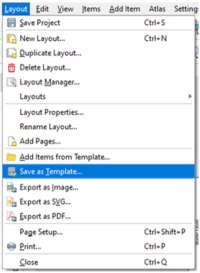
- Save the print layout as a template (.qpt) via the menu Layout >> Save as Template
- Close the print layout
- Select the Custom Layout radio button in the layout tab in the export animation dialog and browse the saved template file (.qpt)
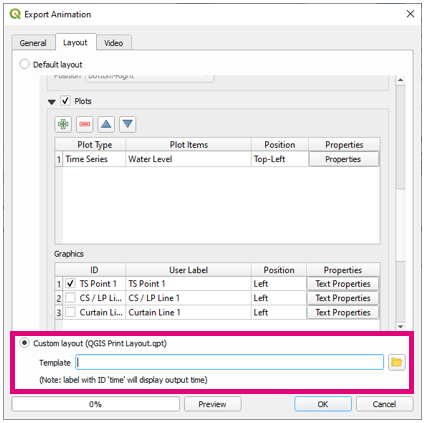
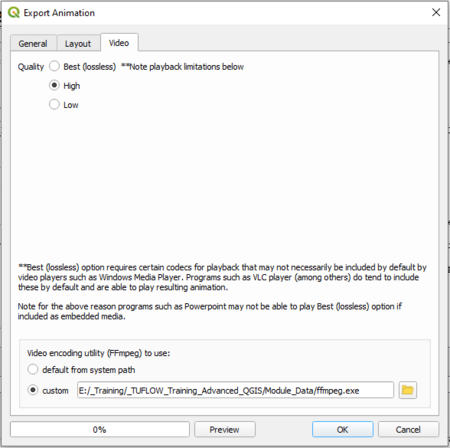
Note that all the default layout items will be overriden with the Custom Layout except for the plots. The plot position and size from the custom layout template will be used, however the plot content will still be taken from the Default Layout. - Finally on the Video tab select the video quality (taking note of the playback limitations) and use the custom ffmpeg location and browse to the downloaded ffmpeg.exe
- The Preview button can be used multiple times to check that the layout is correctly being imported from the template
- Click Ok to run the tool and export the animation


Examples
The above steps serve as an example of how to create an animation. There is also a youtube video at the below link:
Create an Animation With Embedded Dynamic Plots
| Up |
|---|
 Back to TUFLOW Viewer Main Page Back to TUFLOW Viewer Main Page
|