WIBU Network Dongle Connectivity: Difference between revisions
Created page with "=Introduction= This page contains help for when you are unable to run TUFLOW from a network dongle. =Check that the network server is configured correctly= In order to be ab..." |
No edit summary |
||
| Line 10: | Line 10: | ||
<li>Extract the files from the .zip file. In the extract folder, there will be two .exe (executable files). The iSP is the single precision version and iDP is double precision, for the purpose of checking the licence, it does not matter at all! Double click on either of the executables. When TUFLOW is started with an input model file, TUFLOW will perform a licence check and the pause.</li> |
<li>Extract the files from the .zip file. In the extract folder, there will be two .exe (executable files). The iSP is the single precision version and iDP is double precision, for the purpose of checking the licence, it does not matter at all! Double click on either of the executables. When TUFLOW is started with an input model file, TUFLOW will perform a licence check and the pause.</li> |
||
<li>If the network licence is correctly being detected, the output window will display the below.</li> |
<li>If the network licence is correctly being detected, the output window will display the below.</li> |
||
</ol> |
|||
'''Note: The licence below has ALL module enabled, your licence may not have all of these, however some should be available. |
|||
[[File:CM LAN licence check.jpg|800px]] |
|||
=Configure client access= |
|||
For each client machine accessing the TUFLOW dongle it will need to be configured. Essentially it needs to be told where to go to look for a dongle. Instructions are on the <u>[[WIBU_Configure_Network_Client | WIBU Configure Network Client]]</u> page. |
|||
=Check Connectivity to server= |
|||
A easy way to check for connectivity between the client computer and the licence server is to ping the server from the client machine. This can be done by: |
|||
<ol> |
|||
<li>Open a command prompt on the client computer (Start >> Run and then type in '''cmd''' or simpy type '''cmd''' into the search option in the start menu</li> |
|||
<li>Enter the command <tt>ping <server></tt> where <server> is the IP address or server name as entered into the CodeMeter server search list. For example:<br> |
|||
<tt>ping 192.168.1.1</tt><br> |
|||
<tt>ping TUFLOW_server</tt><br> |
|||
If successful a the output will show that a reply is received as per the image below.<br> |
|||
[[File:CM ping server.jpg]] |
|||
<br> |
|||
<br> |
|||
If no reply is received, there appears to be a connectivity or firewall issue preventing access between the client and the server. Resolving this should hopefully allow the client computer to access the TUFLOW server. |
|||
</li> |
|||
</ol> |
|||
=Check AV and Port Blocking= |
|||
If the above steps have been performed and the client computer is still unable to access the network licence, the most likely reason is that there is anti-virus or a firewall blocking access. By default the Code Meter software uses port 22350 for communication. This can be changed in the '''Configuration >> Server''' tab in CodeMeter webadmin.<br> |
|||
Temporarily disabling any antivirus on the computers could be used to confirm if this is the issue, if so, an exception would need to be added to your AV software. |
|||
=Other= |
|||
If you are unable to get TUFLOW connecting to a network licence please contact support@tuflow.com! |
|||
Revision as of 15:53, 14 April 2015
Introduction
This page contains help for when you are unable to run TUFLOW from a network dongle.
Check that the network server is configured correctly
In order to be able to access a network dongle, the dongle must be in a machine which is configured as a network server. For steps in configuring this please see here: Configure Wibu Server. In particularly the check box Run Network Server must be enabled on this machine.
Check that TUFLOW can find a licence on the server
If the server has been correctly configured, the next step should be to ensure that TUFLOW can find the network licence from the server. If you are unable to run TUFLOW on the server, you will be unable to run over a network connection!
Even if you do not plan to use TUFLOW on the server, this is a very good diagnostic step. TUFLOW does not need to be installed, as it runs as a stand-alone console application. To check that TUFLOW can find a licence on the server, the steps are:
- Download the latest version of TUFLOW from the TUFLOW downloads page.
- Extract the files from the .zip file. In the extract folder, there will be two .exe (executable files). The iSP is the single precision version and iDP is double precision, for the purpose of checking the licence, it does not matter at all! Double click on either of the executables. When TUFLOW is started with an input model file, TUFLOW will perform a licence check and the pause.
- If the network licence is correctly being detected, the output window will display the below.
Note: The licence below has ALL module enabled, your licence may not have all of these, however some should be available.

Configure client access
For each client machine accessing the TUFLOW dongle it will need to be configured. Essentially it needs to be told where to go to look for a dongle. Instructions are on the WIBU Configure Network Client page.
Check Connectivity to server
A easy way to check for connectivity between the client computer and the licence server is to ping the server from the client machine. This can be done by:
- Open a command prompt on the client computer (Start >> Run and then type in cmd or simpy type cmd into the search option in the start menu
- Enter the command ping <server> where <server> is the IP address or server name as entered into the CodeMeter server search list. For example:
ping 192.168.1.1
ping TUFLOW_server
If successful a the output will show that a reply is received as per the image below.
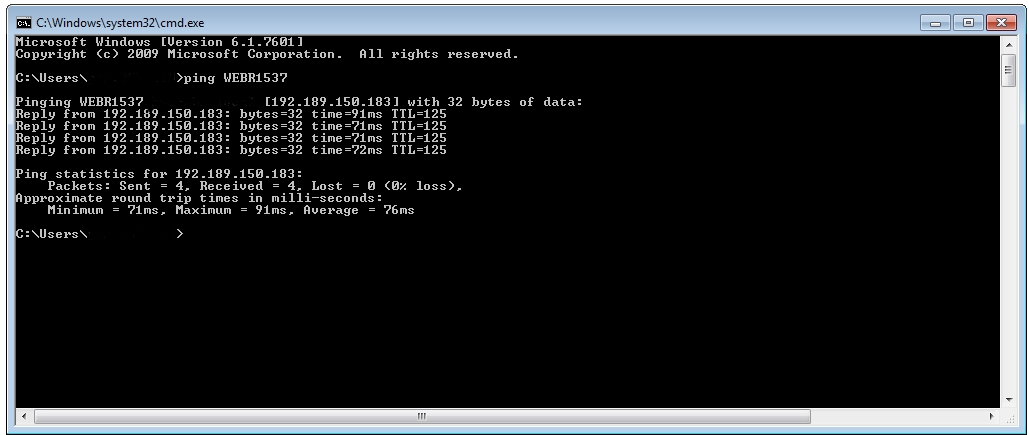
If no reply is received, there appears to be a connectivity or firewall issue preventing access between the client and the server. Resolving this should hopefully allow the client computer to access the TUFLOW server.

Check AV and Port Blocking
If the above steps have been performed and the client computer is still unable to access the network licence, the most likely reason is that there is anti-virus or a firewall blocking access. By default the Code Meter software uses port 22350 for communication. This can be changed in the Configuration >> Server tab in CodeMeter webadmin.
Temporarily disabling any antivirus on the computers could be used to confirm if this is the issue, if so, an exception would need to be added to your AV software.
Other
If you are unable to get TUFLOW connecting to a network licence please contact support@tuflow.com!