Tutorial M03 GIS Inputs QGIS: Difference between revisions
Jump to navigation
Jump to search
Content deleted Content added
| Line 28: | Line 28: | ||
:*Select Layer > Add layer > Add Vector Layer and navigate to the '''Module_03\TUFLOW\model\gis''' folder. |
:*Select Layer > Add layer > Add Vector Layer and navigate to the '''Module_03\TUFLOW\model\gis''' folder. |
||
:*Select ‘Apply TUFLOW Styles to Open Layers’. |
:*Select ‘Apply TUFLOW Styles to Open Layers’. |
||
:*Right click on the layer and turn on 'Show Labels'. |
:*Right click on the '''1d_nwk_M03_culverts_001_L''' layer and turn on 'Show Labels'. |
||
<li>The 1d_nwk layer represents culverts placed under the road embankments crossing the flow paths. See Table 5-3 of the <u>[https://downloads.tuflow.com/_archive/TUFLOW/Releases/2018-03/TUFLOW%20Manual.2018-03.pdf 2018 TUFLOW Manual]</u> for more information on the attributes.<br> |
<li>The 1d_nwk layer represents culverts placed under the road embankments crossing the flow paths. See Table 5-3 of the <u>[https://downloads.tuflow.com/_archive/TUFLOW/Releases/2018-03/TUFLOW%20Manual.2018-03.pdf 2018 TUFLOW Manual]</u> for more information on the attributes.<br> |
||
<br> |
<br> |
||
| Line 52: | Line 52: | ||
:*Right click anywhere in the Toolbar panel and tick on the Snapping Toolbar. |
:*Right click anywhere in the Toolbar panel and tick on the Snapping Toolbar. |
||
:*Select the magnet icon 'Enable Snapping' and 'All Layers > Advanced Configuration', an eye icon appears. |
:*Select the magnet icon 'Enable Snapping' and 'All Layers > Advanced Configuration', an eye icon appears. |
||
:*Select the eye icon 'Edit Advanced Configuration' and tick the '1d_nwk_M03_culverts_001_L'. <br> |
:*Select the eye icon 'Edit Advanced Configuration' and tick the '''1d_nwk_M03_culverts_001_L'''. <br> |
||
<li>Right click on the |
<li>Right click on the '''2d_bc_M03_culverts_001_P''' and toggle on editing. |
||
<li>Select 'Add Point Feature'. |
<li>Select 'Add Point Feature'. |
||
<li>Digitise a point snapped to upstream end and downstream end of the 1d_nwk layer. |
<li>Digitise a point snapped to upstream end and downstream end of the 1d_nwk layer. |
||
Revision as of 11:29, 27 April 2023
Introduction
QGIS is used to create, import and view input data.
TUFLOW Project Re-Configuration
Re-configure the TUFLOW project to use and save empty files to the correct folder:
- Go to Plugins > TUFLOW > Editing > Configure / Create TUFLOW Project.
- Change the folder which contains TUFLOW to the Module_03 folder. This is the only change required, the model folder structure and template empty files are supplied from previous model.
Note: The 'results' and 'check' folder get automatically created when the TUFLOW model is run.
- Click 'OK' and save the workspace by selecting Project > Save As.
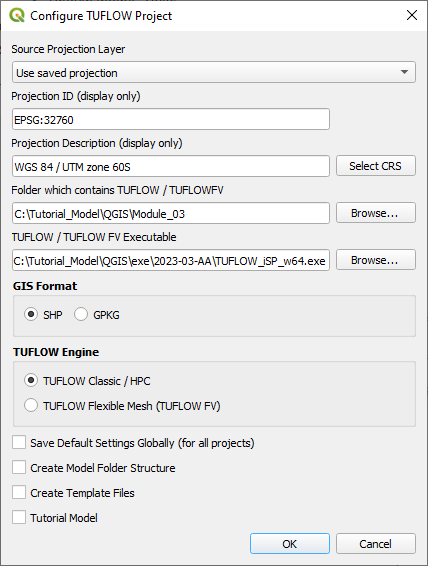
- Set the workspace projection to EPSG:32760, see Set the Projection.

Method
Navigate to the Module_03\Tutorial_Data folder. Copy and save all the below layers into the Module_03\TUFLOW\model\gis folder:
- 1d_nwk_M03_culverts_001_L
- 2d_bc_M03_culverts_001_L
- 2d_bc_M03_culverts_001_R
Investigate the supplied files:
- Open the files, either:
- Drag and drop the .shp files into the QGIS workspace; or
- Select Layer > Add layer > Add Vector Layer and navigate to the Module_03\TUFLOW\model\gis folder.
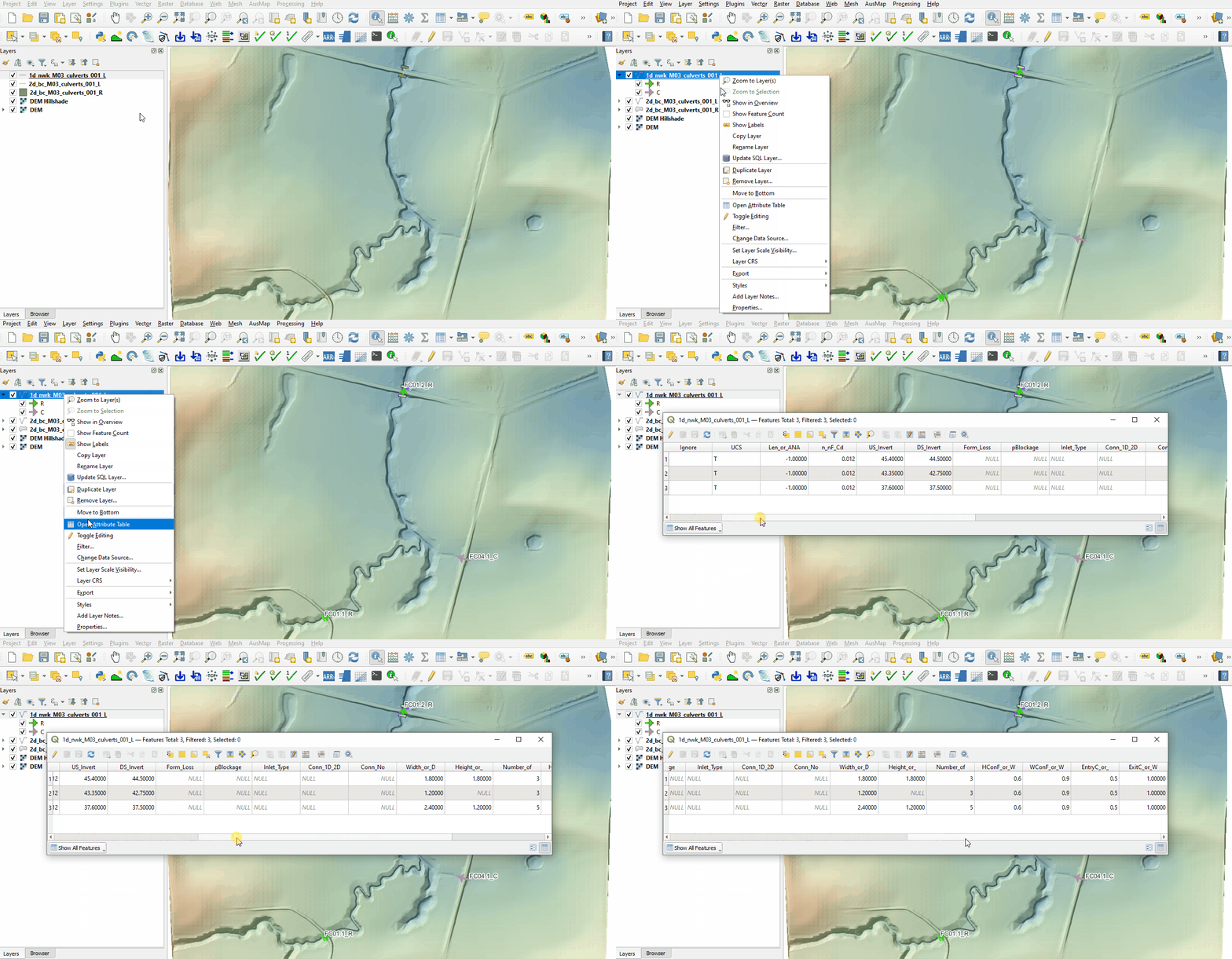
- Select ‘Apply TUFLOW Styles to Open Layers’.
- Right click on the 1d_nwk_M03_culverts_001_L layer and turn on 'Show Labels'.
- The 1d_nwk layer represents culverts placed under the road embankments crossing the flow paths. See Table 5-3 of the 2018 TUFLOW Manual for more information on the attributes.
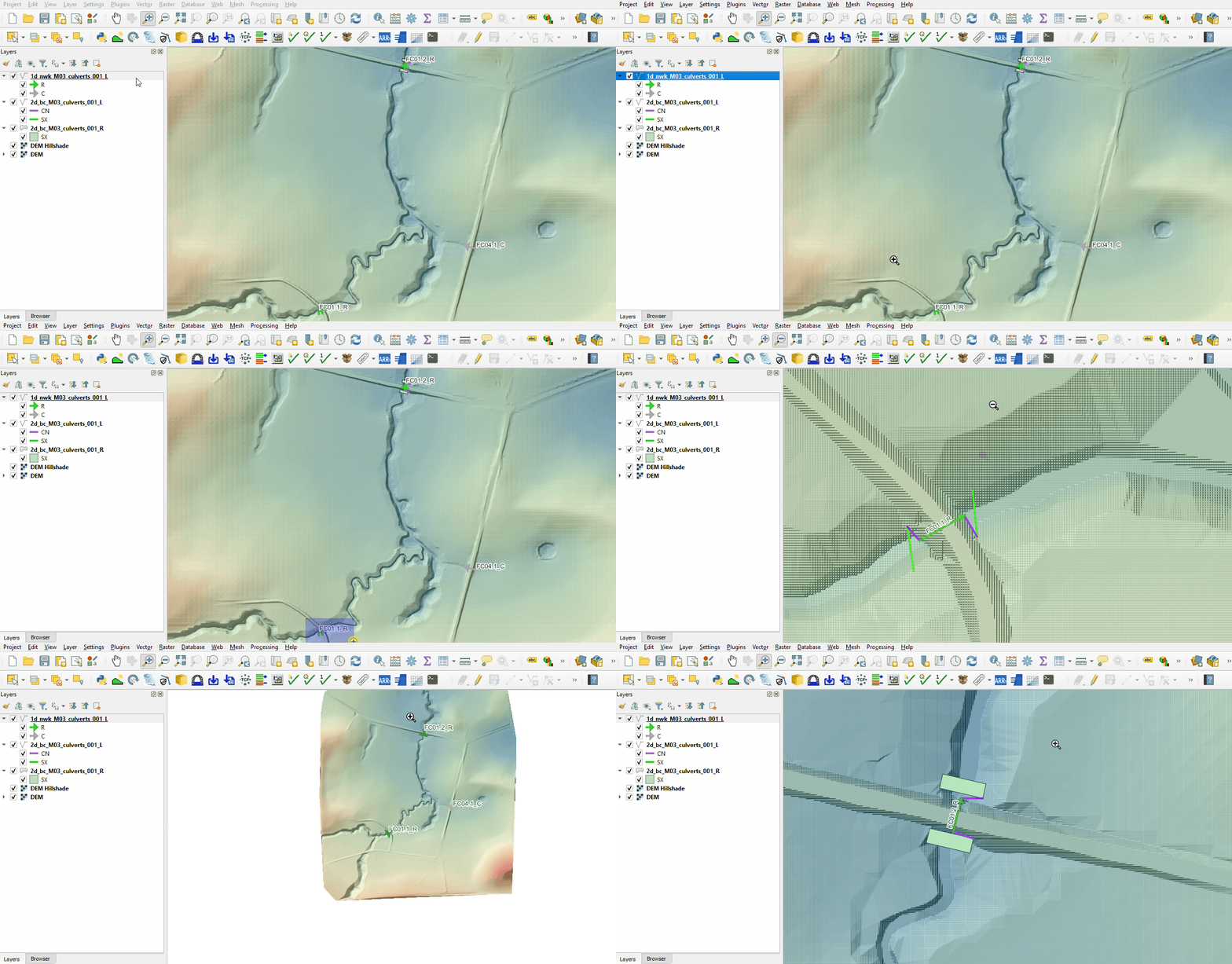
- The 2d_bc layers use SX type connection to embed 1D networks into the 2D domain. It removes water out of the upstream cell(s) and deposits water back at the downstream cell(s). Both region and line SX links need a CN (connection) line snapped from the upstream and downstream vertex of the 1D network line to the SX boundary.


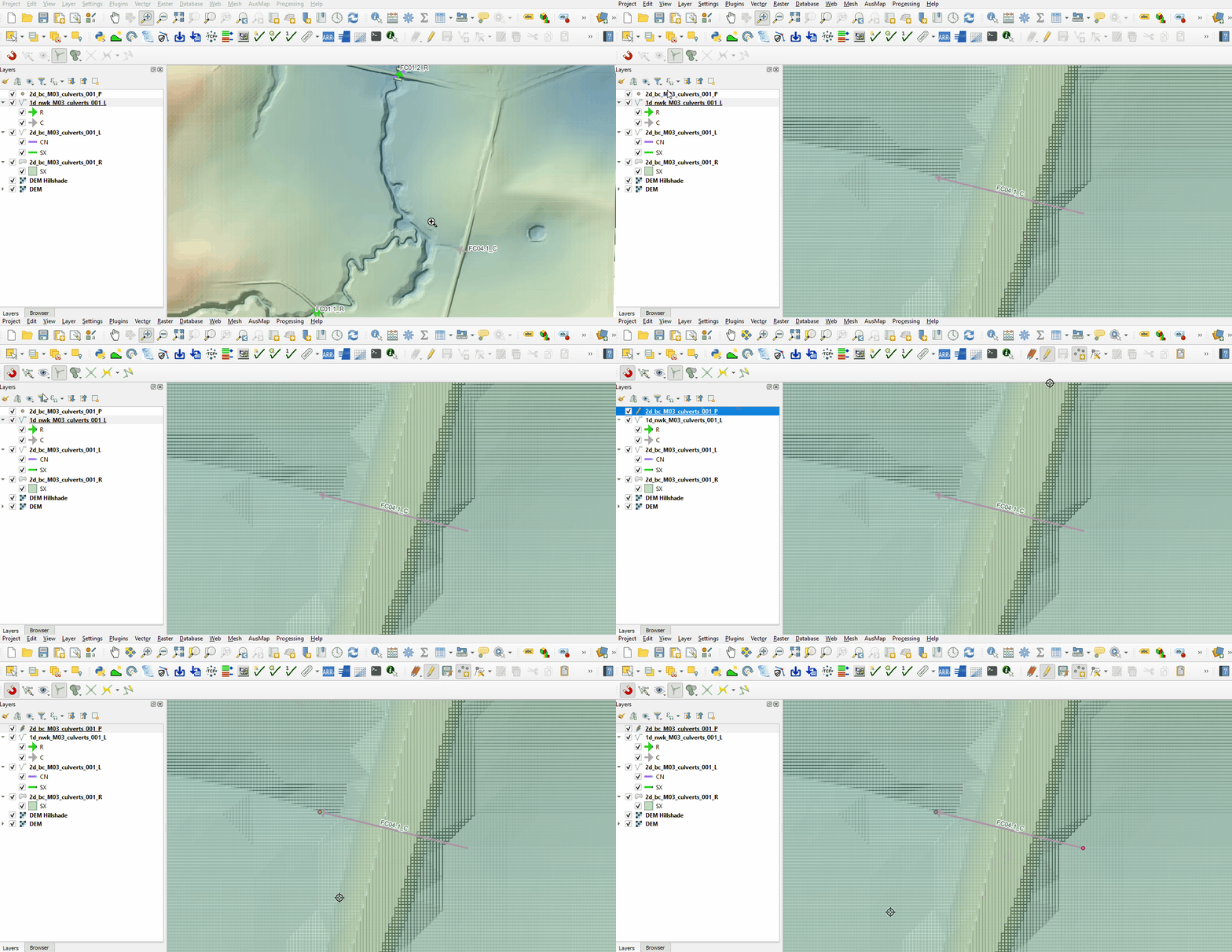
Connect the last 1D network culvert to 2D domain:
- Click on the ‘Import Empty File’ tool from the TUFLOW plugin toolbar.
- Select '2d_bc' from the Empty Type list.
- In the Run ID box write: 'M03_culverts_001'.
- Tick the 'Points' Geometry Type and hit 'OK'. The 2d_bc appears in the Layers panel.
- Zoom to the unconnected 1D culvert.
- Enable snapping, it is important the points are snapped to the network line.
- Right click anywhere in the Toolbar panel and tick on the Snapping Toolbar.
- Select the magnet icon 'Enable Snapping' and 'All Layers > Advanced Configuration', an eye icon appears.
- Select the eye icon 'Edit Advanced Configuration' and tick the 1d_nwk_M03_culverts_001_L.
- Right click on the 2d_bc_M03_culverts_001_P and toggle on editing.
- Select 'Add Point Feature'.
- Digitise a point snapped to upstream end and downstream end of the 1d_nwk layer.
- When terminating each point, an attributes dialog is displayed. Enter Type as 'SX'.
- Turn off editing to save the edits.
- The point SX connection selects a single cell at the upstream and downstream of the 1d_nwk layer.

Conclusion
- 1D network culverts were set up and connected to the 2D domain with 1D/2D links.
| Up |
|---|
 Back to Module 3 Main Page Back to Module 3 Main Page
|