Tutorial M02 002 GIS Inputs QGIS GPKG: Difference between revisions
Created page with "= Introduction = QGIS is used to create, import and view input data.<br> <br> = Method = Use the QGIS Browser Panel to create a new GeoPackage Database: <ol> <li>From the Br..." |
|||
| Line 13: | Line 13: | ||
<br> |
<br> |
||
Within the QGIS Browser Panel, navigate to the '''Module_02\Tutorial_Data''' folder. Drag and drop the following layers into the '''M02_002.gpkg''' database: |
Within the QGIS Browser Panel, navigate to the '''Module_02\Tutorial_Data''' folder. Drag and drop the following layers into the '''M02_002.gpkg''' database: |
||
:*2d_zsh_M02_landscape_002_L |
:*'''2d_zsh_M02_landscape_002_L''' |
||
:*2d_zsh_M02_landscape_002_P |
:*'''2d_zsh_M02_landscape_002_P''' |
||
:*2d_zsh_M02_landscape_002_R |
:*'''2d_zsh_M02_landscape_002_R''' |
||
:*2d_mat_M02_landscape_002_R |
:*'''2d_mat_M02_landscape_002_R''' |
||
Create two polygons, one raises the elevation to a set height and another raises the elevation by a set amount. <br> |
Create two polygons, one raises the elevation to a set height and another raises the elevation by a set amount. <br> |
||
| Line 70: | Line 70: | ||
<li>Tick the 'Regions' Geometry Type. |
<li>Tick the 'Regions' Geometry Type. |
||
<li>In the Spatial Database Options, select 'All to one'. Navigate to the '''Module_02/TUFLOW/model/gis''' folder and select '''M02_002.gpkg'''. Click Save and hit 'OK' and hit 'OK'. |
<li>In the Spatial Database Options, select 'All to one'. Navigate to the '''Module_02/TUFLOW/model/gis''' folder and select '''M02_002.gpkg'''. Click Save and hit 'OK' and hit 'OK'. |
||
<li>The |
<li>The '''2d_zsh_M02_cut_002''' file appears in the layers panel. Zoom to the channel where it meets the north road embankment. <br> |
||
<li>Right click on the '''2d_zsh_M02_cut_002_R''' to toggle on Editing and select 'Add Polygon Feature'. |
<li>Right click on the '''2d_zsh_M02_cut_002_R''' to toggle on Editing and select 'Add Polygon Feature'. |
||
<li>Digitise a polygon similar to below, terminate the region and enter the following data in the attributes dialog: <br> |
<li>Digitise a polygon similar to below, terminate the region and enter the following data in the attributes dialog: <br> |
||
| Line 99: | Line 99: | ||
<ol> |
<ol> |
||
<li>Load into QGIS the '''2d_mat_M02_landscape_002_R''' file by, either: <br> |
<li>Load into QGIS the '''2d_mat_M02_landscape_002_R''' file by, either: <br> |
||
:*Drag and drop the . |
:*Drag and drop the '''M02_002.gpkg''' into the QGIS workspace and select ''2d_mat_M02_landscape_002_R''', or |
||
:*In the Browser Panel, navigate to the '''TUFLOW/model/gis/M02_002.gpkg''' and double click the '''2d_mat_M02_landscape_002_R''' layer. |
|||
:*Select Layer > Add layer > Add Vector Layer and navigate to the '''Module_02\TUFLOW\model\gis''' folder. |
|||
<li>Inspect the file: |
<li>Inspect the file: |
||
:*The materials file contains polygons that represent the updated land use due to the topography modifications. |
:*The materials file contains polygons that represent the updated land use due to the topography modifications. |
||
Revision as of 16:39, 19 May 2023
Introduction
QGIS is used to create, import and view input data.
Method
Use the QGIS Browser Panel to create a new GeoPackage Database:
- From the Browser Panel, navigate to the Module_02\TUFLOW\model\gis folder and right click on the gis folder and select New > GeoPackage...
- A geopackage database called New GeoPackage.gpkg will appear in the TUFLOW\model\gis folder.
- Right click on New GeoPackage.gpkg and select Manage > Rename "New GeoPackage.gpkg"...
- Rename the GeoPackage database as 'M02_002.gpkg'.
Within the QGIS Browser Panel, navigate to the Module_02\Tutorial_Data folder. Drag and drop the following layers into the M02_002.gpkg database:
- 2d_zsh_M02_landscape_002_L
- 2d_zsh_M02_landscape_002_P
- 2d_zsh_M02_landscape_002_R
- 2d_mat_M02_landscape_002_R
Create two polygons, one raises the elevation to a set height and another raises the elevation by a set amount.
- Click on the ‘Import Empty File’ symbol from the TUFLOW Plugin toolbar.
- Select '2d_zsh' from the Empty Type list.
- In the Run ID box write 'M02_fill_002'.
- Tick the 'Regions' Geometry Type.
- In the Spatial Database Options, select 'All to one'. Navigate to the Module_02/TUFLOW/model/gis folder and select M02_002.gpkg. Click Save and hit 'OK' and hit 'OK'.
- The 2d_zsh_M02_002_R appears in the Layers panel.
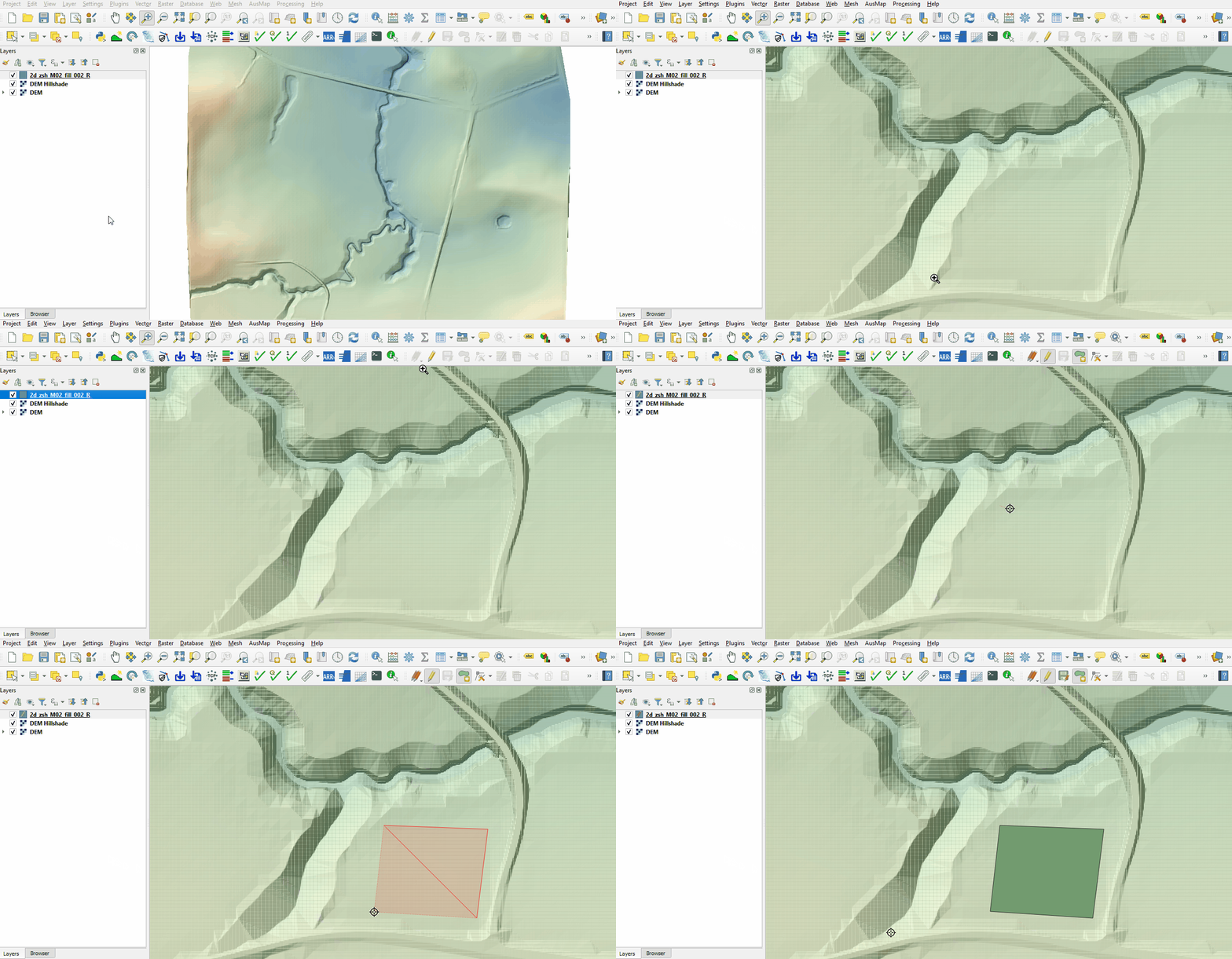
- Zoom to the area just upstream of the north road crest.
- Right click on the 2d_zsh_M02_fill_002_R to toggle on Editing and select 'Add Polygon Feature'.
- Digitise a polygon similar to below, use the right mouse button to terminate the polygon and an attributes dialog displays. Enter the following data:
- Z = 45
- Shape_Option = NO MERGE (assigns a single elevation to all Zpts falling within the polygon without interpolating the edges to the original topography)
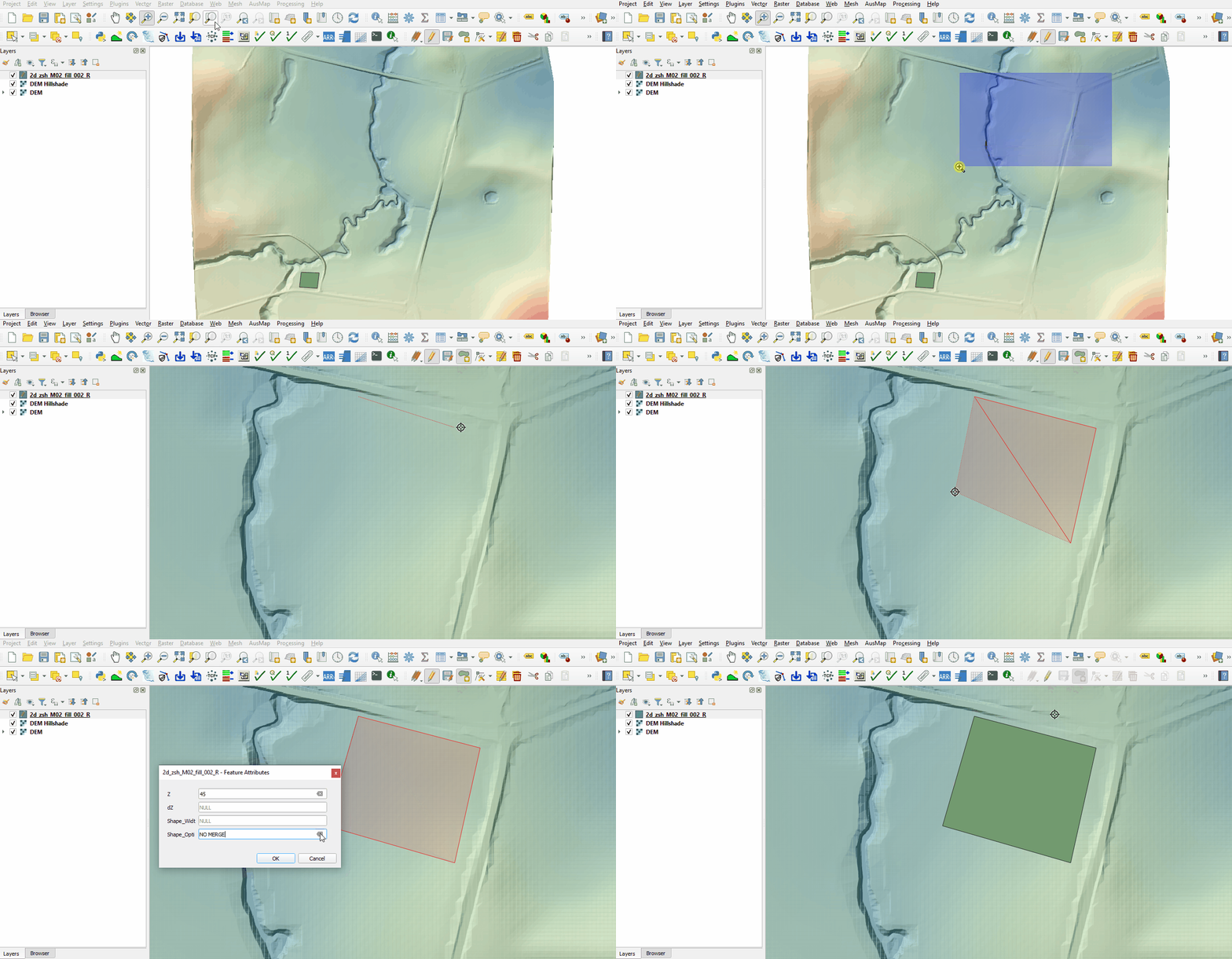
- Zoom to the south west corner of the grid to digitise the second polygon.
- Select 'Add Polygon Feature'.
- Digitise a polygon similar to below, use the right mouse button to terminate the polygon and an attributes dialog displays. Enter the following data:
- Z = 1
- Shape_Opti = ADD (adds the specified ‘Z’ value to all existing Zpts within the polygon, it raises the area within the polygon, but maintains the natural slope of the land)
- Turn off editing to save the edits.


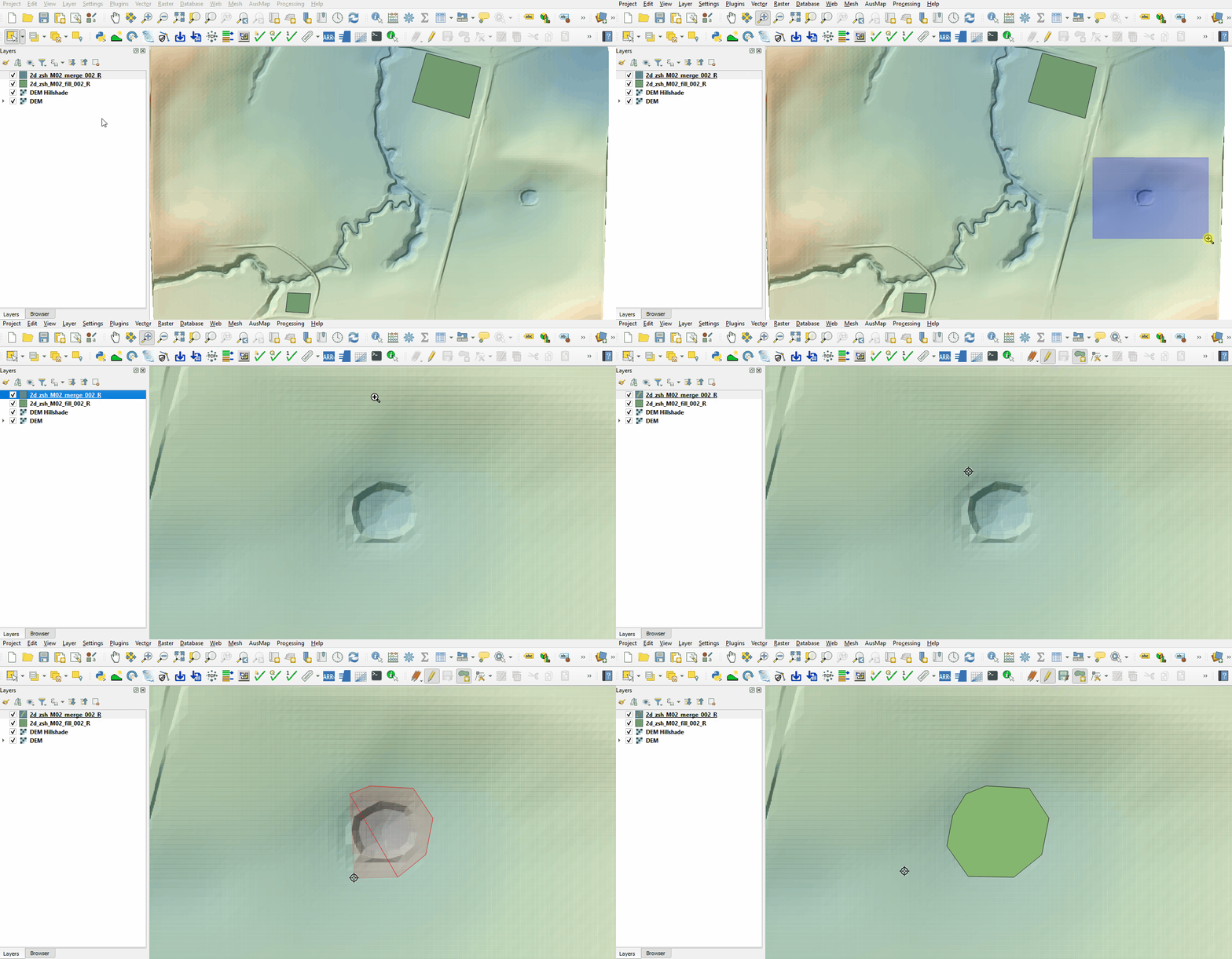
Create a polygon to rehabilitate the farm dam on the east side of the model, e.g. fill the farm dam to a surrounding level.
- Click on the ‘Import Empty File’ symbol from the TUFLOW Plugin toolbar.
- Select '2d_zsh' from the Empty Type list.
- In the Run ID box write 'M02_merge_002'.
- Tick the 'Regions' Geometry Type.
- In the Spatial Database Options, select 'All to one'. Navigate to the Module_02/TUFLOW/model/gis folder and select M02_002.gpkg. Click Save and hit 'OK' and hit 'OK'.
- The 2d_zsh file appears in the Layers panel. Zoom to the east side of the model.
- Right click on the 2d_zsh_M02_merge_002_R and toggle on Editing.
- Select 'Add Polygon Feature'.
- Digitise a polygon around the depression in the DEM.
- Use the right mouse button to terminate the polygon and an attributes dialog displays. Click 'OK' with no attribute information input. By default TUFLOW uses the merge option, this samples the DEM elevation at the polygon vertices and along the perimeter of the region with maximum spacing of half the cell size.
- Turn off editing to save the edits.

Create a polygon to represent a cut through the north road embankment allowing water to pass through while maintaining the channel topography.
- Click on the ‘Import Empty File’ symbol from the TUFLOW Plugin toolbar.
- Select '2d_zsh' from the Empty Type list.
- In the Run ID box write 'M02_cut_002'.
- Tick the 'Regions' Geometry Type.
- In the Spatial Database Options, select 'All to one'. Navigate to the Module_02/TUFLOW/model/gis folder and select M02_002.gpkg. Click Save and hit 'OK' and hit 'OK'.
- The 2d_zsh_M02_cut_002 file appears in the layers panel. Zoom to the channel where it meets the north road embankment.
- Right click on the 2d_zsh_M02_cut_002_R to toggle on Editing and select 'Add Polygon Feature'.
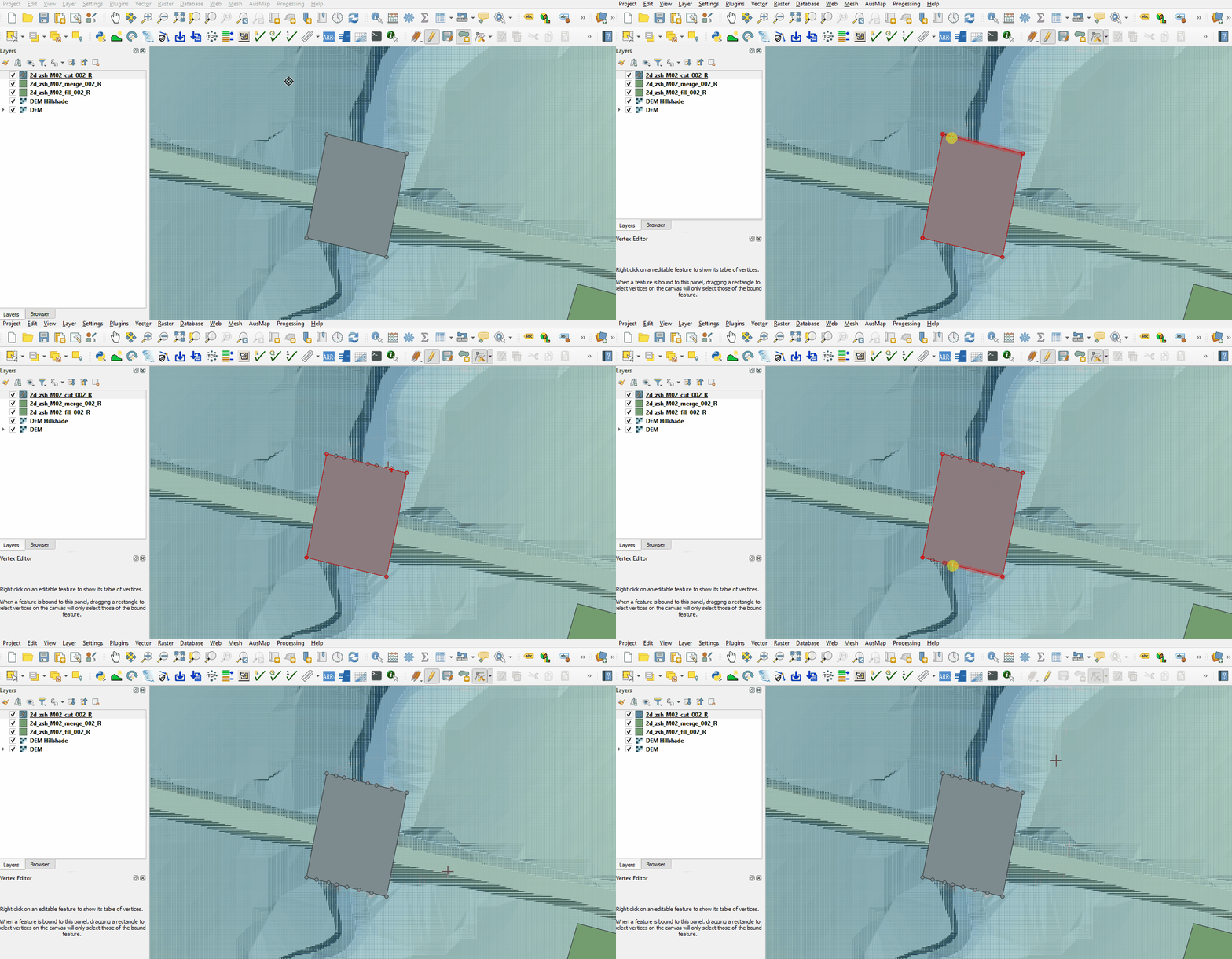
- Digitise a polygon similar to below, terminate the region and enter the following data in the attributes dialog:
- Shape_Width = -1
- Shape_Width = -1
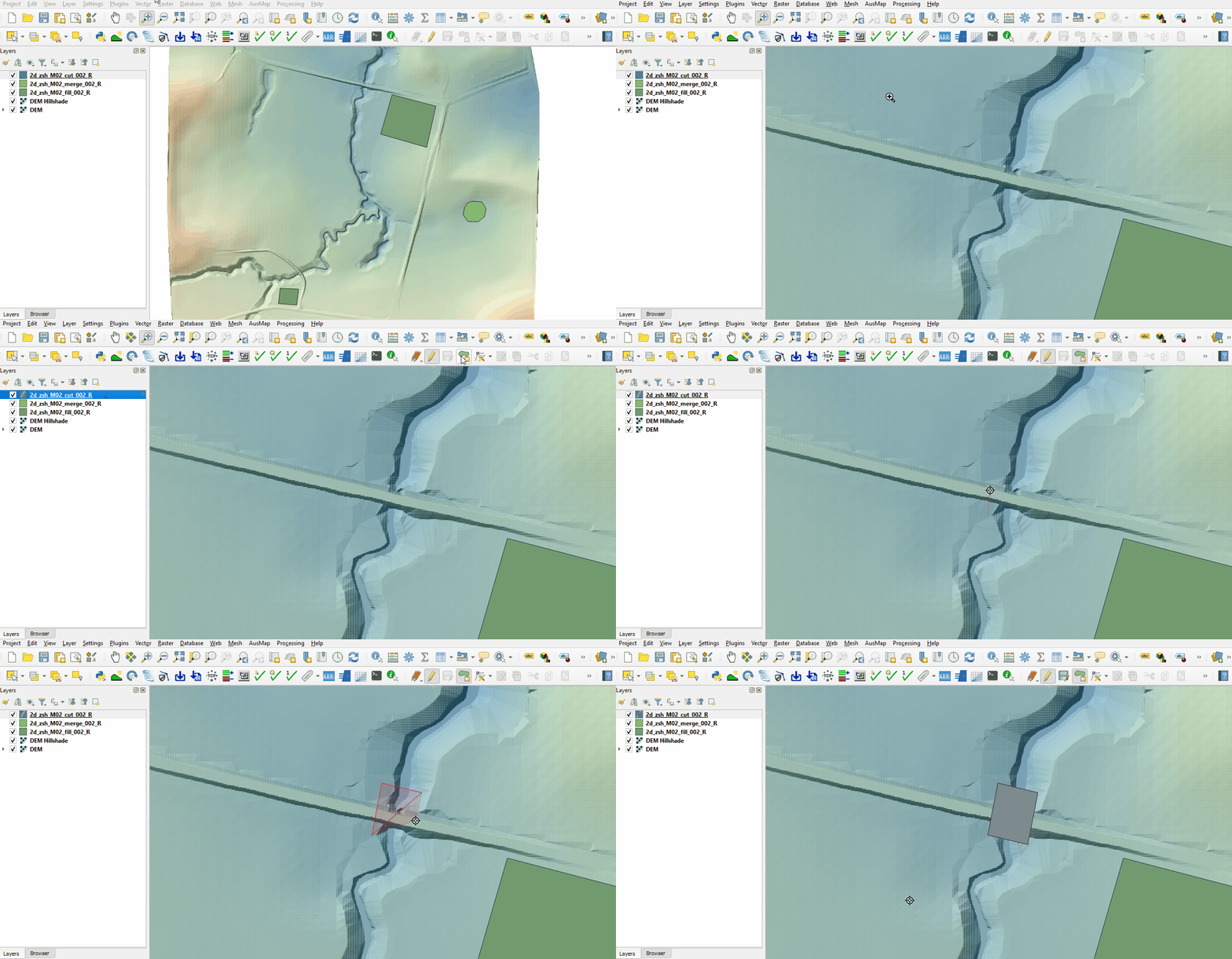
- Add more vertices by holding Shift and double click along the upstream and downstream sides of the polygon. By default TUFLOW uses the merge option and the negative Shape_Width instructs TUFLOW to sample the DEM elevation only at the location of the polygon vertices.
- Turn off editing to save the edits.


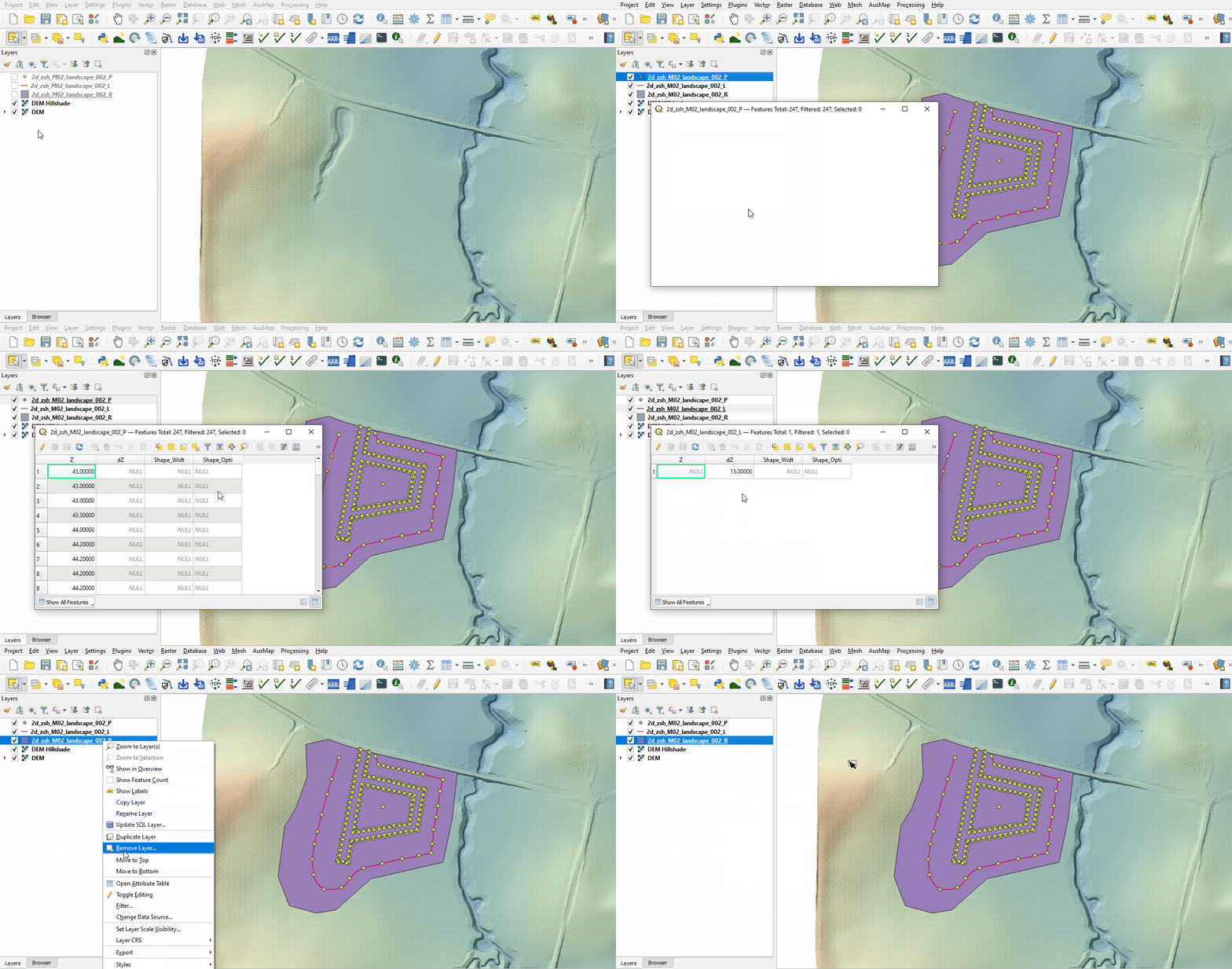
Investigate the supplied 2d_zsh_M02_landscape_002 files with TIN functionality:
- Open the files, either:
- Drag and drop all .shp files into the QGIS workspace, or
- Select Layer > Add layer > Add Vector Layer and navigate to the Module_02\TUFLOW\model\gis folder.
- The point layer specifies the elevation with the ‘Z’ attribute. Some of the point are snapped to the line layer setting the elevations along the line.
- The line layer assists in the TIN process. The 'dZ' attribute specifies a sampling distance for the TIN triangles, intermediate sampling points are created at the line vertices and along the line at 'dZ' intervals.
- The region layer sets the area over which the TIN functionality takes place. Without points snapped to the perimeter vertices of the region, the elevations are inserted from the underlying Zpt elevations, it uses the default merge option.

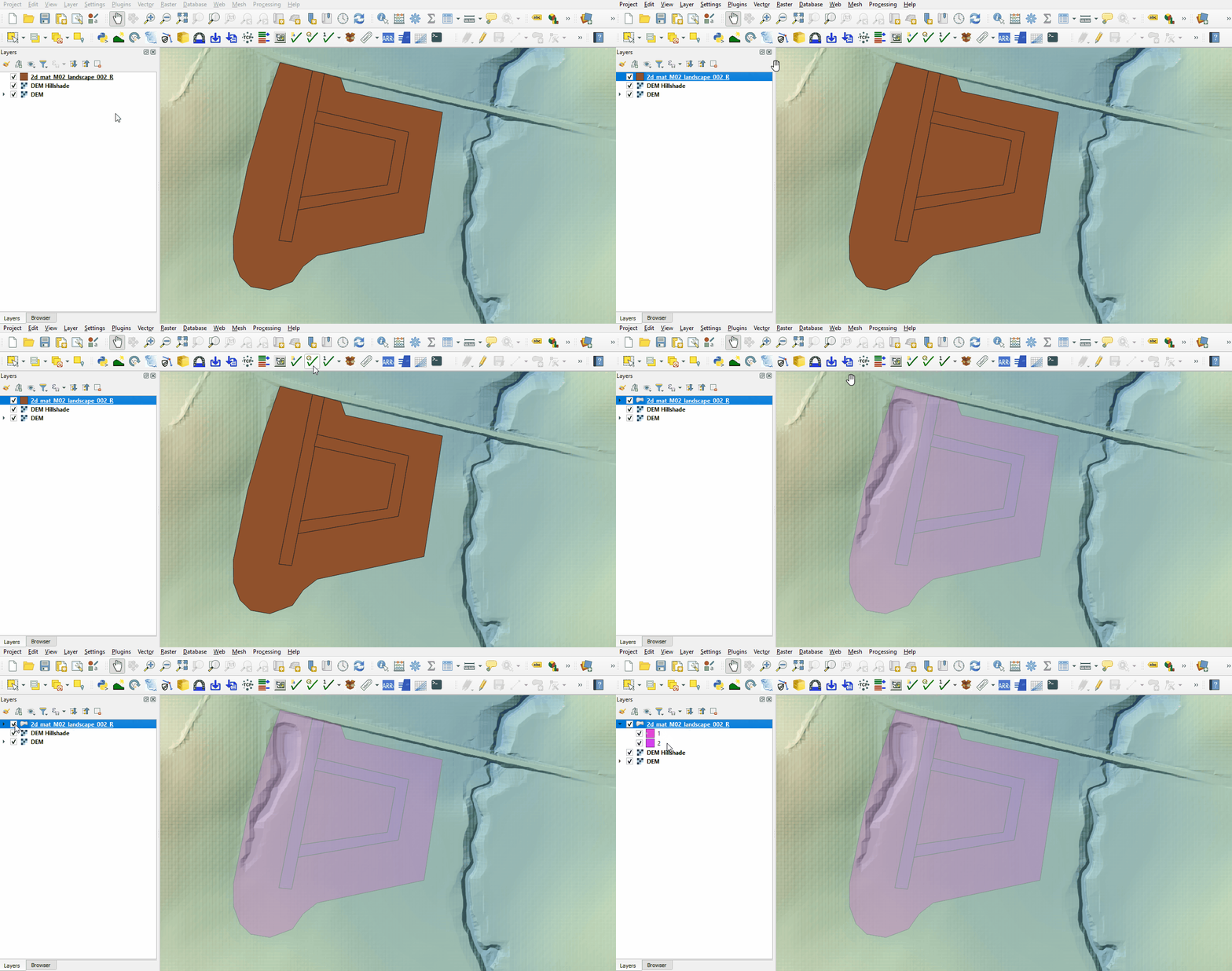
Investigate the supplied materials file:
- Load into QGIS the 2d_mat_M02_landscape_002_R file by, either:
- Drag and drop the M02_002.gpkg' into the QGIS workspace and select 2d_mat_M02_landscape_002_R, or
- In the Browser Panel, navigate to the TUFLOW/model/gis/M02_002.gpkg and double click the 2d_mat_M02_landscape_002_R layer.
- Inspect the file:
- The materials file contains polygons that represent the updated land use due to the topography modifications.
- The material attribute associated with each polygon is an integer value based on the underlying land use type.

Conclusion
- Three 2d_zsh layers were created to add development sites to the model with different purpose.
- Complex development site with TIN functionality was supplied and inspected.
- The 2d_mat layer was reviewed defining the spatial extents for new land use categories.
| Up |
|---|
 Back to Module 2 Main Page Back to Module 2 Main Page
|