Tutorial M10 003 GIS Inputs QGIS GPKG: Difference between revisions
Jump to navigation
Jump to search
Content deleted Content added
Created page with "<span style="color:#FF0000"> <font size = 18>Page Under Construction</font> </span> = Introduction = QGIS is used to create, import and view input data.<br> <br> = Method =..." |
|||
| Line 7: | Line 7: | ||
= Method = |
= Method = |
||
Setup the GeoPackage Database: |
|||
| ⚫ | |||
<ol> |
|||
<li>Navigate to the '''Module_10\TUFLOW\model\gis''' folder. Save a copy of '''M10_002.gpkg''' as '''M10_003.gpkg'''. |
|||
</ol> |
|||
| ⚫ | |||
:*'''1d_nwk_M10_piping_003_L''' |
:*'''1d_nwk_M10_piping_003_L''' |
||
:*'''1d_nwk_M10_dambreak_003_L''' |
:*'''1d_nwk_M10_dambreak_003_L''' |
||
| Line 15: | Line 19: | ||
<ol> |
<ol> |
||
<li>Open the files, either: <br> |
<li>Open the files, either: <br> |
||
:*Within the QGIS Browser Panel, navigate to '''M10_003.gpkg''' and double click the layers, or |
|||
:*Drag and drop the .shp files into the QGIS workspace; or |
|||
:*In File Explorer, drag and drop the '''M10_003.gpkg''' into the QGIS workspace and select the layers (hold Ctrl to select multiple). |
|||
:*Select Layer > Add layer > Add Vector Layer and navigate to the '''Module_10\TUFLOW\model\gis''' folder. |
|||
<li>Select ‘Apply TUFLOW Styles to Open Layers’. |
|||
<li>The '''1d_nwk_M10_piping_003_L''' layer represents piping through the dam wall: |
<li>The '''1d_nwk_M10_piping_003_L''' layer represents piping through the dam wall: |
||
:*ID = Unique Channel ID. |
:*ID = Unique Channel ID. |
||
Revision as of 11:08, 31 July 2023
Page Under Construction
Introduction
QGIS is used to create, import and view input data.
Method
Setup the GeoPackage Database:
- Navigate to the Module_10\TUFLOW\model\gis folder. Save a copy of M10_002.gpkg as M10_003.gpkg.
Within the QGIS Browser Panel, navigate to the Module_10\Tutorial_Data folder. Drag and drop the following layers into the M10_003.gpkg:
- 1d_nwk_M10_piping_003_L
- 1d_nwk_M10_dambreak_003_L
- 2d_bc_M10_piping_dambreak_003_L
Investigate the supplied files:
- Open the files, either:
- Within the QGIS Browser Panel, navigate to M10_003.gpkg and double click the layers, or
- In File Explorer, drag and drop the M10_003.gpkg into the QGIS workspace and select the layers (hold Ctrl to select multiple).
- Select ‘Apply TUFLOW Styles to Open Layers’.
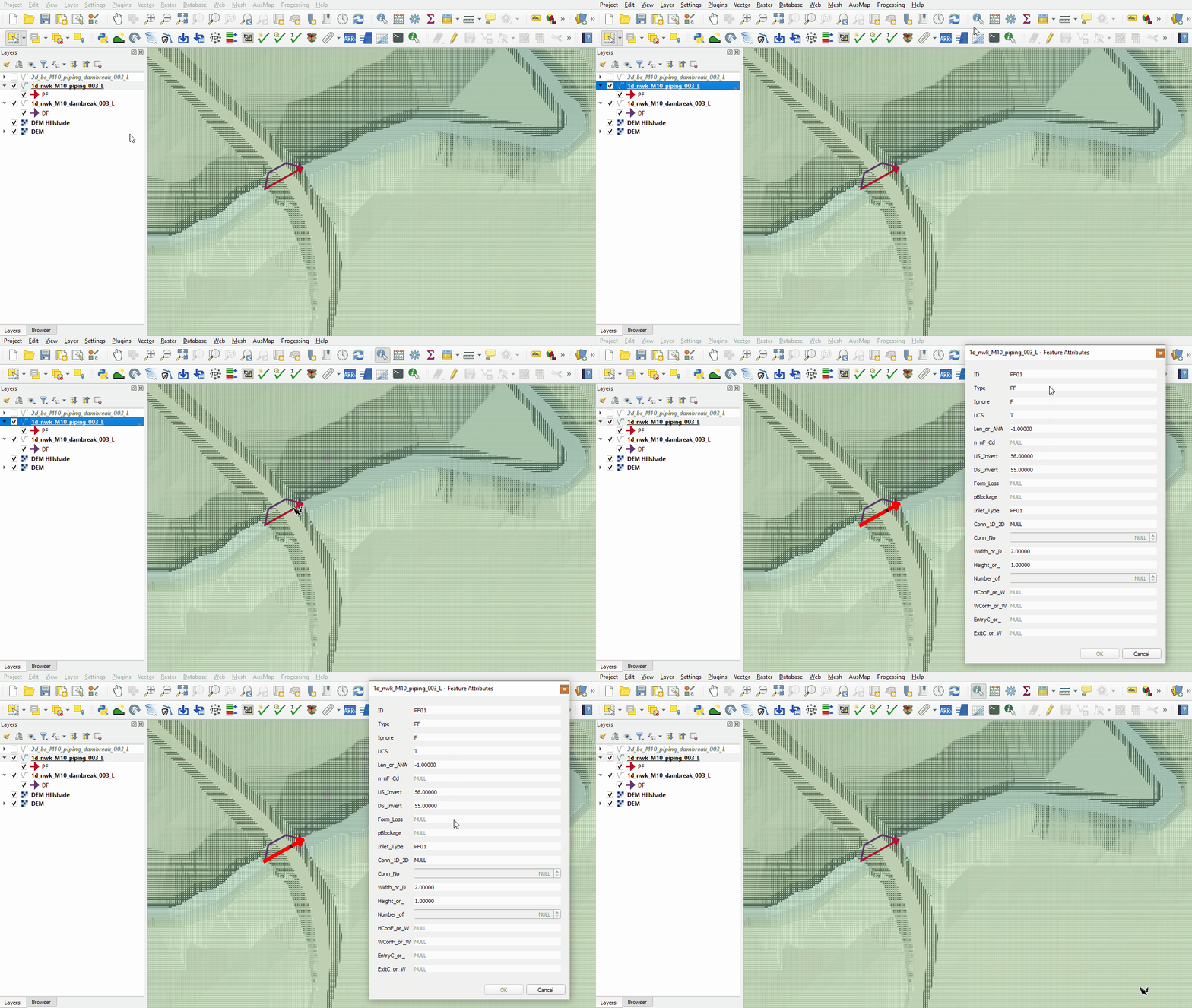
- The 1d_nwk_M10_piping_003_L layer represents piping through the dam wall:
- ID = Unique Channel ID.
- Type = 'PF'.
- US_Invert = Inlet elevation of the piping.
- DS_Invert = Outlet elevation of the piping.
- Inlet_Type = Refers to the Piping Failure operational control definition in .toc file.
- Width_or_Dia = Width of the piping orifice when fully breached.
- Height_or_WF = Height of the piping orifice when fully breached.
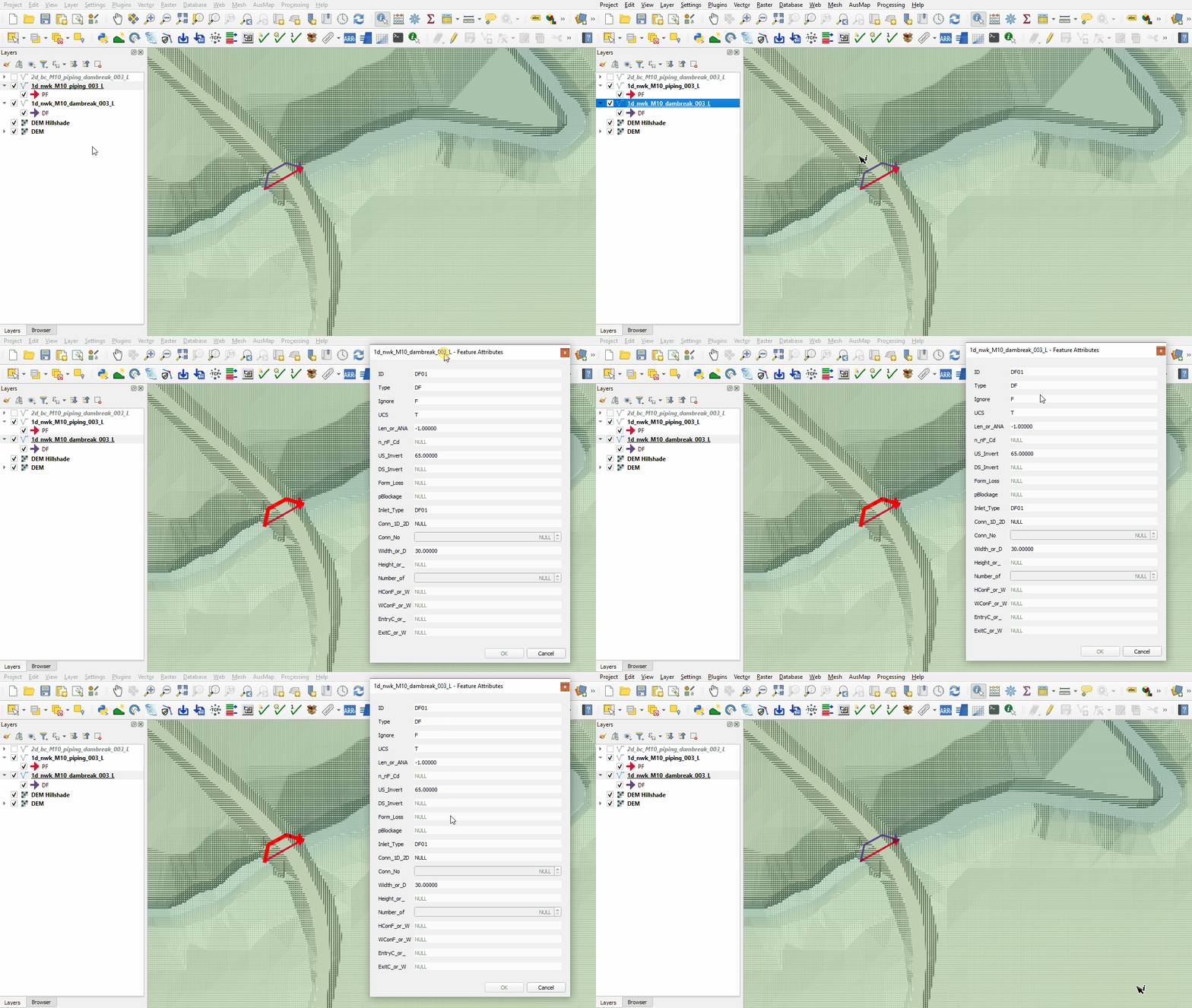
- The 1d_nwk_M10_dambreak_003_L layer represents a 1D operational channel to model dam break in 1D:
- ID = Unique Channel ID.
- Type = 'DF'.
- US_Invert = Elevation of the dam crest level before failure.
- Inlet_Type = Refers to the Dam Failure operational control definition in .toc file.
- Width_or_Dia = Top width of the dam failure channel.
- Height_or_WF = Weir coefficient Cd of the intact part.
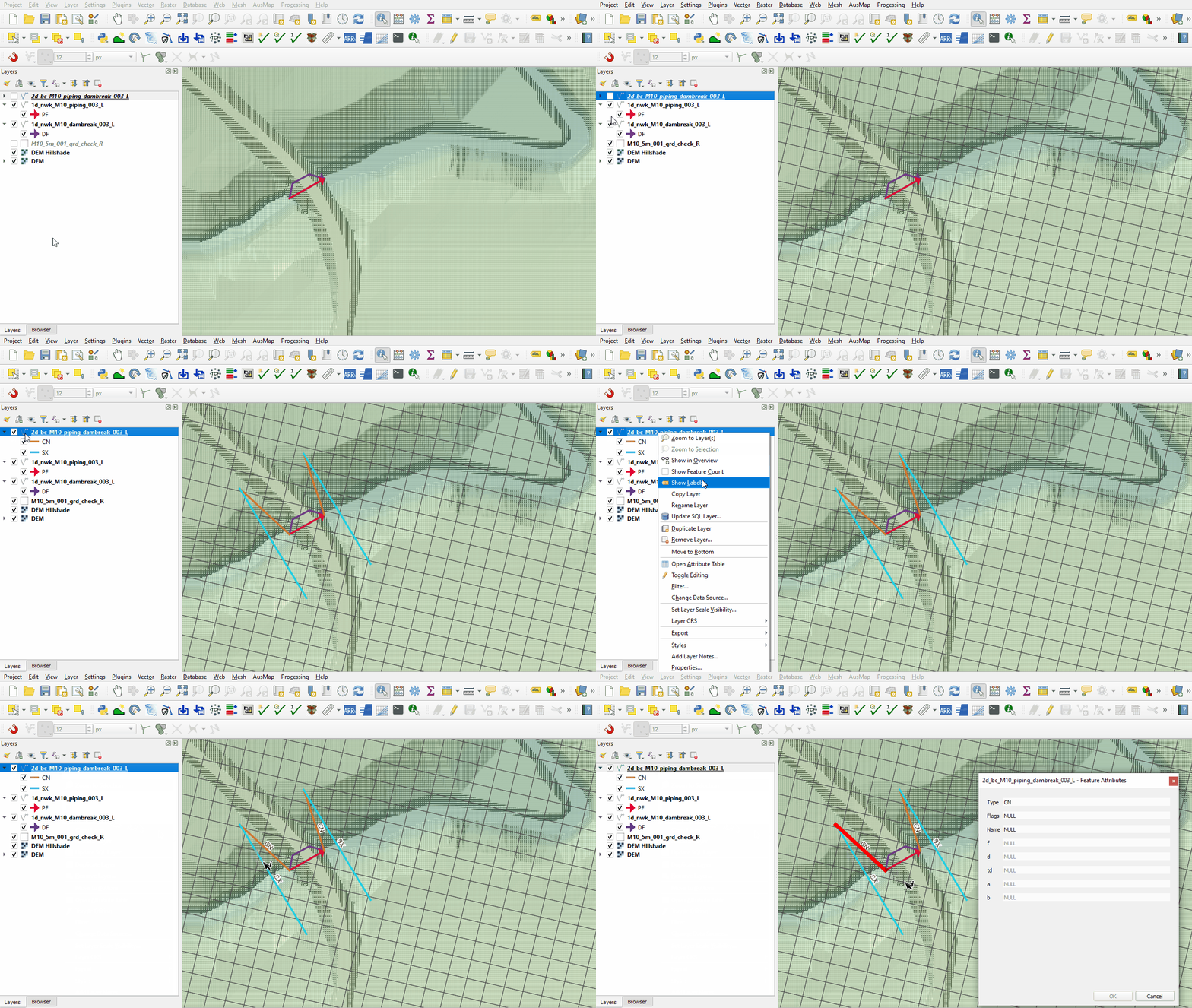
- The 2d_bc layer uses SX type connection to link 1D elements into the 2D domain. It removes water out of the upstream cell(s) and deposits water back at the downstream cell(s). The line SX links need a CN (connection) line snapped from the upstream and downstream vertex of the 1D network line to the SX boundary.
- It is recommended to have a grd_check file from a previous run (with the same model cell size) turned on when digitising SX lines as the number of cells selected must correspond to the dimensions of the 1D structure. In this module, the 'Top Width Fully Breached' specified in the TOC is 25m, therefore 5 cells are selected:


Conclusion
- The 1D piping and 1D dam break layers were inspected.
- The layers connecting the 1D to the 2D were reviewed.
| Up |
|---|
 Back to Module 10 Main Page Back to Module 10 Main Page
|