Tutorial M10 004 GIS Inputs QGIS GPKG: Difference between revisions
Jump to navigation
Jump to search
Content deleted Content added
Created page with "<span style="color:#FF0000"> <font size = 18>Page Under Construction</font> </span> = Introduction = QGIS is used to create, import and view input data.<br> <br> = Method =..." |
|||
| Line 7: | Line 7: | ||
= Method = |
= Method = |
||
Set up the GeoPackage Database: |
|||
<ol> |
|||
<li>Navigate to the '''Module_10\TUFLOW\model\gis''' folder. Save a copy of '''M10_003.gpkg''' as '''M10_004.gpkg'''. |
|||
</ol> |
|||
Create a 2d_sa polygon downstream of the dam wall: <br> |
Create a 2d_sa polygon downstream of the dam wall: <br> |
||
<ol> |
<ol> |
||
<li>Click on the ‘Import Empty File’ symbol from the TUFLOW Plugin toolbar. |
<li>Click on the ‘Import Empty File’ symbol from the TUFLOW Plugin toolbar. |
||
<li>Select '2d_sa' from the Empty Type list. |
<li>Select '2d_sa' from the Empty Type list. |
||
<li>In the Run ID box write 'M10_dambreak_004'. |
<li>In the Run ID box write: 'M10_dambreak_004'. |
||
<li>Tick the 'Regions' Geometry Type |
<li>Tick the 'Regions' Geometry Type. |
||
<li>In the Spatial Database Options, select 'All to one'. Navigate to the '''Module_10\TUFLOW\model\gis''' folder and select '''M10_004.gpkg'''. Click Save and hit 'OK'. |
|||
<li>The 2d_sa file appears in the Layers panel. <br> |
|||
<li>Right click on the '''2d_sa_M10_dambreak_004_R''' and toggle on Editing. |
<li>Right click on the '''2d_sa_M10_dambreak_004_R''' and toggle on Editing. |
||
<li>Select 'Add Polygon Feature'. |
<li>Select 'Add Polygon Feature'. |
||
Revision as of 11:12, 31 July 2023
Page Under Construction
Introduction
QGIS is used to create, import and view input data.
Method
Set up the GeoPackage Database:
- Navigate to the Module_10\TUFLOW\model\gis folder. Save a copy of M10_003.gpkg as M10_004.gpkg.
Create a 2d_sa polygon downstream of the dam wall:
- Click on the ‘Import Empty File’ symbol from the TUFLOW Plugin toolbar.
- Select '2d_sa' from the Empty Type list.
- In the Run ID box write: 'M10_dambreak_004'.
- Tick the 'Regions' Geometry Type.
- In the Spatial Database Options, select 'All to one'. Navigate to the Module_10\TUFLOW\model\gis folder and select M10_004.gpkg. Click Save and hit 'OK'.
- The 2d_sa file appears in the Layers panel.
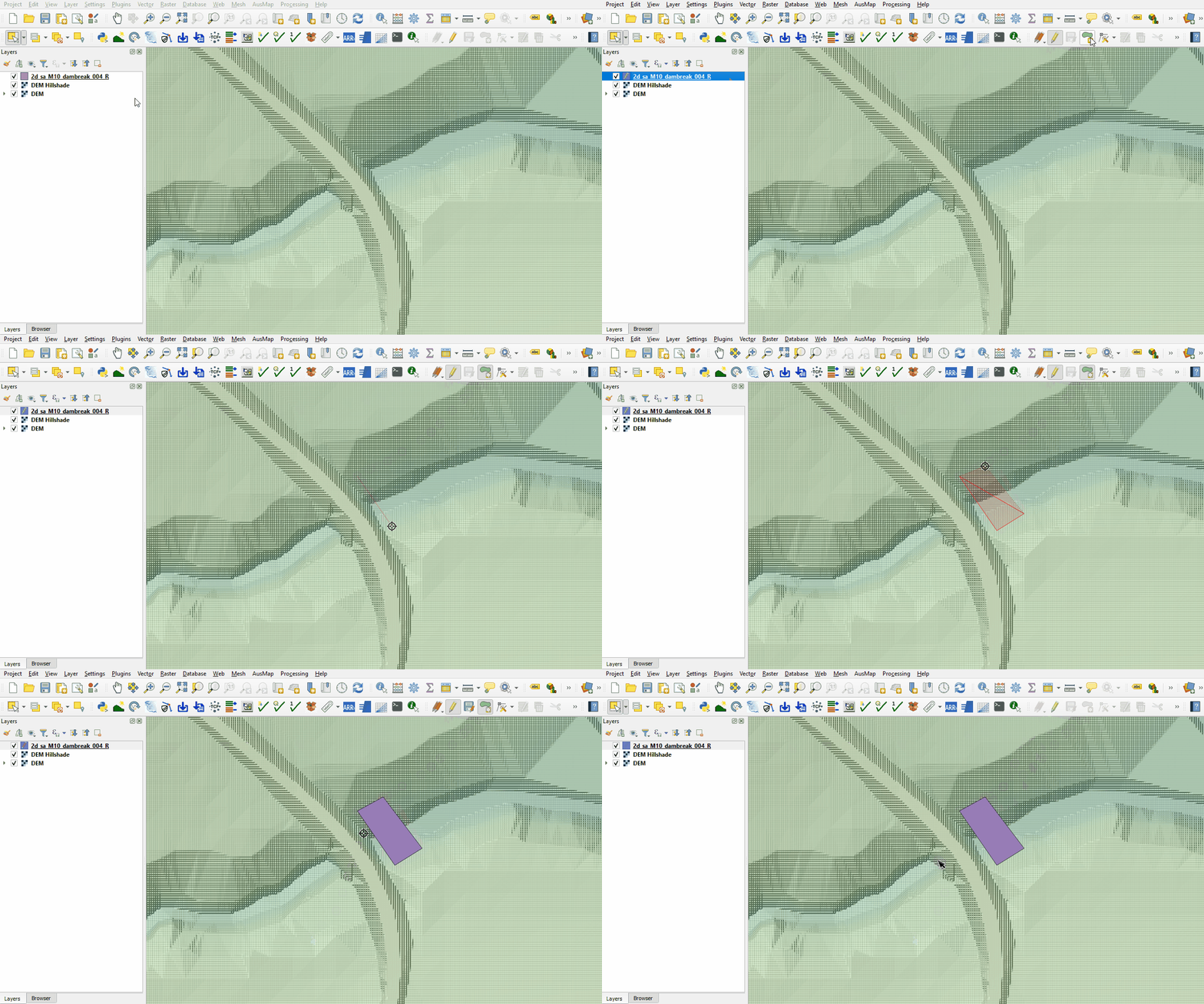
- Right click on the 2d_sa_M10_dambreak_004_R and toggle on Editing.
- Select 'Add Polygon Feature'.
- Digitise a polygon downstream of the dam wall within the creek channel.
- An attributes dialog displays, enter the following attributes:
- Name: dambreak
- Click 'OK' and turn off editing to save the edits.

Conclusion
- A polygon was digitised for input dambreak hydrograph.
| Up |
|---|
 Back to Module 10 Main Page Back to Module 10 Main Page
|