Tutorial Troubleshooting QGIS: Difference between revisions
No edit summary |
|||
| (3 intermediate revisions by one other user not shown) | |||
| Line 102: | Line 102: | ||
</ol> |
</ol> |
||
<br> |
<br> |
||
===Editing File Extension=== |
|||
When creating a control file from a .txt file, the file extension should be edited to reflect the control file type, such as .tgc, .tbc or .tcf. If the file extensions are hidden in Windows File Explorer, the intended changes to the file extension may be applied to the file name rather than the extension. This could result in control files being referenced incorrectly, which may cause the error message [[TUFLOW_Message_0008 | ERROR 0008]] - <filename> cannot be found. |
|||
To edit file extensions correctly, ensure file extensions are displayed by enabling the following option within Windows File Explorer: |
|||
<b> Windows 10 </b> <br> |
|||
<ol>[[File:File Ext Win10.png]]</ol> |
|||
<b> Windows 11 </b><br> |
|||
<ol>[[File:File Ext Win11.png]]</ol> |
|||
=Troubleshooting Steps= |
=Troubleshooting Steps= |
||
| Line 110: | Line 122: | ||
<li>Double click the executable, this performs a licence check and console window appears. If it doesn't, move the executable to a location where it is permitted to run. Some locations on C drive might be restricted for some users preventing to execute the simulation. |
<li>Double click the executable, this performs a licence check and console window appears. If it doesn't, move the executable to a location where it is permitted to run. Some locations on C drive might be restricted for some users preventing to execute the simulation. |
||
<li>TUFLOW doesn't run from a batch file if the filepaths are specified as UNC paths. The folder with both, the executable and the model, must be opened with a mapped drive. Type "net use <drive>: \\server_name\share_name" in the command line to map the drives. |
<li>TUFLOW doesn't run from a batch file if the filepaths are specified as UNC paths. The folder with both, the executable and the model, must be opened with a mapped drive. Type "net use <drive>: \\server_name\share_name" in the command line to map the drives. |
||
<li>If using environment variable 'set exe', confirm there are no spaces surrounding the equals sign (e.g. set exe="..\..\..\exe\ |
<li>If using environment variable 'set exe', confirm there are no spaces surrounding the equals sign (e.g. set exe="..\..\..\exe\2026.0.0\TUFLOW_iSP_w64.exe"). |
||
<li>Write 'pause' at the end of the script, rerun the batch file and the console window should remain open providing more information. In the below example, the file path to the TUFLOW exe is incorrect:<br> |
<li>Write 'pause' at the end of the script, rerun the batch file and the console window should remain open providing more information. In the below example, the file path to the TUFLOW exe is incorrect:<br> |
||
<br> |
<br> |
||
Latest revision as of 12:04, 30 March 2026
Introduction
This troubleshooting page contains common errors and steps to follow when investigating models.
Common Errors
Unsaved Control Files
When changes are made in the control files and the files are not saved, errors occur.
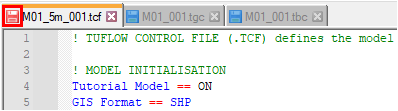
- Check all simulation control files and batch files are saved (
 ). A red icon indicates that there are unsaved changes in the file:
- Use the 'Save All' tool to save all unsaved control files:



Unsaved GIS Layers
When changes are made in GIS layers and the layers are not saved, errors occur.
- Check all GIS input layers are saved. If the 'Save Layer Edits' icon is available (
 ), there are unsaved edits in the layer.
- A pencil icon on the layer (
 ) indicates that the layer is still editable and may contain unsaved edits. It is recommended to always turn off editing for all input layers.


TUFLOW Syntax Rules
Control files use a double equal sign (==). When a single equal sign (=) is used, the simulation stops with and error at the end of the .tlf file:


Spelling Mistakes in Control Files
Spelling mistakes in control files are a common mistake, resulting in a 'does not exist' pop up message:

To fix the reference:
- The file that cannot by found is M01_01.tgc. Go to the folder where the file should be (in this example the TUFLOW\model folder).
- The file referenced should be M01_001.tgc.
- Update the reference in the TCF and confirm the file can now be found by right clicking on the file and selecting open.
Spelling Mistakes in Input Layers
Spelling mistakes in input layers are also a common mistake, resulting in a 'does not exist' pop up message:

To fix the reference:
- The layer that cannot by found is 2d_bc_M03_culverts_001_P.shp. Go to the folder where the file should be (in this example the TUFLOW\model\gis folder).
- The layer has a spelling mistake 'culvets'.
- In QGIS use the 'Increment Selected Layer' tool to save the file with the correct name.
Note: The tool automatically increments a number if it is at the end of the file name.
TCF does not exist
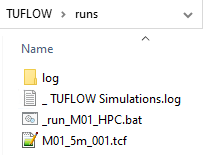
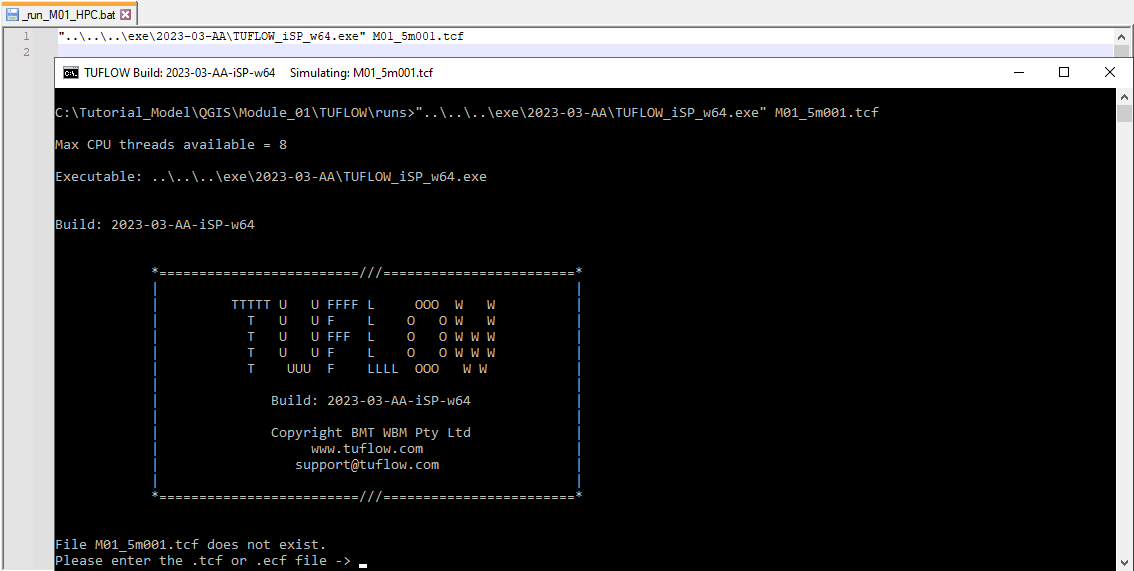
Typos or spaces in the TCF name result in a 'does not exist' message in the console window:
- Check the name of the TCF is referenced correctly in the batch file.
- Right click on the TCF in the batch file, select 'Open File' to make sure it can be opened.
- Example of incorrect TCF name missing an underscore:

- Example of using space in the TCF name causing TUFLOW to look for a TCF name ending with the first space:


Ambiguous Command
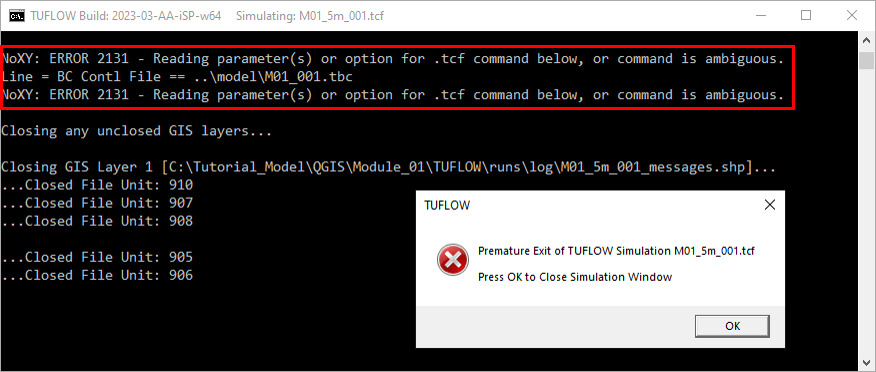
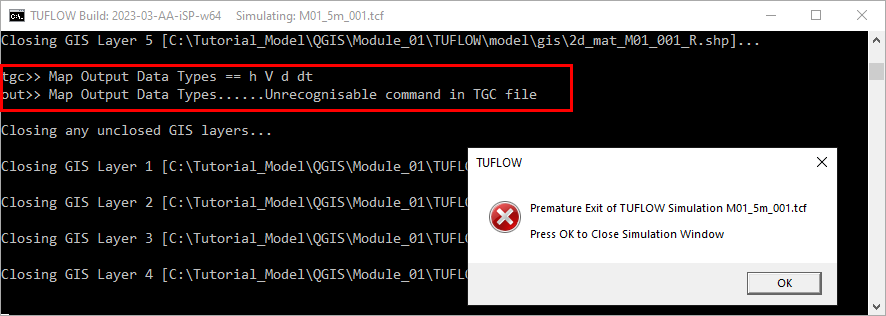
TUFLOW control files are command driven text files. The commands must be in the format and location TUFLOW is expecting. The TUFLOW Manual lists all the available commands and specifies which TUFLOW control file each command belongs to.
- Example of a typo in the 'BC Control File ==' command:
- Example of 'Map Output Data Types ==' command entered into TGC instead of TCF:


Editing File Extension
When creating a control file from a .txt file, the file extension should be edited to reflect the control file type, such as .tgc, .tbc or .tcf. If the file extensions are hidden in Windows File Explorer, the intended changes to the file extension may be applied to the file name rather than the extension. This could result in control files being referenced incorrectly, which may cause the error message ERROR 0008 - <filename> cannot be found.
To edit file extensions correctly, ensure file extensions are displayed by enabling the following option within Windows File Explorer:
Windows 10

Windows 11

Troubleshooting Steps
Simulation Console Window Flashes and Disappears
When batch file is double clicked and the simulation console window flashes and disappears the problem might be in the filepath of the TUFLOW executable or incorrect syntax:
- Check the TUFLOW executable can be found with the specified filepath (absolute or relative).
- Double click the executable, this performs a licence check and console window appears. If it doesn't, move the executable to a location where it is permitted to run. Some locations on C drive might be restricted for some users preventing to execute the simulation.
- TUFLOW doesn't run from a batch file if the filepaths are specified as UNC paths. The folder with both, the executable and the model, must be opened with a mapped drive. Type "net use <drive>: \\server_name\share_name" in the command line to map the drives.
- If using environment variable 'set exe', confirm there are no spaces surrounding the equals sign (e.g. set exe="..\..\..\exe\2026.0.0\TUFLOW_iSP_w64.exe").
- Write 'pause' at the end of the script, rerun the batch file and the console window should remain open providing more information. In the below example, the file path to the TUFLOW exe is incorrect:
_ TUFLOW Simulations (*.log)
The log file contains brief overview of the simulation:
- Navigate to the TUFLOW\runs folder and open the _ TUFLOW Simulations.log in a text editor.
- Confirm if the simulation has 'Started' and 'Finished' line.
- If there is no log file, see here.
TUFLOW Log File (*.tlf)
The .tlf file contains information on the model run status and any error messages:
- Navigate to the TUFLOW\runs\log folder and open the .tlf file in a text editor.
- Scroll to the bottom to confirm the model run finished successfully by observing "Simulation FINISHED".
- If not, search from the bottom up for any error, warning or check messages.
- Review the error number, open the link provided in a web browser and read through the description and suggestions:
- Open the .qgs workspace in QGIS from the TUFLOW\runs\log folder.
- Click 'Apply TUFLOW Styles to All Layers'.
- Zoom in to the location of any error messages, turn on labelling to view the error.
- In this example the 2d_bc SX point isn't snapped to the 1d_nwk culvert.
- If no error messages appear in the .tlf and the last line shows 'Sending initialisation data to HPC...' see HPC TUFLOW Log File below.
HPC TUFLOW Log File (*.hpc.tlf)
The .hpc.tlf file contains error messages not recorded in the .tlf file:
- Navigate to the TUFLOW\runs\log folder and open the .hpc.tlf file in a text editor. If the last lines shows:

- The model is set up to run on GPU and there is no GPU available, or
- The GPU needs a driver update, for more information see Update GPU Driver.

Conclusion
If the above tips do not assist in fixing the error, email support@tuflow.com.
| Up |
|---|
 Back to Tutorial Introduction Main Page Back to Tutorial Introduction Main Page
|