WIBU Configure Network Client: Difference between revisions
No edit summary |
|||
| Line 18: | Line 18: | ||
<br> |
<br> |
||
<li>Adding "Automatic server search" is optional. This will configure to client computer to search every computer on a organisations network for a TUFLOW server. This is a slower to function option than the targeted configuration described in the previous step. |
<li>Adding "Automatic server search" is optional. This will configure to client computer to search every computer on a organisations network for a TUFLOW server. This is a slower to function option than the targeted configuration described in the previous step. |
||
<li>The client machine should now be configured to access the network TUFLOW dongle. This can be tested on the server by double clicking the TUFLOW Executable (for example TUFLOW_iSP_w64.exe). A |
<li>The client machine should now be configured to access the network TUFLOW dongle. This can be tested on the server by double clicking the TUFLOW Executable (for example TUFLOW_iSP_w64.exe). A console window should open which lists the licence information (licence types and numbers will be different to the example shown below).<br> |
||
[[File:TUFLOW_DOS_Test1.JPG|800px]] </li> |
[[File:TUFLOW_DOS_Test1.JPG|800px]] </li> |
||
</ol> |
</ol> |
||
| Line 24: | Line 24: | ||
=Troubleshooting= |
=Troubleshooting= |
||
If your licences are not listed in the |
If your licences are not listed in the console window when you test whether the connection to the server has been successful, consider the following: |
||
== Check Server Licence == |
== Check Server Licence == |
||
Before testing connection to a server, verifying the TUFLOW licence on the server is functioning is a useful first troubleshooting steps. |
Before testing connection to a server, verifying the TUFLOW licence on the server is functioning is a useful first troubleshooting steps. |
||
<ol> |
<ol> |
||
<li> Login to the Server. |
<li> Login to the Server. |
||
<li> Double clicking the TUFLOW Executable (for example TUFLOW_iSP_w64.exe). A |
<li> Double clicking the TUFLOW Executable (for example TUFLOW_iSP_w64.exe). A console window should open which states the TUFLOW licenses associated with the server. Check the licence types and numbers associated with your configuration (the licence types and numbers will be different to the example shown below).<br> |
||
[[File:TUFLOW_DOS_Test1.JPG|600px]] </li> |
[[File:TUFLOW_DOS_Test1.JPG|600px]] </li> |
||
<li> If your licences are not listed in the |
<li> If your licences are not listed in the console window when you test whether the server configuration has been successful, refer to [[ WIBU_Configure_Network_Server#troubleshooting | Network Server Issue]]. |
||
</ol> |
</ol> |
||
Latest revision as of 15:30, 18 April 2025
Introduction
This page contains instructions for configuring a client computer to access a network TUFLOW licence. This requires that you have:
- CodeMeter Runtime kit installed on the client machine, see Installing CodeMeter Runtime Kit.
- Configured the network server, see Configure Network Server.
Method
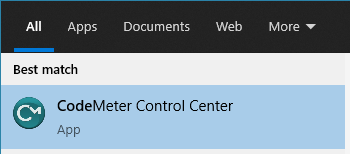
- Open the CodeMeter Control Center via the start menu:
- Open the WebAdmin via the button in the lower right.
- In CodeMeter WebAdmin navigate to the Configuration >> Basic >> Sever Search List tab and enter the server name or IP address in the Server Search list. Using the server name is typically a more problem free option, due to the fact restarting the server may result in a change in IP address, which will break the connection to the server. Click Add to include the server to the list. Click Apply to make the changes.
- Adding "Automatic server search" is optional. This will configure to client computer to search every computer on a organisations network for a TUFLOW server. This is a slower to function option than the targeted configuration described in the previous step.
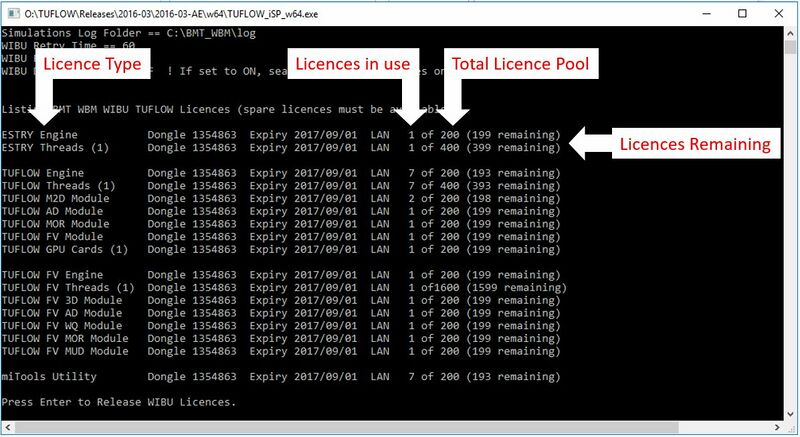
- The client machine should now be configured to access the network TUFLOW dongle. This can be tested on the server by double clicking the TUFLOW Executable (for example TUFLOW_iSP_w64.exe). A console window should open which lists the licence information (licence types and numbers will be different to the example shown below).


Troubleshooting
If your licences are not listed in the console window when you test whether the connection to the server has been successful, consider the following:
Check Server Licence
Before testing connection to a server, verifying the TUFLOW licence on the server is functioning is a useful first troubleshooting steps.
- Login to the Server.
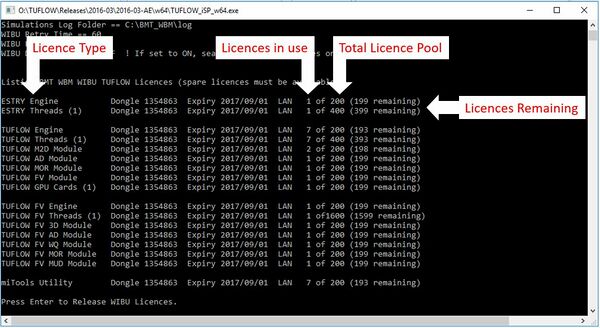
- Double clicking the TUFLOW Executable (for example TUFLOW_iSP_w64.exe). A console window should open which states the TUFLOW licenses associated with the server. Check the licence types and numbers associated with your configuration (the licence types and numbers will be different to the example shown below).
- If your licences are not listed in the console window when you test whether the server configuration has been successful, refer to Network Server Issue.
Check Server Connectivity
A easy way to check for connectivity between the client computer and the licence server is to ping the server from the client machine. This can be done by:
- Open a command prompt on the client computer (Start >> Run and then type in cmd or simpy type cmd into the search option in the start menu
- Enter the command ping <server> where <server> is the IP address or server name as entered into the CodeMeter server search list. For example:
ping 192.168.1.1
ping TUFLOW_server
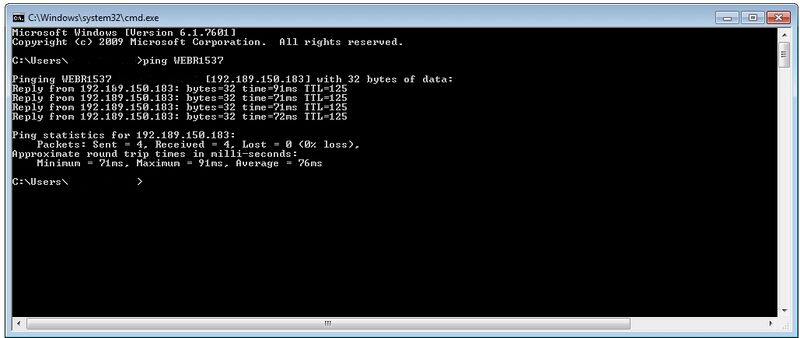
If successful the output will show that a reply is received as per the image below.
If no reply is received, there appears to be a connectivity or firewall issue preventing access between the client and the server. Resolving this should hopefully allow the client computer to access the TUFLOW server.

Check AV and Port Blocking
If the above steps have been performed and the client computer is still unable to access the network licence, the most likely reason is that there is anti-virus or a firewall blocking access. By default the Codemeter software uses port 22350 for communication. This can be changed in the Configuration >> Server tab in CodeMeter webadmin. Temporarily disabling any antivirus on the computers could be used to confirm if this is causing the communication issue, if so, an exception would need to be added to your AV software.
Other
If you are unable to get TUFLOW connecting to a network licence server please contact support@tuflow.com.