WIBU Configure Network Server: Difference between revisions
Jump to navigation
Jump to search
Content deleted Content added
Chris Huxley (talk | contribs) |
|||
| (5 intermediate revisions by 2 users not shown) | |||
| Line 16: | Line 16: | ||
[[File:Codemeter_v6.40d_control_center.JPG|400px|]] |
[[File:Codemeter_v6.40d_control_center.JPG|400px|]] |
||
<br> |
<br> |
||
This can also be |
This can also be accessed by pointing an internet browser to: [[http://localhost:22352/ http://localhost:22352/]] or [[http://localhost:22353/ http://localhost:22353/]] if you have https configured and provided CodeMeter with a certificate (Note that the port number can be adjusted by your administrator). |
||
<br> |
<br> |
||
The following CodeMeter webpage will appear. |
The following CodeMeter webpage will appear. |
||
| Line 23: | Line 23: | ||
<li>Navigate to the '''Configuration >> Server >> Server Access''' tab and enable the '''Network Server''' checkbox and hit Apply.</li> |
<li>Navigate to the '''Configuration >> Server >> Server Access''' tab and enable the '''Network Server''' checkbox and hit Apply.</li> |
||
[[File:Codemeter_v6.40d_Network_Server.JPG|800px]] |
[[File:Codemeter_v6.40d_Network_Server.JPG|800px]] |
||
<li> In CodeMeter WebAdmin navigate to the '''Configuration >> Basic >> Sever Search List''' tab: |
|||
| ⚫ | <li>The network licence should now be available. This can be tested on the server by double clicking the TUFLOW Executable (for example TUFLOW_iSP_w64.exe). A |
||
<ol> |
|||
* Select "add new Server" |
|||
* Enter the code: 127.0.0.1 |
|||
* Click Apply </li> |
|||
[[File:Codemeter_Network_LocalHost.jpg|800px]] |
|||
</ol> |
|||
| ⚫ | <li>The network licence should now be available. This can be tested on the server by double clicking the TUFLOW Executable (for example TUFLOW_iSP_w64.exe). A console window should open. Review the licence information listed. Check the licence types and numbers associated with your configuration (the licence types and numbers will be different to the example shown below).<br> |
||
[[File:TUFLOW_DOS_Test1.JPG|600px]] </li> |
[[File:TUFLOW_DOS_Test1.JPG|600px]] </li> |
||
<li> The next install steps will involve configuring client (modelling) computers to communicate with the server. The client computer will use the IP address of the server for the communication connection. To avoid the server IP address changing due to future actions (such as the server computer being restarted), we recommend configuring the server to use a static IP address. |
<li> The next install steps will involve configuring client (modelling) computers to communicate with the server. The client computer will use the IP address of the server for the communication connection. To avoid the server IP address changing due to future actions (such as the server computer being restarted), we recommend configuring the server to use a static IP address. |
||
| Line 30: | Line 37: | ||
=Troubleshooting= |
=Troubleshooting= |
||
If your licences are not listed in the |
If your licences are not listed in the console window when you test whether the server configuration has been successful: |
||
<ol> |
<ol> |
||
<li> Check whether you have the latest version of Codemeter User Runtime installed. If you do not, update to the latest version: <u>[https://www.wibu.com/support/user/downloads-user-software.html https://www.wibu.com/support/user/downloads-user-software.html]</u> |
<li> Check whether you have the latest version of Codemeter User Runtime installed. If you do not, update to the latest version: <u>[https://www.wibu.com/support/user/downloads-user-software.html https://www.wibu.com/support/user/downloads-user-software.html]</u> |
||
Latest revision as of 08:51, 16 January 2026
Introduction
This page contains instructions for configuring a network TUFLOW licence. It requires that you have the CodeMeter Runtime kit installed on the server, see Installing CodeMeter Runtime Kit.
For the network license server, during the CodeMeter Runtime kit installation, please select the "Network Server" option. Doing so, CodeMeter will configure TCP and UDP protocols in the Windows Firewall for the server.

Method
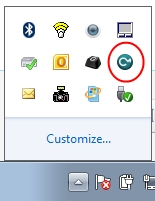
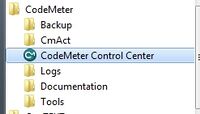
- Open the CodeMeter Control Centre. This can be done via the icon on the taskbar:
Or via the start menu:
- Open the WebAdmin via the button in the lower right.
- Navigate to the Configuration >> Server >> Server Access tab and enable the Network Server checkbox and hit Apply.
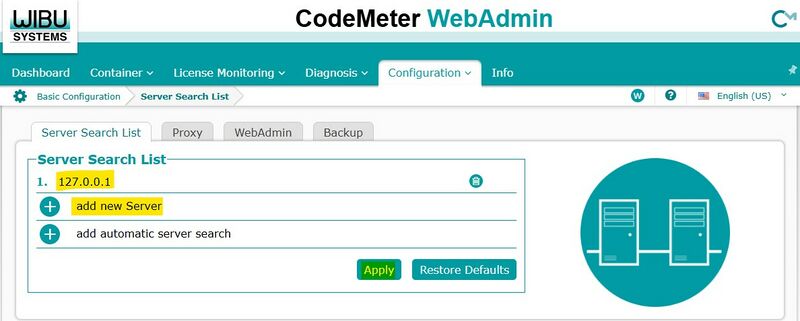
- In CodeMeter WebAdmin navigate to the Configuration >> Basic >> Sever Search List tab:
- Select "add new Server"
- Enter the code: 127.0.0.1
- Click Apply
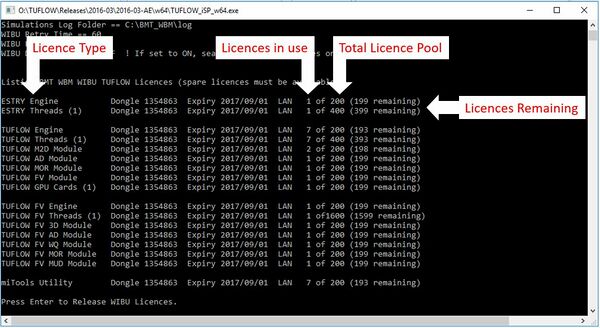
- The network licence should now be available. This can be tested on the server by double clicking the TUFLOW Executable (for example TUFLOW_iSP_w64.exe). A console window should open. Review the licence information listed. Check the licence types and numbers associated with your configuration (the licence types and numbers will be different to the example shown below).
- The next install steps will involve configuring client (modelling) computers to communicate with the server. The client computer will use the IP address of the server for the communication connection. To avoid the server IP address changing due to future actions (such as the server computer being restarted), we recommend configuring the server to use a static IP address.
- Configure client (modelling) computers to communicate with the server: Configure Network Client .


This can also be accessed by pointing an internet browser to: [http://localhost:22352/] or [http://localhost:22353/] if you have https configured and provided CodeMeter with a certificate (Note that the port number can be adjusted by your administrator).
The following CodeMeter webpage will appear.


Troubleshooting
If your licences are not listed in the console window when you test whether the server configuration has been successful:
- Check whether you have the latest version of Codemeter User Runtime installed. If you do not, update to the latest version: https://www.wibu.com/support/user/downloads-user-software.html
- If you are unable to change your version of Codemeter User Runtime, in CodeMeter WebAdmin navigate to the Configuration >> Basic >> Sever Search List tab and enter the server name, computer IP address, or the code: 127.0.0.1 in the Server Search list. After entering the details, click "Add" to save the change. This was a configuration requirement in some old versions of Codemeter User Runtime.
- If issues persist, email sales@tuflow.com