Tutorial M07 GIS Inputs QGIS GPKG: Difference between revisions
Jump to navigation
Jump to search
Content deleted Content added
| Line 17: | Line 17: | ||
= Method = |
= Method = |
||
Setup the GeoPackage Database: |
|||
| ⚫ | |||
<ol> |
|||
| ⚫ | |||
<li>Navigate to the '''Module_07\TUFLOW\model\gis''' folder. Save a copy of '''M02_001.gpkg''' as '''M07_001.gpkg'''. |
|||
<li>Within the QGIS Browser Panel, right click on 'Favorites' and select 'Add a Directory...'. |
|||
| ⚫ | |||
</ol> |
|||
| ⚫ | |||
:*Within the QGIS Browser Panel, navigate to '''M07_001.gpkg''' and double click the layer, or |
|||
:*In File Explorer, drag and drop the '''M07_001.gpkg''' into the QGIS workspace and select the layer. |
|||
:*Use the 'Apply TUFLOW Styles to Open Layers'. |
:*Use the 'Apply TUFLOW Styles to Open Layers'. |
||
Create quadtree nesting layer: <br> |
Create quadtree nesting layer: <br> |
||
<ol> |
<ol> |
||
<li>Click on the ‘Import Empty File’ symbol from the TUFLOW |
<li>Click on the ‘Import Empty File’ symbol from the TUFLOW plugin toolbar. |
||
<li>Select '2d_qnl' from the Empty Type list. |
<li>Select '2d_qnl' from the Empty Type list. |
||
<li>In the Run ID box write 'M07_001'. |
<li>In the Run ID box write 'M07_001'. |
||
<li>Tick the 'Regions' Geometry Type |
<li>Tick the 'Regions' Geometry Type. |
||
<li>In the Spatial Database Options, select 'All to one'. Navigate to the '''Module_07/TUFLOW/model/gis''' folder and select '''M07_001.gpkg'''. Click Save and hit 'OK'. |
|||
<li>The 2d_qnl (quadtree nesting layer) appears in the QGIS Layers Panel. |
|||
<li>Right click on the '''2d_qnl_M07_001_R''' and toggle on Editing. |
<li>Right click on the '''2d_qnl_M07_001_R''' and toggle on Editing. |
||
<li>Select 'Add Polygon Feature' and digitise a polygon around the creek. |
<li>Select 'Add Polygon Feature' and digitise a polygon around the creek. |
||
Revision as of 09:33, 15 June 2023
Introduction
QGIS is used to create, import and view input data.
TUFLOW Project Re-Configuration
Re-configure the TUFLOW project to use and save empty files to the correct folder:
- Go to Plugins > TUFLOW > Editing > Configure / Create TUFLOW Project.
- Change the folder which contains TUFLOW to the Module_07 folder. This is the only change required, the model folder structure and template empty files are supplied from previous model.
Note: The 'results' and 'check' folder get automatically created when the TUFLOW model is run.
- Click 'OK' and save the QGIS workspace by selecting Project > Save As.
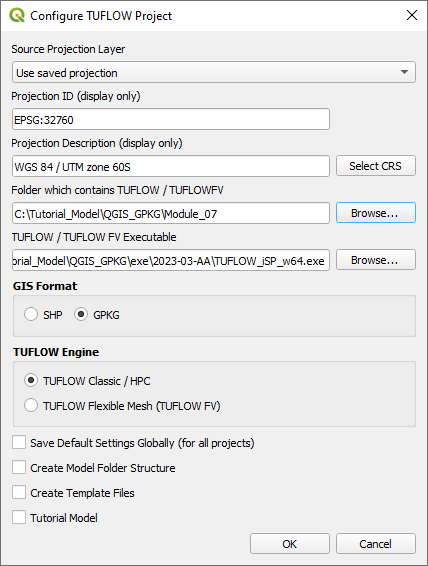
- Set the QGIS workspace projection to EPSG:32760, see Set the Projection.

Method
Setup the GeoPackage Database:
- Navigate to the Module_07\TUFLOW\model\gis folder. Save a copy of M02_001.gpkg as M07_001.gpkg.
- Within the QGIS Browser Panel, right click on 'Favorites' and select 'Add a Directory...'.
- Navigate to the Module_07 folder and select it.
Open the 2d_code_M01_001_R file, either:
- Within the QGIS Browser Panel, navigate to M07_001.gpkg and double click the layer, or
- In File Explorer, drag and drop the M07_001.gpkg into the QGIS workspace and select the layer.
- Use the 'Apply TUFLOW Styles to Open Layers'.
Create quadtree nesting layer:
- Click on the ‘Import Empty File’ symbol from the TUFLOW plugin toolbar.
- Select '2d_qnl' from the Empty Type list.
- In the Run ID box write 'M07_001'.
- Tick the 'Regions' Geometry Type.
- In the Spatial Database Options, select 'All to one'. Navigate to the Module_07/TUFLOW/model/gis folder and select M07_001.gpkg. Click Save and hit 'OK'.
- The 2d_qnl (quadtree nesting layer) appears in the QGIS Layers Panel.
- Right click on the 2d_qnl_M07_001_R and toggle on Editing.
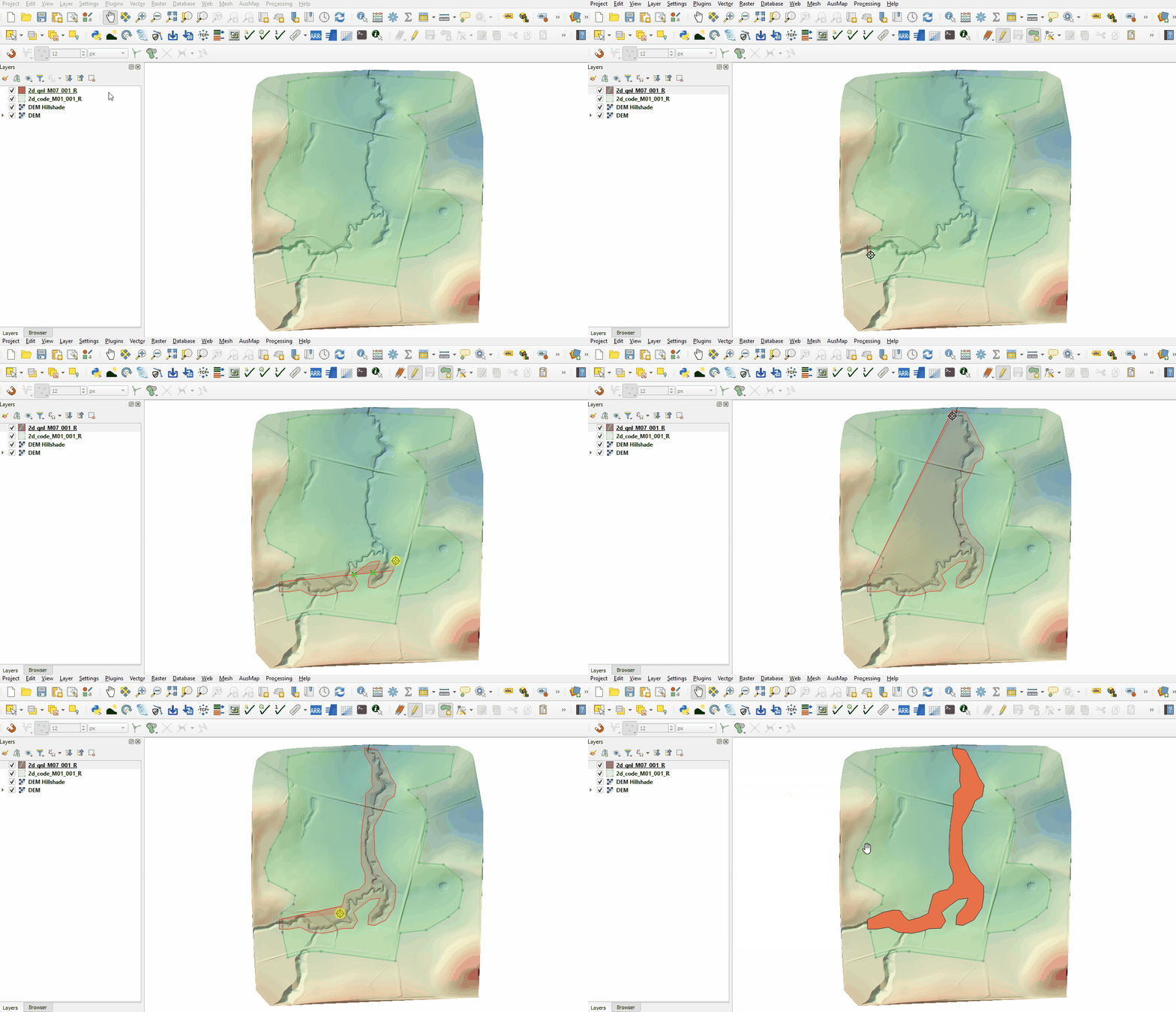
- Select 'Add Polygon Feature' and digitise a polygon around the creek.
- Terminate the polygon by right clicking and write '2' into the 'Nest_Level' attribute.
- Turn off editing to save the edits.

Conclusion
- A 2d_qnl layer was digitised surrounding the creek.
| Up |
|---|
 Back to Module 7 Main Page Back to Module 7 Main Page
|