QGIS 3D Animations: Difference between revisions
No edit summary |
No edit summary |
||
| Line 7: | Line 7: | ||
==Data Required== |
==Data Required== |
||
As a minimum you will need:<br> |
As a minimum, you will need:<br> |
||
* Digital Elevation Model (DEM)/TIN; and |
* Digital Elevation Model (DEM)/TIN; and |
||
* 2D Model Results. |
* 2D Model Results. |
||
This example uses the DEM and 2D results for Tutorial Module 1. The complete model is available from [[Tutorial_Introduction | Tutorial Introduction]]. |
|||
<br> |
<br> |
||
| Line 17: | Line 17: | ||
The following steps demonstrate how to display the water level (_h) datasets, these steps may equally be followed using other datasets you may have. |
The following steps demonstrate how to display the water level (_h) datasets, these steps may equally be followed using other datasets you may have. |
||
<ol> |
<ol> |
||
<li>Load the '''DEM.tif''' into the QGIS workspace </li><br> |
<li>Load the '''DEM.tif''' into the QGIS workspace. </li><br> |
||
<li>Load the 2D results dataset using the '''M01_5m_001.xmdf''' results file located in the '''TUFLOW\results\''' folder using the TUFLOW Viewer. For more details on loading map outputs, refer to [[TUFLOW_Viewer_-_Load_Results_-_Map_Outputs | TUFLOW Viewer - Load Results - Map Outputs]]. </li><br> |
<li>Load the 2D results dataset using the '''M01_5m_001.xmdf''' results file located in the '''TUFLOW\results\''' folder using the TUFLOW Viewer. For more details on loading map outputs, refer to [[TUFLOW_Viewer_-_Load_Results_-_Map_Outputs | TUFLOW Viewer - Load Results - Map Outputs]]. </li><br> |
||
<li>Select 'Depth' results to display in the workspace and change map styling to your preference. In this example, the 'blues' colour ramp has been selected and the temporal bar has been moved to show depth results near the peak of the event. For more details on map styling, refer to [[TUFLOW_Viewer_-_Map_Outputs_-_Styling_Scalar_Types | TUFLOW Viewer - Map Outputs - Styling Scalar Types]]. </li> |
<li>Select 'Depth' results to display in the workspace and change map styling to your preference. In this example, the 'blues' colour ramp has been selected and the temporal bar has been moved to show depth results near the peak of the event. For more details on map styling, refer to [[TUFLOW_Viewer_-_Map_Outputs_-_Styling_Scalar_Types | TUFLOW Viewer - Map Outputs - Styling Scalar Types]]. </li> |
||
| Line 53: | Line 53: | ||
==Load Results in 3D Map View== |
==Load Results in 3D Map View== |
||
The following steps |
The following steps demonstrate how to load the maximum water level results in the 3D Map View. |
||
<ol> |
<ol> |
||
<li> Open Layer Properties of the Results Mesh Layer, by right-clicking the layer in the Layers Panel and selecting "Properties..." <br> |
<li> Open Layer Properties of the Results Mesh Layer, by right-clicking the layer in the Layers Panel and selecting "Properties..." <br> |
||
| Line 66: | Line 66: | ||
Note, the "2D Contour Colour Ramp Shader" rendering style option sets the symbology of the results to replicate the current symbology in the current 2D map view. |
Note, that the "2D Contour Colour Ramp Shader" rendering style option sets the symbology of the results to replicate the current symbology in the current 2D map view. For this example, the rendering style should reflect the depth map output symbology. |
||
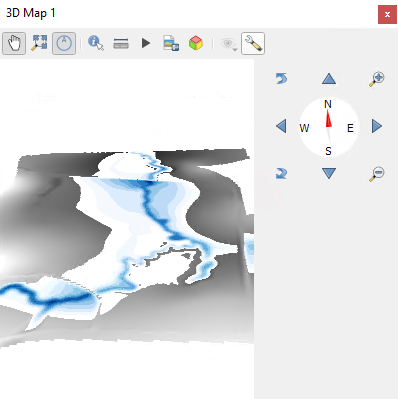
<li> Open the 3D Map view window to view the 3D Water Level results and terrain |
<li> Open the 3D Map view window to view the 3D Water Level results and terrain. |
||
[[File:3Dview results.png|none]] |
[[File:3Dview results.png|none]] |
||
</li><br> |
</li><br> |
||
</ol> |
</ol> |
||
==Creating an |
==Creating an Animation== |
||
To create an animation, refer to instructions |
To create an animation, refer to instructions published on the QGIS website: [https://docs.qgis.org/3.34/en/docs/user_manual/map_views/3d_map_view.html#creating-an-animation Creating an animation]. |
||
==Additional Resources== |
|||
The Qgis2threejs plugin can also be used to create a 3D map view and animation. For more details, see [https://minorua.github.io/Qgis2threejs/docs/ Qgis2threejs Plugin Document] |
|||
<br> |
<br> |
||
Revision as of 21:42, 9 January 2025
Page Under Construction
Introduction
This page explains how to make a 3D animation using QGIS. QGIS version 3.38.3 has been used for this example.
Data Required
As a minimum, you will need:
- Digital Elevation Model (DEM)/TIN; and
- 2D Model Results.
This example uses the DEM and 2D results for Tutorial Module 1. The complete model is available from Tutorial Introduction.
Set Up QGIS Workspace
The following steps demonstrate how to display the water level (_h) datasets, these steps may equally be followed using other datasets you may have.
- Load the DEM.tif into the QGIS workspace.
- Load the 2D results dataset using the M01_5m_001.xmdf results file located in the TUFLOW\results\ folder using the TUFLOW Viewer. For more details on loading map outputs, refer to TUFLOW Viewer - Load Results - Map Outputs.
- Select 'Depth' results to display in the workspace and change map styling to your preference. In this example, the 'blues' colour ramp has been selected and the temporal bar has been moved to show depth results near the peak of the event. For more details on map styling, refer to TUFLOW Viewer - Map Outputs - Styling Scalar Types.
The QGIS workspace should look similar to below:

Configure DEM in 3D Map View
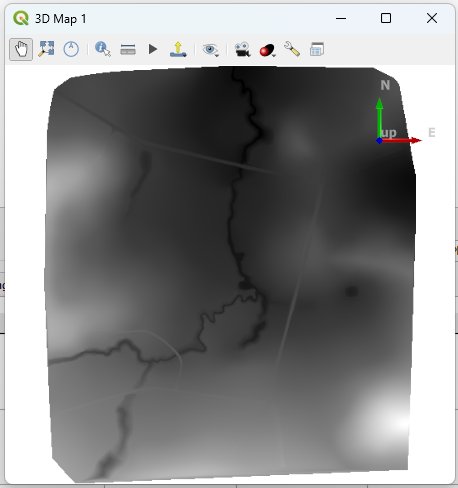
- Create a new 3D map view under View >> 3D Views >> New 3D Map View:

The following 3D Map View window will appear:
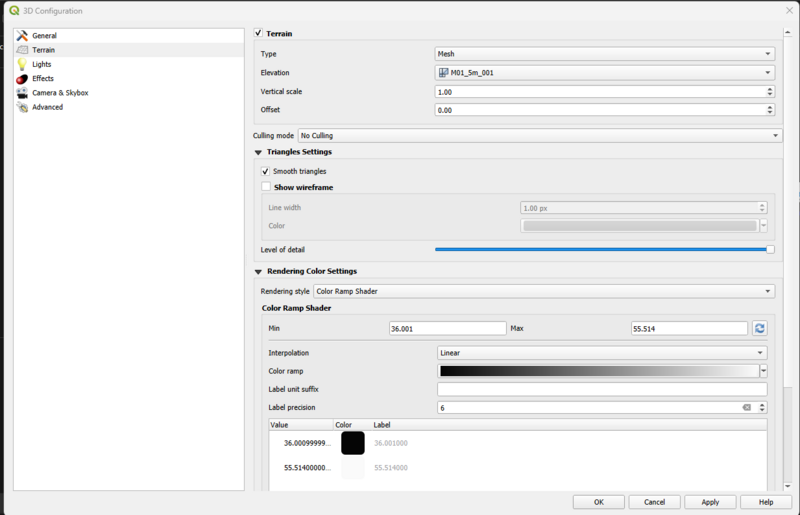
- Within the 3D Map View window, configure the DEM to display as a 3D mesh:
- Use the Zoom Full tool
 to center the map view onto the DEM
 - Click Settings
 > Terrain tab
 - Within the Terrain tab, enable the following settings:
- Type: Mesh
- Elevation: M01_5m_001
- Smooth triangles enabled
- Render style: Color Ramp Shader
- Color ramp: Greys >> Invert Color Ramp
- Click OK
- Use the Zoom Full tool


The figure below demonstrates the resultant 3D surface. For more details on navigating within the 3D map view, refer to QGIS Documentation - 3D Map View, Navigation Options

Load Results in 3D Map View
The following steps demonstrate how to load the maximum water level results in the 3D Map View.
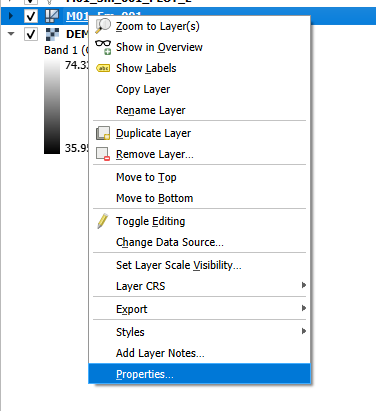
- Open Layer Properties of the Results Mesh Layer, by right-clicking the layer in the Layers Panel and selecting "Properties..."
- Navigate to the 3D View Panel within the Layer Properties window, and enable the following settings:
- Enable 3D Renderer
- Enable Smooth Triangles
- Dataset group for vertical value: "Water Level/Maximums"
- Rendering style: "2D Contour Color Ramp Shader"
- Click OK
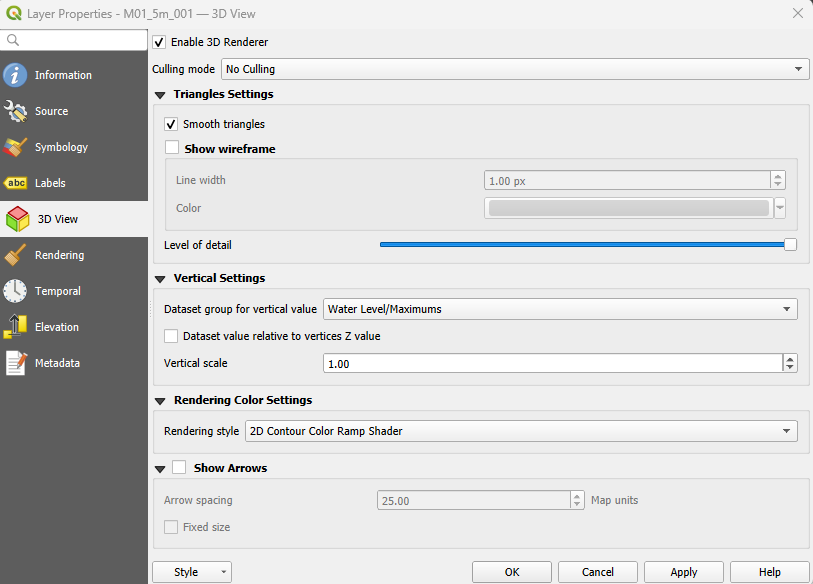
Note, that the "2D Contour Colour Ramp Shader" rendering style option sets the symbology of the results to replicate the current symbology in the current 2D map view. For this example, the rendering style should reflect the depth map output symbology. - Open the 3D Map view window to view the 3D Water Level results and terrain.


Creating an Animation
To create an animation, refer to instructions published on the QGIS website: Creating an animation.
Additional Resources
The Qgis2threejs plugin can also be used to create a 3D map view and animation. For more details, see Qgis2threejs Plugin Document
| Up |
|---|
 Back to QGIS Tips And Tricks Back to QGIS Tips And Tricks
|