New User Installation Guide: Difference between revisions
Jump to navigation
Jump to search
Content deleted Content added
Chris Huxley (talk | contribs) |
Chris Huxley (talk | contribs) |
||
| Line 38: | Line 38: | ||
* Download and install the Licencing Dongle Drivers (CodeMeter RunTime Kit) on the Network Host computer. |
* Download and install the Licencing Dongle Drivers (CodeMeter RunTime Kit) on the Network Host computer. |
||
* Follow the steps listed in the <u>[[WIBU_Licence_Update_Request | Licence Update Request]]</u> section of the Wiki if you have been sent a new Network licence dongle. You will need to email the licence file to sales@tuflow.com. The sales team with email you an updated licence file containing your specific licence configuration. |
* Follow the steps listed in the <u>[[WIBU_Licence_Update_Request | Licence Update Request]]</u> section of the Wiki if you have been sent a new Network licence dongle. You will need to email the licence file to sales@tuflow.com. The sales team with email you an updated licence file containing your specific licence configuration. |
||
* After activating your licence insert your Network licence dongle in the Network Host computer. Double click the TUFLOW Executable (for example TUFLOW_iSP_w64.exe) from the |
* After activating your licence insert your Network licence dongle in the Network Host computer. Double click the TUFLOW Executable (for example TUFLOW_iSP_w64.exe) from the host computer. A DOS window should open. Review the licence information listed: |
||
:[[File:TUFLOW_DOS_Test1.JPG|600px]] <br> |
:[[File:TUFLOW_DOS_Test1.JPG|600px]] <br> |
||
* Install Licencing Dongle Drivers (CodeMeter RunTime Kit) |
* Install <u>[[Wibu_Dongles| Licencing Dongle Drivers (CodeMeter RunTime Kit)]]</u> on all client computers wishing to access licences from the Network Host. |
||
* Configure Access to the Network licences |
* <u>[[WIBU_Configure_Network_Client | Configure Access]]</u> to the Network licences on all client computers. |
||
* Double click the TUFLOW Executable (for example TUFLOW_iSP_w64.exe) from the client computer. A DOS window should open. Review the licence information listed (example shown above). |
|||
* You are now ready to start TUFLOW modelling. Continue to bullet point 3. |
|||
Revision as of 13:52, 29 June 2017
Introduction
Welcome to TUFLOW. This is a page for new users outlining the steps required run TUFLOW for the first time.
The standard TUFLOW setup steps are listed below.
Free DEMO Version of TUFLOW
This section is relevant for people who are trialing TUFLOW without a licence. Please skip to the next section if you have a licence.
- Download the latest TUFLOW executable from the Tuflow website: Tuflow Release Download. TUFLOW is a standalone console application. As such, it doesn't require installation to run!
- Download the TUFLOW Tutorial Dataset: Tutorial Model Download
- Follow the user documentation for the tutorial models to learn how to use TUFLOW. The user documentation is available from the Tutorial Model section of the Wiki.
- Run TUFLOW using any of the options listed in the Running TUFLOW section of the Wiki.
- After gaining an understanding of TUFLOW through the tutorial model dataset you may be interested in developing some of your own models for testing. A free Demo option is included within the standard TUFLOW executable. The free Demo version is fully enabled, though has the following limits:
- 100,000 total cells and 30,000 active (potentially flooded) cells
- 100 1D channels
- There can on be is only one 2D domain (multiple 2D domains are not supported)
- A simulation time of 10 minutes.
- Over 60 example models demonstrating the most commonly used TUFLOW features are available from the Example Models section of the Wiki. These models call the Demo mode mentioned above, and as such don't require a licence to run. Use these models to learn how to implement features not included in the TUFLOW Tutorials. Refer to the TUFLOW Manual for further supporting information.
- Other useful information is contained in the Wiki. In particular new users often find the Tips and Tricks section on the right-hand side of the home page and the Modelling Guidance sections particularly useful.
- If you're interested in becoming a part of the TUFLOW User Community please join the TUFLOW Forum and LinkedIn User Group.
- Please email support@tuflow.com if you have any technical questions or sales@tuflow.com if you would like to purchase a licence. Price information is available from the TUFLOW Website
Licenced Version of TUFLOW
- Download the latest TUFLOW executable from the Tuflow website: Tuflow Release Download. TUFLOW is a standalone console application. As such, it doesn't require installation to run!
- Download and install the Licencing Dongle Drivers (CodeMeter RunTime Kit): Installing Licensing Software
Local Licence- Plug your new Local licence dongle into your computer.
- Follow the steps listed in the Licence Update Request section of the Wiki if you have been sent a new Local licence dongle. You will need to email the licence file to sales@tuflow.com. The sales team with email you an updated licence file containing your specific licence configuration.
- After activating your licence insert your Local licence dongle in your computer. Double click the TUFLOW Executable (for example TUFLOW_iSP_w64.exe). A DOS window should open. Review the licence information listed:
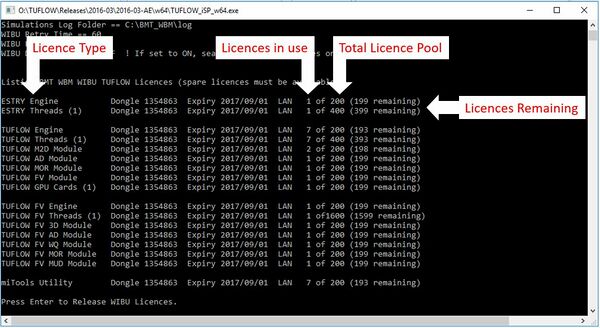
- Press enter to close the DOS window.
- Note: Local TUFLOW licences are associated with the USB dongle. All computers running TUFLOW must have Licencing Dongle Drivers (CodeMeter RunTime Kit) installed and the USB dongle plugged in for a simulation to initialise. The Licence Update Request should only be required once annually to update the USB dongle and provide access to new updated versions of TUFLOW.
- You are now ready to start TUFLOW modelling. Continue to bullet point 3.
- Download and install the Licencing Dongle Drivers (CodeMeter RunTime Kit) on the Network Host computer.
- Follow the steps listed in the Licence Update Request section of the Wiki if you have been sent a new Network licence dongle. You will need to email the licence file to sales@tuflow.com. The sales team with email you an updated licence file containing your specific licence configuration.
- After activating your licence insert your Network licence dongle in the Network Host computer. Double click the TUFLOW Executable (for example TUFLOW_iSP_w64.exe) from the host computer. A DOS window should open. Review the licence information listed:
- Install Licencing Dongle Drivers (CodeMeter RunTime Kit) on all client computers wishing to access licences from the Network Host.
- Configure Access to the Network licences on all client computers.
- Double click the TUFLOW Executable (for example TUFLOW_iSP_w64.exe) from the client computer. A DOS window should open. Review the licence information listed (example shown above).
- You are now ready to start TUFLOW modelling. Continue to bullet point 3.
- Download the TUFLOW Tutorial Dataset: Tutorial Model Download
- Follow the user documentation for the tutorial models to learn how to use TUFLOW. The user documentation is available from the Tutorial Model section of the Wiki.
- Run TUFLOW using any of the options listed in the Running TUFLOW section of the Wiki.
- Over 60 example models demonstrating the most commonly used TUFLOW features are available from the Example Models section of the Wiki. These models call the Demo mode mentioned above, and as such don't require a licence to run. Use these models to learn how to implement features not included in the TUFLOW Tutorials. Refer to the TUFLOW Manual for further supporting information.
- Other useful information is contained in the Wiki. In particular new users often find the Tips and Tricks section on the right-hand side of the home page and the Modelling Guidance sections particularly useful.
- If you're interested in becoming a part of the TUFLOW User Community please join the TUFLOW Forum and LinkedIn User Group.
- Please email support@tuflow.com if you have any technical questions or sales@tuflow.com if you would like to purchase additional licences or add-on modules. Price information is available from the TUFLOW Website
