Tutorial M02 001 GIS Inputs QGIS GPKG: Difference between revisions
Jump to navigation
Jump to search
Content deleted Content added
| Line 57: | Line 57: | ||
<ol> |
<ol> |
||
<li>Create a new folder called '''Data_Processing''' in the '''Module_02''' folder. |
<li>Create a new folder called '''Data_Processing''' in the '''Module_02''' folder. |
||
<li>Use the 'Import Empty File' tool to create a new 2d_zsh layer called ‘breaklines’ as a ‘line’ type. |
<li>Use the 'Import Empty File' tool to create a new 2d_zsh layer called ‘breaklines’ as a ‘line’ type. In the Spatial Database Options, select 'All to one'. Navigate to the '''Data_Processing''' folder and create a new GeoPackage database called '''M02_Breaklines.gpkg'''. Click Save and hit 'OK'. |
||
<li>Digitise a line using the ‘Add Line Feature’ button following the road crest. This could match the provided breaklines or be an section of road not covered by the original breakline. |
<li>Digitise a line using the ‘Add Line Feature’ button following the road crest. This could match the provided breaklines or be an section of road not covered by the original breakline. |
||
<li>Enter the following attributes and save the file: |
<li>Enter the following attributes and save the file: |
||
| Line 64: | Line 64: | ||
*Shape_Width: 5 |
*Shape_Width: 5 |
||
*Shape_Option: Max |
*Shape_Option: Max |
||
<li>Close the layer in QGIS (right click on it from the Layers panel and select 'Remove Layer'). |
<li>Close the layer in QGIS (right click on it from the Layers panel and select 'Remove Layer'). Copy and paste all of the '''2d_zsh_breaklines_L''' files from '''M02_001.gpkg''' into '''M02_Breaklines.gpkg'''. |
||
<li>Create a new batch file '''_run_M02_asc_to_asc_Breaklines.bat''' in the '''Module_02\Data_Processing''' folder and open it in a text editor. |
<li>Create a new batch file '''_run_M02_asc_to_asc_Breaklines.bat''' in the '''Module_02\Data_Processing''' folder and open it in a text editor. |
||
<li>Input the following (Note: Utility location may differ): <br> |
<li>Input the following (Note: Utility location may differ): <br> |
||
<font color="blue"><tt>'''set''' </tt></font> <font color="black"><tt>asc_to_asc</tt></font><font color="red"><tt>=</tt></font><font color="black"><tt>"C:\TUFLOW\Utilities\asc_to_asc\asc_to_asc_w64.exe"</tt></font> <br> |
<font color="blue"><tt>'''set''' </tt></font> <font color="black"><tt>asc_to_asc</tt></font><font color="red"><tt>=</tt></font><font color="black"><tt>"C:\TUFLOW\Utilities\asc_to_asc\asc_to_asc_w64.exe"</tt></font> <br> |
||
<li>Use the -brkline flag to call the breakline function. The utility then expects the 2d_zsh_breaklines layer and the DEM.<br> |
<li>Use the -brkline flag to call the breakline function. The utility then expects the 2d_zsh_breaklines layer and the DEM.<br> |
||
<font color="orange"><tt>%asc_to_asc% </tt></font> <font color="black"><tt>-brkline |
<font color="orange"><tt>%asc_to_asc% </tt></font> <font color="black"><tt>-brkline "M02_Breaklines.gpkg >> 2d_zsh_breaklines_L" ..\TUFLOW\model\grid\DEM.tif</tt></font> <br> |
||
<li>Save the batch file and double click it in file explorer to run the utility. |
<li>Save the batch file and double click it in file explorer to run the utility. |
||
<li>The utility creates a points layer and updates the lines layer. These layers can be copied into |
<li>The utility creates a points layer and updates the lines layer. These layers can be copied into '''M02_001.gpkg''' and read into the TGC. |
||
</ol> |
</ol> |
||
<br> |
<br> |
||
Revision as of 12:08, 26 May 2023
Page Under Construction
Introduction
QGIS is used to create, import and view input data.
TUFLOW Project Re-Configuration
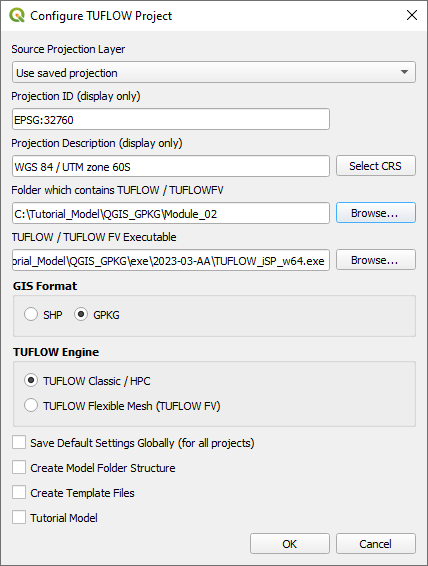
Re-configure the TUFLOW project to use and save empty files to the correct folder:
- Go to Plugins > TUFLOW > Editing > Configure / Create TUFLOW Project.
- Change the folder which contains TUFLOW to the Module_02 folder.
Note: The 'results' and 'check' folder get automatically created when the TUFLOW model is run.
- Select 'GPKG' as the GIS Format.
- Click 'OK' and save the QGIS workspace by selecting Project > Save As.
- Set the QGIS workspace projection to EPSG:32760, see Set the Projection.

Method
Create a GeoPackage Database for Module 2:
- Navigate to the Module_02\TUFLOW\model\gis folder.
- Rename M01_001.gpkg as M02_001.gpkg.
- From the QGIS Browser panel, right click on 'Favorites' and select 'Add a Directory...'.
- Navigate to the Module_02 folder and select it.
From the QGIS Browser Panel, navigate to the Module_02\Tutorial_Data folder. Drag and drop the following layers in to the M02_001.gpkg database:
- 2d_zsh_M02_rd_crest_001_L
- 2d_zsh_M02_rd_crest_001_P
Investigate the supplied files:
- Open the files, either:
- Drag and drop M02_001.gpkg into the QGIS workspace, or
- In the Browser Panel, double click the files from within the M02_001.gpkg.
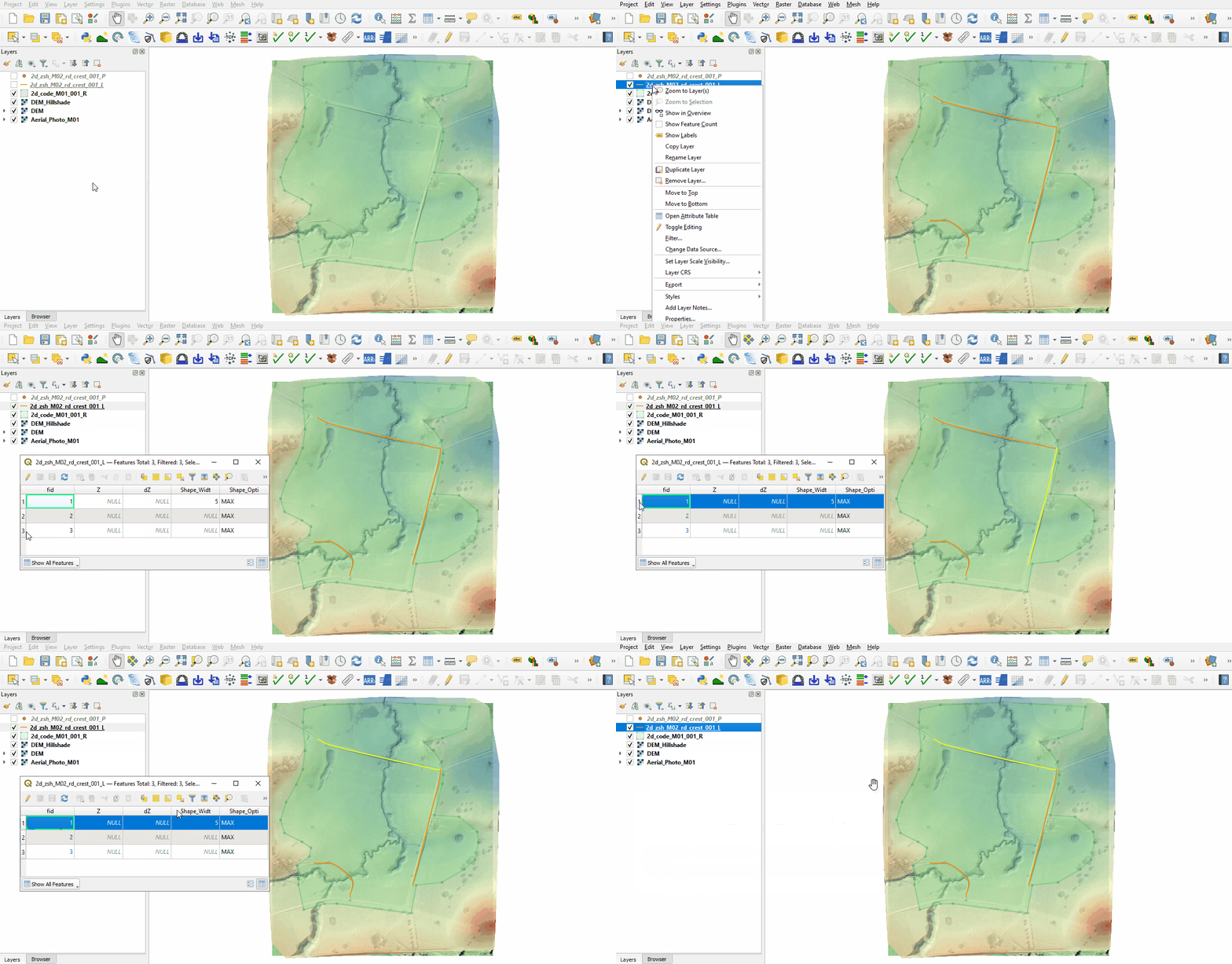
- The 2d_zsh line layer represents the breaklines:
- No ‘Z’ attribute is specified, the elevations are taken from the 2d_zsh point layer.
- The breakline on the north side has the same Shape_Width as the cell size, this is a thick breakline modifying whole cells. The other two breaklines don't have the attribute specified, these are thin breaklines modifying only the cell sides and cell corners.
- The Shape_Option of 'MAX' is specified for all breaklines. The Zpt elevations only changes when the Z shape elevation at the Zpt is higher. The purpose of the Z shape is to enforce the highest elevations along the road crest.
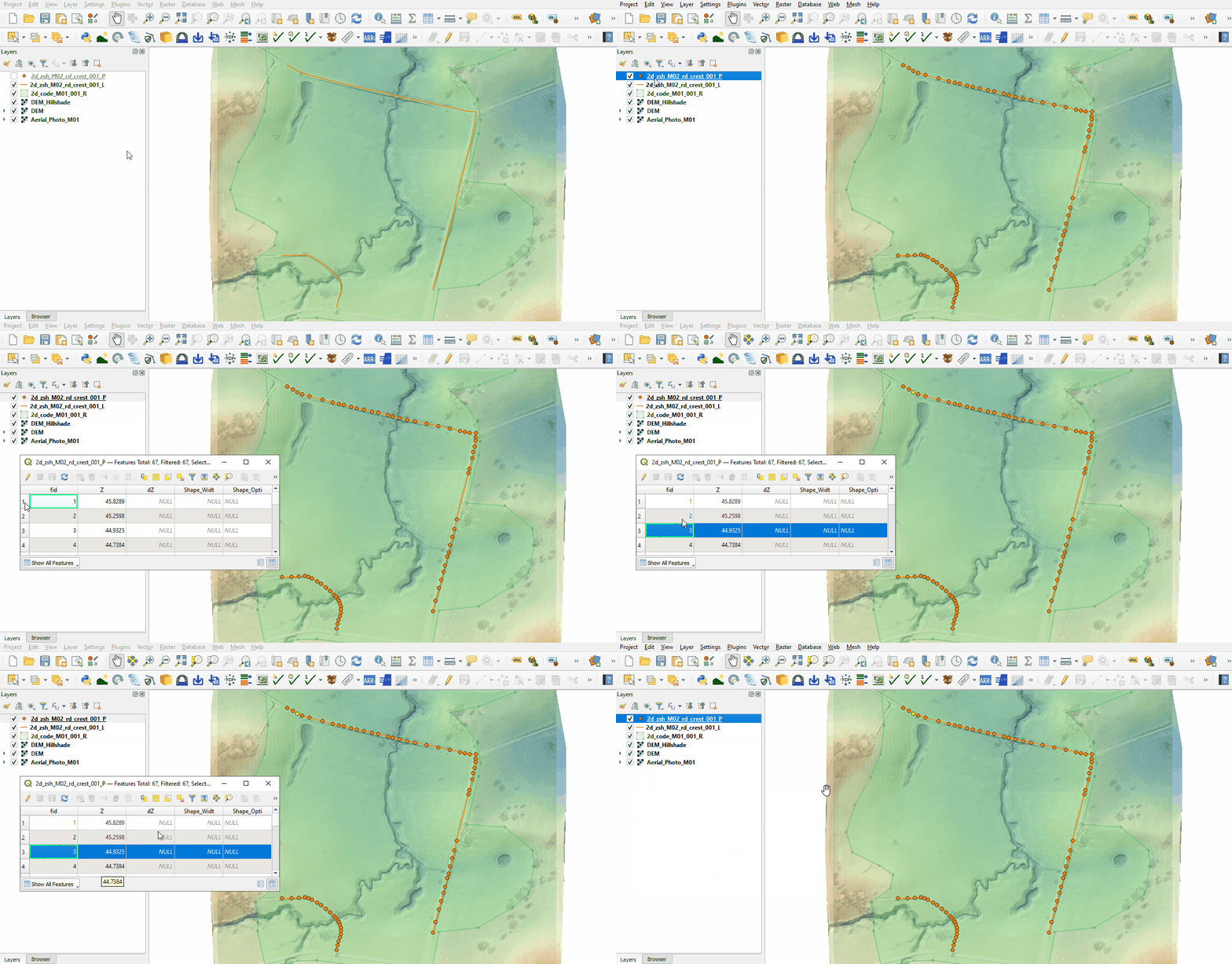
- The 2d_zsh point layer is used to apply elevation to the breaklines:
- The values in the 'Z' attribute are elevations above datum assigned to each point. The elevations are being interpolated along the breakline.
- The points must be snapped to the vertices of the 2d_zsh line to instruct TUFLOW that these layers are linked. If no points are in the layer, the elevation on the line object is used, i.e. the elevation along the line does not vary. For more information, see Table 6-8 of the 2018 TUFLOW Manual.


Creating Breaklines (Optional)
Breaklines are provided for this tutorial, however, these could be made using the breakline flag with the asc_to_asc utility which extracts elevations from a DEM for breaklines in the 2d_zsh format. The utility is provided in the exe/asc_to_asc folder. It can also be downloaded from the TUFLOW website and saved into a folder with other utilities.
- Create a new folder called Data_Processing in the Module_02 folder.
- Use the 'Import Empty File' tool to create a new 2d_zsh layer called ‘breaklines’ as a ‘line’ type. In the Spatial Database Options, select 'All to one'. Navigate to the Data_Processing folder and create a new GeoPackage database called M02_Breaklines.gpkg. Click Save and hit 'OK'.
- Digitise a line using the ‘Add Line Feature’ button following the road crest. This could match the provided breaklines or be an section of road not covered by the original breakline.
- Enter the following attributes and save the file:
- Z: Null
- dZ: 30
- Shape_Width: 5
- Shape_Option: Max
- Close the layer in QGIS (right click on it from the Layers panel and select 'Remove Layer'). Copy and paste all of the 2d_zsh_breaklines_L files from M02_001.gpkg into M02_Breaklines.gpkg.
- Create a new batch file _run_M02_asc_to_asc_Breaklines.bat in the Module_02\Data_Processing folder and open it in a text editor.
- Input the following (Note: Utility location may differ):
set asc_to_asc="C:\TUFLOW\Utilities\asc_to_asc\asc_to_asc_w64.exe"
- Use the -brkline flag to call the breakline function. The utility then expects the 2d_zsh_breaklines layer and the DEM.
%asc_to_asc% -brkline "M02_Breaklines.gpkg >> 2d_zsh_breaklines_L" ..\TUFLOW\model\grid\DEM.tif
- Save the batch file and double click it in file explorer to run the utility.
- The utility creates a points layer and updates the lines layer. These layers can be copied into M02_001.gpkg and read into the TGC.
Conclusion
- Two 2d_zsh layers were inspected to enforce the breaklines in the model.
| Up |
|---|
 Back to Module 2 Main Page Back to Module 2 Main Page
|