Using Task Scheduler to Run Batch Files: Difference between revisions
Jump to navigation
Jump to search
Content deleted Content added
Ellis Symons (talk | contribs) No edit summary |
No edit summary |
||
| Line 16: | Line 16: | ||
<li> Point to batch file<Br>[[File: Create_Basic_Task_program.PNG | 500px]] |
<li> Point to batch file<Br>[[File: Create_Basic_Task_program.PNG | 500px]] |
||
</ol> |
</ol> |
||
{{Tips Navigation |
|||
|uplink=[[Running_TUFLOW| Back to Running TUFLOW]] |
|||
}} |
|||
Latest revision as of 12:01, 8 January 2026
The following steps describe how to schedule a batch file to run at a certain time using Task Scheduler in Windows 7 / 8 /10.
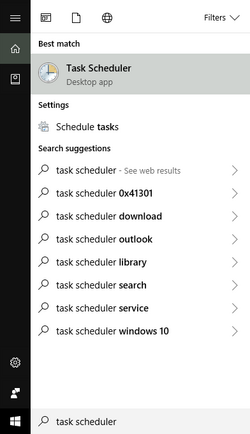
- Click Start then search Task Scheduler
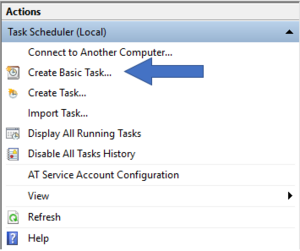
- Select Create Basic Task under Actions and follow work through the setup. An example is presented below.
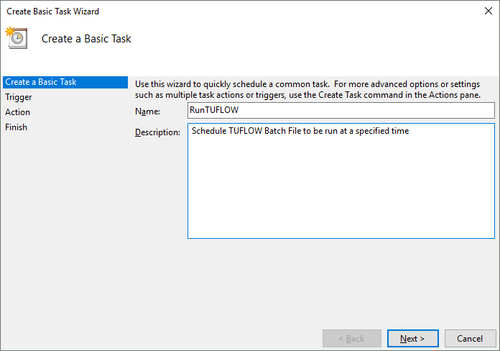
- Task Description
- Trigger type
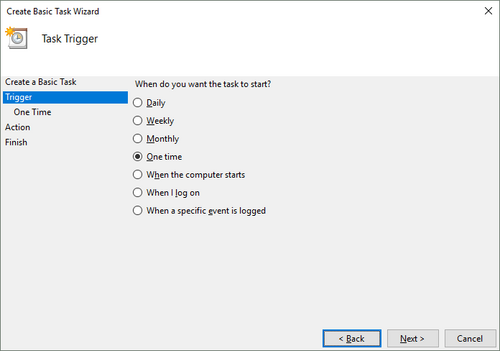
- Trigger rule
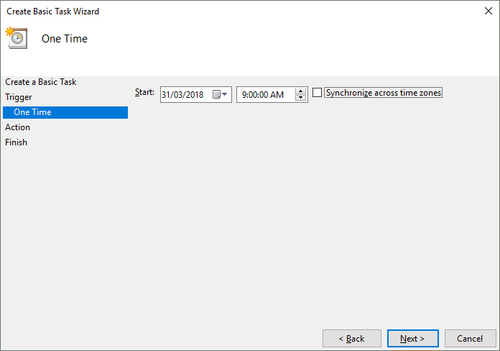
- Trigger action
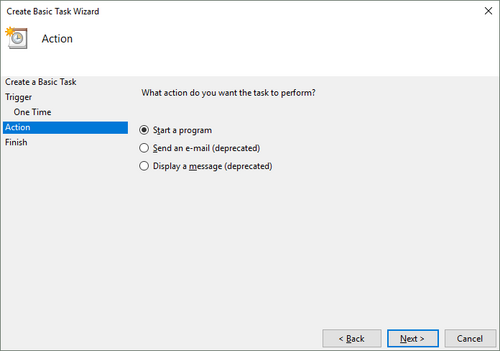
- Point to batch file
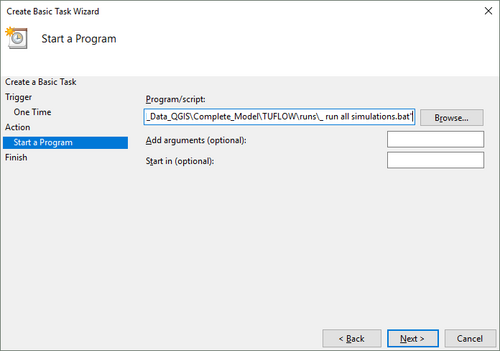


| Up |
|---|
 Back to Running TUFLOW Back to Running TUFLOW
|