New User Guide Local Hardware Licences (Blank): Difference between revisions
Jump to navigation
Jump to search
Content deleted Content added
Chris Huxley (talk | contribs) No edit summary |
Chris Huxley (talk | contribs) No edit summary |
||
| (3 intermediate revisions by 2 users not shown) | |||
| Line 2: | Line 2: | ||
<ol> |
<ol> |
||
<li> Download the latest executable and manual from the Downloads page of the <u>[https://www.tuflow.com/downloads/ TUFLOW website]</u>.<br> |
<li> Download the latest executable and manual from the Downloads page of the <u>[https://www.tuflow.com/downloads/ TUFLOW website]</u>.<br> |
||
<li> <u>[[ |
<li> <u>[[Installing_Wibu_CodeMeter_Windows| Install Licencing Dongle Drivers (CodeMeter RunTime Kit)]]</u> on your computer. |
||
<li> Plug your new Local licence hardware dongle (USB) into your computer. |
<li> Plug your new Local licence hardware dongle (USB) into your computer. |
||
<li> Export a licence request file for sales@tuflow.com: <u>[[WIBU_Licence_Update_Request_Uncoded | Export Licence Request (RAC) File]]</u>. |
<li> Export a licence request file for sales@tuflow.com: <u>[[WIBU_Licence_Update_Request_Uncoded | Export Licence Request (RAC) File]]</u>. |
||
<li> Sales |
<li> Sales will email you an updated licence file. Follow these instructions to import the update: <u>[[WIBU_Licence_Update_Import| Import Licence Update (RAU) File]]</u>. |
||
<li> After importing the licence update, use Codemeter WebAdmin to review your licence type and count are as expected. |
|||
<li> Double click the TUFLOW Executable (for example TUFLOW_iSP_w64.exe). A DOS window should open. Review the licence information listed. Check the licence types and numbers associated with your configuration (the licence types and numbers will be different to the example shown below).<br> |
|||
<ol> |
|||
[[File:TUFLOW_DOS_Test1.JPG|600px]] <br> |
|||
<li> Open Codemeter Control Center via the Windows Start Menu. |
|||
| ⚫ | |||
<li> Select the relevant licence container from the lefthand panel, then click WebAdmin.<br> |
|||
[[File:Codemeter_Control_Center_HPC_Local.jpg|400px]] <br> |
|||
<li> Navigate to the Container section of WebAdmin via the drop menu options. Your licence summary will be displayed. Review the details (the licence types and numbers will be different to the example shown below).<br> |
|||
[[File:Codemeter_Webadmin_HPC_Local.jpg|700px]] <br> |
|||
Note: |
|||
| ⚫ | |||
* The TUFLOW exe is not an installer. TUFLOW is a standalone console application. As such, with exception of the Codemeter licencing software, no installation is technically required. If you are new to TUFLOW and need advice how to run a TUFLOW simulation, please complete the eLearning training referenced in the following bullet point. |
|||
</ol> |
|||
<li> You are now ready to start TUFLOW modelling. There are multiple options available to help you learn TUFLOW:<br> |
<li> You are now ready to start TUFLOW modelling. There are multiple options available to help you learn TUFLOW:<br> |
||
<ol> |
<ol> |
||
| Line 18: | Line 26: | ||
<li> <u>[https://www.tuflow.com/downloads/tuflow-classichpc-models/ TUFLOW Wiki Self-teach Tutorials]</u><br> |
<li> <u>[https://www.tuflow.com/downloads/tuflow-classichpc-models/ TUFLOW Wiki Self-teach Tutorials]</u><br> |
||
<li> <u>[[TUFLOW_Example_Models | Example Models]]</u> <br> |
<li> <u>[[TUFLOW_Example_Models | Example Models]]</u> <br> |
||
This database includes over |
This database includes over 100 example models demonstrating the most commonly used TUFLOW features. Use these models to learn how to implement features not explicitly covered in the TUFLOW eLearning or Wiki Tutorials. |
||
</ol> |
</ol> |
||
<li> Run TUFLOW using the options listed in the Running TUFLOW section of the Wiki:<br> |
<li> Run TUFLOW using the options listed in the Running TUFLOW section of the Wiki:<br> |
||
Latest revision as of 15:02, 4 August 2026
This page of the Wiki is relevant to people with a TUFLOW Local Hardware (USB) Lock licence.
- Download the latest executable and manual from the Downloads page of the TUFLOW website.
- Install Licencing Dongle Drivers (CodeMeter RunTime Kit) on your computer.
- Plug your new Local licence hardware dongle (USB) into your computer.
- Export a licence request file for sales@tuflow.com: Export Licence Request (RAC) File.
- Sales will email you an updated licence file. Follow these instructions to import the update: Import Licence Update (RAU) File.
- After importing the licence update, use Codemeter WebAdmin to review your licence type and count are as expected.
- Open Codemeter Control Center via the Windows Start Menu.
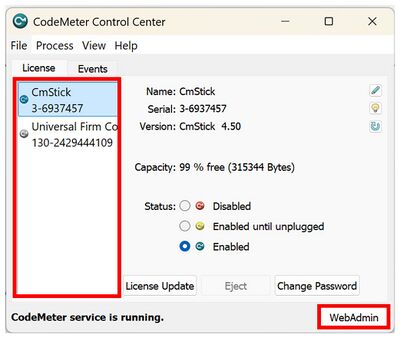
- Select the relevant licence container from the lefthand panel, then click WebAdmin.
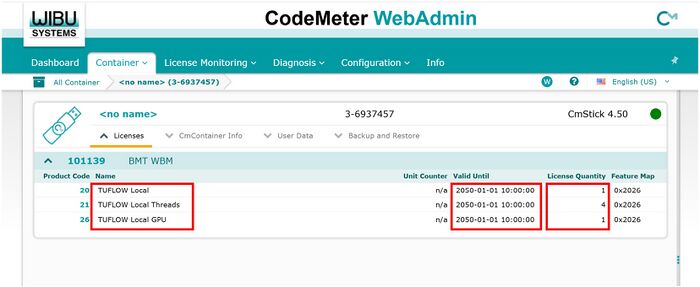
- Navigate to the Container section of WebAdmin via the drop menu options. Your licence summary will be displayed. Review the details (the licence types and numbers will be different to the example shown below).
Note:- Local TUFLOW licences are associated with the USB dongle. All computers running TUFLOW must have Licensing Dongle Drivers (CodeMeter RunTime Kit) installed and the USB hardware dongle plugged in for a simulation to initialise.
- The TUFLOW exe is not an installer. TUFLOW is a standalone console application. As such, with exception of the Codemeter licencing software, no installation is technically required. If you are new to TUFLOW and need advice how to run a TUFLOW simulation, please complete the eLearning training referenced in the following bullet point.
- You are now ready to start TUFLOW modelling. There are multiple options available to help you learn TUFLOW:
- Free TUFLOW eLearning courses.
These courses are hosted online 24/7. They includes step by step lessons comprising of a combination of written notes, background content videos, demonstration videos and hands-on exercises:
Other paid eLearning courses are also available via the TUFLOW Training Course Catalogue
- TUFLOW Wiki Self-teach Tutorials
- Example Models
This database includes over 100 example models demonstrating the most commonly used TUFLOW features. Use these models to learn how to implement features not explicitly covered in the TUFLOW eLearning or Wiki Tutorials.
- Free TUFLOW eLearning courses.
- Run TUFLOW using the options listed in the Running TUFLOW section of the Wiki:
- Other resources that may be useful include:
- Other useful information in the Wiki. In particular new users often find the Tips and Tricks section of the homepage and the Modelling Guidance sections useful.
- If you're interested in becoming a part of the TUFLOW User Community please join the TUFLOW LinkedIn User Group.
- Please email support@tuflow.com if you have any technical questions or sales@tuflow.com if you would like to rent additional licences temporarily, purchase additional licences or add-on modules. Price information is available from the Pricing page of the TUFLOW website

