TUFLOW SWMM Tutorial M02: Difference between revisions
| Line 85: | Line 85: | ||
<ol> |
<ol> |
||
<li>Go to Processing > Toolbox from the top dropdown menu options to open the Processing Toolbox. |
<li>Go to Processing > Toolbox from the top dropdown menu options to open the Processing Toolbox. |
||
<li>Go to TUFLOW > SWMM in the processing tool list and select '<u>[[QGIS_SWMM_GeoPackage_Create |GeoPackage - Create]]</u>'. This opens the dialog shown below. |
<li>Go to TUFLOW >> SWMM in the processing tool list and select '<u>[[QGIS_SWMM_GeoPackage_Create |GeoPackage - Create]]</u>'. This opens the dialog shown below. |
||
:*To set the ‘CRS for GeoPackage’: Click the drop down menu and select ‘Project CRS: EPSG:32760 - WGS 84 / UTM zone 60S’. |
:*To set the ‘CRS for GeoPackage’: Click the drop down menu and select ‘Project CRS: EPSG:32760 - WGS 84 / UTM zone 60S’. |
||
:*To set the ‘Initial SWMM Sections’: Click the …, and tick on: |
:*To set the ‘Initial SWMM Sections’: Click the …, and tick on: |
||
: |
::*'''Project--Title''', '''Project--Report.''' |
||
: |
::*'''Nodes--Junctions''', '''Nodes--Outfalls.''' |
||
: |
::*'''Links--Conduits, Links--Streets.''' |
||
: |
::*'''Inlets--Inlets.''' |
||
:*To define the ‘GPKG filename to create’: Click the …, select ‘Save to File’. Navigate to the '''TUFLOW\model\swmm''' folder and save the GeoPackage Database as '''sw02_001.gpkg'''. |
:*To define the ‘GPKG filename to create’: Click the …, select ‘Save to File’. Navigate to the '''TUFLOW\model\swmm''' folder and save the GeoPackage Database as '''sw02_001.gpkg'''. |
||
::'''Note:''' In Module 1 we also included '''Project--Options''' in the GeoPackage file. '''Project--Options''' is not required this time as this Tutorial model will use two SWMM INP files. The file created during Module 1 (for the road culverts) and the INP is to be created from this GeoPackage (for the underground pipe network inputs). When TUFLOW processes SWMM inputs, it combines the multiple INP files into one before simulation. As such, the details from the Module 1 '''Project--Options''' input will be used in this tutorial. If '''Project--Options''' are included in multiple Geopackage/INP files, the entry that is referenced lowest in the TUFLOW SWMM Control file (TSCF) will be used. |
::'''Note:''' In Module 1 we also included '''Project--Options''' in the GeoPackage file. '''Project--Options''' is not required this time as this Tutorial model will use two SWMM INP files. The file created during Module 1 (for the road culverts) and the INP is to be created from this GeoPackage (for the underground pipe network inputs). When TUFLOW processes SWMM inputs, it combines the multiple INP files into one before simulation. As such, the details from the Module 1 '''Project--Options''' input will be used in this tutorial. If '''Project--Options''' are included in multiple Geopackage/INP files, the entry that is referenced lowest in the TUFLOW SWMM Control file (TSCF) will be used. |
||
<li>Click 'Run'. |
<li>Click 'Run'. |
||
<li>Once to tool has finished, click ‘Close’. |
<li>Once to tool has finished, click ‘Close’. |
||
<li>In File Explorer, navigate to the '''TUFLOW\model\swmm''' folder and drag and drop '''sw02_001.gpkg''' into QGIS. |
<li>In Windows File Explorer, navigate to the '''TUFLOW\model\swmm''' folder and drag and drop '''sw02_001.gpkg''' into QGIS. |
||
<li>When prompted by QGIS, under 'Options', tick on 'Add layers to group', then select 'Add Layers' to open all vectors within '''sw02_001.gpkg'''. By default, all items in the available list should have been selected. |
<li>When prompted by QGIS, under 'Options', tick on 'Add layers to group', then select 'Add Layers' to open all vectors within '''sw02_001.gpkg'''. By default, all items in the available list should have been selected. |
||
<li>In the QGIS Layers Panel, move '''sw02_001.gpkg''' to the top of the list. This will ensure the data within this database file is displayed above all other layers in the project. |
<li>In the QGIS Layers Panel, move '''sw02_001.gpkg''' to the top of the list. This will ensure the data within this database file is displayed above all other layers in the project. |
||
Revision as of 12:28, 24 January 2024
Introduction
This tutorial, Module 2 of the TUFLOW SWMM tutorial dataset will demonstrate how to model underground stormwater pipe networks using SWMM, linked to the TUFLOW HPC 2D solution scheme. Boundary condition inflows to the model are defined using TUFLOW's 2D direct rainfall (rain on grid) approach. TUFLOW SWMM Tutorial Module 2 builds from the model created in TUFLOW SWMM Tutorial Module 1. The completed TUFLOW SWMM Module 1 model is provided in the TUFLOW_SWMM_Module_02\TUFLOW folder of the download dataset as the starting point for this tutorial. If you are not already familiar with TUFLOW SWMM linking, we recommend completing TUFLOW SWMM Module 1 prior to starting this tutorial.
Project Initialization
QGIS
QGIS Version 3.34 or newer, and QGIS TUFLOW Plugin 3.9.0.49 or newer are required to access the SWMM Processing Tools described in the following sections. For installation, see Installation of TUFLOW Plugin.
Define the Coordinate Reference System (CRS), also called ‘Projection’, for the QGIS workspace:
- Open QGIS.
- Go to Project > Properties…
- In the CRS tab, type ‘WGS 84 / UTM Zone 60S’.
- Select the matching projection in the 'Predefined Coordinate Reference Systems' section.
- Click ‘Apply’ and ‘OK’.
- Ensure that the projection is set correctly by viewing the bottom right hand corner of the workspace. It should read ‘EPSG:32760’.
TUFLOW Plugin
Next we need to configure the QGIS TUFLOW Plugin settings to link with the project folder where we will build our model:
- Open the 'Configure TUFLOW Project' tool by selecting Plugins > TUFLOW > Editing > Configure / Create TUFLOW Project.
- In the previous section, the CRS (Coordinate Reference System) for the QGIS Workspace was defined. As such, the projection inputs are set automatically.
- To set the location of the TUFLOW folder, click 'Browse...' and navigate to the TUFLOW_SWMM_Module_02. Click 'Select Folder'.
- To set the location of the TUFLOW single precision executable file, click 'Browse...' and navigate to the exe\2023-03-AD folder. Select TUFLOW_iSP_w64.exe and click 'Open'.
- Select 'GPKG' as the GIS Format.
- Select 'TUFLOW Classic / HPC' as the TUFLOW Engine.
- Tick on 'Save Default Settings Globally'.
- Click 'OK'.
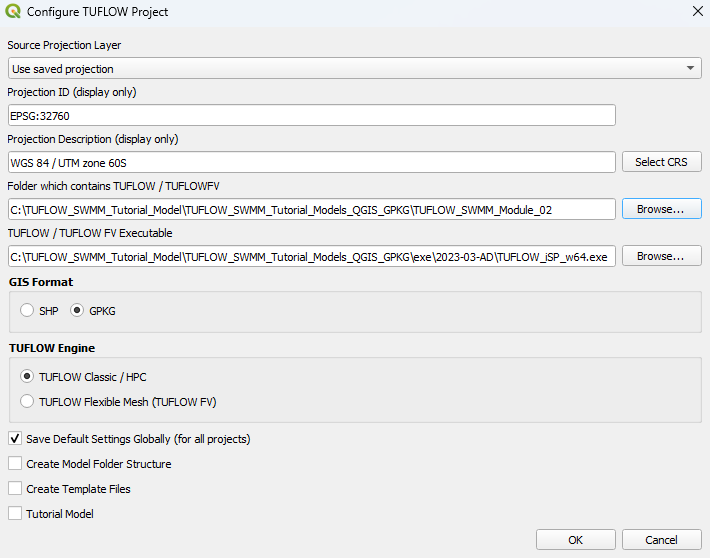

TUFLOW Model
Load and Style TUFLOW Model Files
Load in the project GIS layers:
- Click on the ‘Load TUFLOW Layers from TCF’ symbol from the TUFLOW Plugin toolbar.

- Navigate to the TUFLOW_SWMM_Module_02\TUFLOW\runs folder and select TS01_5m_001.tcf.
- In the Load Layers window, select:
- Ordering Options: Alphabetical
- Grouping Options: Group by control file
- Raster Load Options: Load Normally
- Click ‘Open’ and ‘OK’.

Style the TUFLOW layers. Suggested styling steps were provided in TUFLOW SWMM Tutorial M01. They have not been duplicated here.
Increment TUFLOW GeoPackage File
We will now save a copy of TS01_001.gpkg with a new name, TS02_001.gpkg. This project initialization step is recommended so prior model versions from a project are not broken as a result of changes being made to GIS inputs.
- In the QGIS Layers Panel, select (left click) 2d_bc_M01_001_L.
- Click on the 'Increment Selected Layer' symbol from the TUFLOW Plugin toolbar. This opens the dialog shown below.

- Source Layer: Automatically set to the selected layer, 2d_bc_M01_001_L.
- Output Database: Click 'Browse...'. This will automatically open to the TUFLOW\model\gis folder. Set the new output database name to TS02_001.gpkg and click 'Save'.
- Output Layer Name: This will automatically increment to 2d_bc_M01_002_L. Change the name back to 2d_bc_M01_001_L.
- Delete the pre-filled 'Incremented Layer' entry in the table. We do not wish to modify the version number associated with the 2d_bc file. This current exercise will not change the version number of any of the GIS layer inputs, it is simply establishing a copy of the existing GeoPackage where future edits will be saved to.
- Select 'Remove Source Layer from Workspace'.
- Select 'Increment Layer and Preserve Database'.
- Click 'OK'.

Save QGIS Project Workspace
Save the QGIS Workspace:
- Go to Project > Save As.
- Navigate to the TUFLOW_SWMM_Module_02 folder and type SWMM_M02 as the filename with the extension .qgz.
GIS Inputs
Create SWMM GeoPackage Spatial Database
We will create a new SWMM GeoPackage database for our pipe network feature entries:
- Go to Processing > Toolbox from the top dropdown menu options to open the Processing Toolbox.
- Go to TUFLOW >> SWMM in the processing tool list and select 'GeoPackage - Create'. This opens the dialog shown below.
- To set the ‘CRS for GeoPackage’: Click the drop down menu and select ‘Project CRS: EPSG:32760 - WGS 84 / UTM zone 60S’.
- To set the ‘Initial SWMM Sections’: Click the …, and tick on:
- Project--Title, Project--Report.
- Nodes--Junctions, Nodes--Outfalls.
- Links--Conduits, Links--Streets.
- Inlets--Inlets.
- To define the ‘GPKG filename to create’: Click the …, select ‘Save to File’. Navigate to the TUFLOW\model\swmm folder and save the GeoPackage Database as sw02_001.gpkg.
- Note: In Module 1 we also included Project--Options in the GeoPackage file. Project--Options is not required this time as this Tutorial model will use two SWMM INP files. The file created during Module 1 (for the road culverts) and the INP is to be created from this GeoPackage (for the underground pipe network inputs). When TUFLOW processes SWMM inputs, it combines the multiple INP files into one before simulation. As such, the details from the Module 1 Project--Options input will be used in this tutorial. If Project--Options are included in multiple Geopackage/INP files, the entry that is referenced lowest in the TUFLOW SWMM Control file (TSCF) will be used.
- Click 'Run'.
- Once to tool has finished, click ‘Close’.
- In Windows File Explorer, navigate to the TUFLOW\model\swmm folder and drag and drop sw02_001.gpkg into QGIS.
- When prompted by QGIS, under 'Options', tick on 'Add layers to group', then select 'Add Layers' to open all vectors within sw02_001.gpkg. By default, all items in the available list should have been selected.
- In the QGIS Layers Panel, move sw02_001.gpkg to the top of the list. This will ensure the data within this database file is displayed above all other layers in the project.
GIS Data Entry
A GeoPackage called Urban_Development.gpkg is provided in the TUFLOW_SWMM_Module_02\Tutorial_Data folder. It contains three SWMM input layers:
- Pipes: defines the underground pipe network location, type and geometry.
- Junctions: defines the pipe network inlets.
- Outfalls: defines the pipe network outlet.
To populate the GeoPackage created in the previous section:
- In Windows Explorer, navigate to the TUFLOW_SWMM_Module_02\Tutorial_Data folder. Drag and drop the Urban_Development.gpkg into QGIS.
- When prompted by QGIS, under 'Options', tick on 'Add layers to group', then select Pipes, Junctions and Outfalls (hold Ctrl to select multiple). Click 'Add Layers'.
- In the QGIS Layers Panel, right click on the Pipes layer and select 'Zoom to Layer'.
- Use the 'Select Features' tool to highlight all items included in Pipes.
- Select 'Edit' from the top QGIS tab and 'Copy Features' from the drop down menu.
- In the QGIS Layers Panel, select (left click) the Links--Conduits layer.
- Make the Links--Conduits layer editable by clicking the 'Toggle Editing' symbol
 .
.
- Select 'Edit' from the top QGIS tab and click 'Paste Features' from the drop down menu.
- Toggle the editing off to save the edits.
- Similarly, copy the objects from Junctions into Nodes--Junctions. Junctions are considered inlets, and should be defined at the upstream end of isolated culverts and all upstream ends of pipes within a network.
- Also copy the objects from Outfalls into Nodes--Outfalls. Outfalls are treated as outlets, and are required at the downstream end of isolated culverts and the most downstream end of a pipe network.
- Toggle off editing to save the edits.
- Remove Urban_Development.gpkg.
- Inspect the attribute information within the respective layers to familiarize yourself with the data.

GIS Data Updates
The provided GIS data requires numerous updates, prior to our model simulation. We have built these updates into this tutorial to demonstrate some of the available TUFLOW SWMM model built processing tools.
The following updates are being made to objects and layers within sw02_001.gpkg.
Update SWMM Inlet Usage Layer Details
An Inlet Usage Layer defines the physical location of inlets to the pipe network. It also defines some of the site specific geometry, such as inlet type, street cross-section reference, surface inlet elevation, placement type (on-sag and on-grade). To reduce data entry requirements for this tutorial, a complete Inlet Usage Layer has been provided, swmm_iu_TS02_001. It includes a variety of on-sag and on-grade inlets. On-sag inlets are used in locations where the inlet is located in an area of minimal longtudial slope. In this situation ponded surface water enters the pipe network. On-grade inlets are used where bypass flow is expected due to the inlet location being on a slope. For on-grade inlets, TUFLOW SWMM captures a percentage of the “approach flow” based on several factors including the total 2D approach flow, velocity and depth.
- Navigate to the TUFLOW_SWMM_Module_02\Tutorial_Data folder and save a copy of swmm_iu_TS02_001 in the TUFLOW_SWMM_Module_02\TUFLOW\model\swmm folder.
- Navigate to the TUFLOW\model\swmm folder. Drag and drop swmm_iu_TS02_001 into the QGIS workspace.
When you progress from this tutorial to project modeling, you will need to create an Inlet Usage Layer yourself. The template file for this is available from model\gis\empty\swmm_iu_empty.gpkg. The file is created during the initial 'Write Empty' step of the model build process (refer to TUFLOW Tutorial Model 1). A summary of the attributes within the Inlet Usage Layer is documented in TUFLOW 2023-03-AD Release Notes (Table 4.1)
The 'Inlet' Attribute within swmm_iu_TS02_001 is an ID reference to inlet geometry and associated information listed within sw02_001.gpkg >> Inlets--Inlets. A single inlet type, 'Combo1', was referenced in swmm_iu_TS02_001 (the provided Inlet Usage Layer). In recognition of this, we need to create the entry for 'Combo1' in the Inlets--Inlets layer.
- In the QGIS Layers Panel, select (left click) Inlets--Inlets and toggle on editing.
- Right click Inlets--Inlets and select 'Open Attribute Table'.
- Click 'Add Feature'. Enter the following attributes (leave all other fields as NULL):
- Name: Combo1
- Type: COMBINATION
- Grate_Length: 0.6
- Grate_Width: 0.3
- Grate_Type: P_BAR-50
- Curb_Length: 0.9
- Curb_Height: 0.15
- Curb_Throat: VERTICAL
- Turn off editing and save the information.
Update Streets Details
Street cross-section information is needed for SWMM on-grade inlet flow calculations. A single street cross-section type named 'Xsec1', is referenced in swmm_iu_TS02_001 (the Inlet Usage Layer) using the 'StreetXSEC' field.
We will now define this street cross-section type and its attributes.
- In the QGIS Layers Panel, select (left click) Links--Streets and toggle on editing.
- Right click Links--Streets and select 'Open Attribute Table'.
- Click 'Add Feature'. Enter the following attributes:
- Name: Xsec1
- Tcrown: 7
- Hcurb: 0.2
- Sx: 4
- nRoad: 0.014
- a: 0
- W: 0
- Sides: 1
- Tback: 5
- Sback: 2
- nBack: 0.016
- Turn off editing to save the edits.
Update Conduit Details
Node Details
The 'From Node' and 'To Node' attribute information in Links---Conduits is necessary to build the 1D SWMM network. It defines the link/node connections. The information we will be adding to Links--Conduits is extracted from Nodes--Junctions and Nodes--Outfalls automatically using the 'Conduits - Assign node fields' tool from the Processing Toolbox.
- In the QGIS Layers Panel, select (left click) Links--Conduits and toggle on editing.
- In the Processing Toolbox, select the 'Edit Features In-Place' tool
 . This allows the editing of an existing layer, instead of the creation of a new layer.
- Go to TUFLOW > SWMM in the processing tool list and select 'Conduits - Assign node fields'. This opens the dialog shown below.
- Tick on the SWMM Node Layers: sw02_001 >> Nodes--Junctions and sw02_001 >> Nodes--Outfalls.
- Select 'Modify All Features'.
- Once the tool has finished, click 'Close'.
- Turn off editing to save the edits.
- View the attributes associated within Links--Conduits to verify the data processing has been completed correctly. The 'From Node' and 'To Node' attribute information is now configured correctly.
For a broader understanding of the other attributes associated with the Links--Conduits layer, refer to TUFLOW 2023-03-AD Release Notes (Table A.19) and the SWMM Reference Manual - Volume 2 (Hydraulics).
Tip: If you wish to only update selected objects during a future modeling project, instead of the entire Link--Conduits dataset, select the target objects first using the Feature by Area tool. The 'Conduits - Assign node fields' tool will provide an option to 'Modify Selected Features', instead of 'Modify All Features.'

Update Losses
Update the loss attributes in the Links--Conduits layer. These values will be entered automatically using the 'Conduits - Assign losses' tool from the Processing Toolbox.
- In the QGIS Layers Panel, select (left click) Links--Conduits and toggle on editing.
- In the Processing Toolbox, select the 'Edit Features In-Place' tool . This allows the editing of an existing layer, instead of the creation of a new layer.
- Go to TUFLOW > SWMM in the processing tool list and select 'Conduits - Assign losses'. This opens the dialog shown below.
- Input inlet usage features: swmm_iu_TS02_001.
- Entrance loss furthest upstream channels: 0.5
- Entrance loss for channels not furthest upstream: 0.2
- Exit loss furthest downstream channels: 1.0
- Exit loss for channels not furthest downstream: 0.4
- Select 'Modify All Features'.
- After the tool processing has finished, click 'Close'.
- Turn off editing to save the edits.
- View the attributes associated within Links--Conduits to verify the data processing has been completed correctly. The 'losses_Kentry', 'losses_Kexit' and 'losses_Kavg' attribute information is now configured.
1D/2D Linking
The 1D SWMM / 2D TUFLOW linkage locations to connect the pipe network inlets to the surface have been already automatically defined in the SWMM Inlet Usage Layer, swmm_iu_TS02_001, using the 'Conn1D_2D' attribute.

To complete the pipe network, 1D/2D linkage is needed at the outlet of the pipe network. The 'BC - Create channel endpoint 1D/2D connections' tool will be used to automate this process.
- In the QGIS Layers Panel, select (left click) Links--Conduits.
- Use the 'Select Features' tool to select the most downstream object in Links--Conduits.
- In the Processing Toolbox, go to TUFLOW > SWMM and select 'BC - Create channel endpoint 1D/2D connections'. This opens the dialog shown below.
- Input Conduits Layer: Links--Conduits
- Tick on 'Selected features only'
- Create connections at: 'Downstream end'
- Offset Distance: 2
- Length of BC lines: 10
- Tick on 'Set 2D cell elevation to 1D culvert invert at 1D/2D connection cells if needed'.
- Output Layer:
- Click the ... and select 'Save to GeoPackage'.
- Navigate to the TUFLOW\model\gis folder and select TS02_001.gpkg. Click 'Save'.
- A dialog will open. In the layer name box, write 2d_bc_SWMM_Pipe_Network_Connections_001_L.
- Click 'OK'.
- Click 'Run'.
- Once the tool is finished, click 'Close'.
- The 2d_bc_SWMM_Pipe_Network_Connections_001_L appears in the QGIS Layers Panel.
- Click the 'Apply TUFLOW Styles to Current Layer' symbol from the TUFLOW Plugin toolbar to style the 2d_bc_SWMM_Pipe_Network_Connections_001_L layer.
Update SWMM Junction Details
- In the QGIS Layers panel, select (left click) Nodes--Junctions and toggle on editing.
- In the Processing Toolbox, select the 'Edit Features In-Place' tool. This allows the editing of an existing layer, instead of the creation of a new layer.
- Go to TUFLOW > SWMM in the processing tool list and select 'Junctions - Set attributes ' processing tool. This opens the dialog shown below.
- Input Inlet Usage Layers: swmm_iu_TS02_001
- Input BC Connection Layers: 2d_bc_SWMM_Pipe_Network_Connections_001_L
- General Options: leave as default.
- Nodes connected to 2D without Inlets:
- Ysur: 0
- Area of ponding: 50
- Nodes connected to 2D with Inlets:
- Maximum depth (Ymax) option: 'Use global option'
- Ysur: 0
- Area of ponding: 25
- Nodes without 2D Connection:
- Surcharge Depth: 50
- Area of ponding: 1
- Select 'Modify All Features'.
- Once the tool has finished, click 'Close'.
- Turn off editing to save the edits.
- View the attributes associated within Nodes--Junctions to verify the data processing has been completed correctly.
For a summary of the attributes associated with the Nodes--Junctions layer, refer to TUFLOW 2023-03-AD Release Notes (Table A.30) and the SWMM Reference Manual - Volume 2 (Hydraulics).
SWMM Options
The model we are building will use two SWMM INP files.
- sw01_001.inp was already created in TUFLOW SWMM Tutorial Module 1. It contained details defining the three culverts under the roads in the model. It also contained the associated 1D SWMM / 2D TUFLOW connection layer objects and the Project--Options necessary to execute the SWMM simulation. sw01_001.inp has been included in the base model we are using for Module 2. No changes will be made to it.
- We will create a new INP file for the SWMM pipe network inputs (covered in the next section). As SWMM Options are already included in sw01_001.inp, they are not needed in this second (new) INP file. As such, no new SWMM Option commands are necessary for this tutorial.
Note: If Project--Options are included in multiple GeoPackage/INP files, the entry that is referenced lowest in the TUFLOW SWMM Control File (TSCF) will be used.
Export SWMM INP File
We will now create a new INP file for the SWMM pipe network inputs. To do this, we need to convert sw02_001.gpkg into a SWMM INP file.
- In the Processing Toolbox, go to TUFLOW > SWMM and select 'GeoPackage - Write to SWMM inp'. This opens the dialog shown below.
- GeoPackage Input File: Navigate to the TUFLOW\model\swmm folder and select sw02_001.gpkg.
- GeoPackage Input File: Navigate to the TUFLOW\model\swmm folder and select sw02_001.gpkg.
- By default, this tool will save the SWMM inp file in the same folder location and with the same name as the GeoPackage input file. In this case, it will save sw02_001.inp to the TUFLOW\model\swmm folder.
- Click 'Run'.
- Once the tool is finished, click 'Close'.
TUFLOW Boundary Updates
We will be using TUFLOW's 2D direct rainfall (also known as rain on grid) functionality for the catchment inflow boundary condition approach to demonstrate flows into the pipe network inlets. There is a wide range of direct rainfall options built into TUFLOW, including:
- Globally uniform rainfall: This method applies temporally varied rainfall uniformly (spatially) over the entire model.
- Spatially varying rainfall: This method applies temporally varied rainfall with spatial variation defined using polygon delineation, grid raster files or inbuilt TUFLOW TIN triangulation routines.
The focus of this tutorial is not to demonstrate the available direct rainfall options. As such, we will be using the simplest approach, globally uniform rainfall. It does not require any GIS updates to implement the boundary condition change. Updates will be limited to the Boundary Condition Database reference and Control File syntax updates. Both are addressed in the next section. If you are interested in learning about the available direct rainfall options, please refer to TUFLOW Tutorial Module 6.
- Copy rainfall_stations.csv from the TUFLOW_SWMM_Module_02\Tutorial_Data folder to the TUFLOW_SWMM_Module_02\TUFLOW\bc_dbase folder.
- Copy bc_dbase_TS02_001.csv from the TUFLOW_SWMM_Module_02\Tutorial_Data folder to the TUFLOW_SWMM_Module_02\TUFLOW\bc_dbase folder.
It is common to use depth varying manning's roughness when using direct rainfall. A Materials File using depth varying inputs has been provided.
- Copy materials_TS02_001.csv from the TUFLOW_SWMM_Module_02\Tutorial_Data folder to the TUFLOW_SWMM_Module_02\TUFLOW\model folder.
TUFLOW Geometry Update
We will update TUFLOW's 2D elevation and landuse to represent changes associated with the urban development. The updates will be consolidated within TS02_001.gpkg.
Copy the following TUFLOW geometry inputs to GeoPackage TS02_001.gpkg:
- Right click anywhere in the QGIS toolbar panel and tick on 'Browser Panel' from the 'Panels' options.
- Within the QGIS Browser panel, there is a dropdown directory, 'Project Home'. This directory is a shortcut to the location where the QGIS workspace is saved. In this case, it is a shortcut to the TUFLOW_SWMM_Module_02 folder.
- In the 'Project Home' directory, navigate to the TUFLOW_SWMM_Module_02\Tutorial_Data folder.
- Drag the following layers from the Urban_Development.gpkg and drop them into the TS02_001.gpkg contained within the TUFLOW_SWMM_Module_02\TUFLOW\model\gis folder:
- 2d_mat_TS02_Dev_Buildings_001_R
- 2d_mat_TS02_Dev_Lots_001_R
- 2d_ztin_TS02_Dev_001_L
- 2d_ztin_TS02_Dev_001_P
- 2d_ztin_TS02_Dev_001_R
Note: The focus of this tutorial is not to demonstrate 2D geometry updates. If you are interested in learning about the above 2d_ztin and 2d_mat changes, please refer to TUFLOW Tutorial Module 2.
Simulation Control Files
To avoid the potential risk of overwriting existing control files accidentally, we will start by saving new control files where we will be making subsequent syntax updates during the following steps.
- Open TS01_5m_001.tcf in a Text Editor (Notepad++ is recommended). Save the file as TS02_5m_001.tcf in the TUFLOW_SWMM_Module_02\TUFLOW\runs folder.
- Using the 'Open File' function in Notepad++:
- Open M02_001.tgc, and save the file as TS02_001.tgc in the TUFLOW\model folder.
- Open TS01_001.tbc, and save the file as TS02_001.tbc in the TUFLOW\model folder.
- Open TS01_001.tscf, and save the file as TS02_001.tscf in the TUFLOW\model folder.
TUFLOW Control File (TCF)
- Open TS02_001.tcf.
- Make the following reference updates:
Spatial Database == ..\model\gis\TS02_001.gpkg ! Specify the location of the GeoPackage Spatial Database
Geometry Control File == ..\model\TS02_001.tgc ! Reference the TUFLOW Geometry Control File
BC Control File == ..\model\TS02_001.tbc ! Reference the TUFLOW Boundary Condition Control File
BC Database == ..\bc_dbase\bc_dbase_TS02_001.csv ! Reference the Boundary Condition Database
Read Materials File == ..\model\materials_TS02_001.csv ! Reference the Materials Definition File
SWMM Control File == ..\model\TS02_001.tscf ! Reference the SWMM (1D) Control File
- Add the following line in the 'Output Settings' section:
Map Cutoff Depth == 0.05 ! Sets map cutoff depth of 0.05 meters
- Save the TCF.
TUFLOW Geometry Control File (TGC)
- Open TS02_001.tgc. If using Notepad++, right click the file reference in TS02_5m_001.tcf and select 'Open File'.
- Add the following command to the the 'Topography' section below the below the existing 'Read GIS Z Shape' command:
Create TIN Zpts == 2d_ztin_TS02_Dev_001_R | 2d_ztin_TS02_Dev_001_L | 2d_ztin_TS02_Dev_001_P ! Urban Development Topography TIN
- Add the following lines in the 'Materials' section, below the existing material commands :
Read GIS Mat == 2d_mat_TS02_Dev_Lots_001_R ! Urban Development Landuse 1
Read GIS Mat == 2d_mat_TS02_Dev_Buildings_001_R ! Urban Development Landuse 2
- Save the TGC.
TUFLOW Boundary Control File (TBC)
- Open TS02_001.tbc. If using Notepad++, right click the file reference in TS02_5m_001.tcf and select 'Open File'.
- Comment out the 'Read GIS SA' command by placing '!' before the command:
! Read GIS SA == 2d_sa_M01_001_R
- Add the following additional command lines:
Global Rainfall BC == RF_FC04 ! Reads in global rainfall
Read GIS BC == 2d_bc_SWMM_Pipe_Network_Connections_001_L ! Links the 1D Pipe Network Outlets to the 2D domain
- Save the TBC.
TUFLOW SWMM Control File (TSCF)
- Open TS02_001.tscf. If using Notepad++, right click the file reference in TS02_5m_001.tcf and select 'Open File'.
- Add the following command lines after 'Read SWMM == swmm\sw01_001.inp':
Read SWMM == swmm\sw02_001.inp ! 1D SWMM Pipe Network Input File
Read GIS SWMM Inlet Usage == swmm\swmm_iu_TS02_001.gpkg >> swmm_iu_TS02_001 ! 1D SWMM Pipe Network Inlet Usage Layer
- Save the TSCF.
Running the Simulation
- Save a copy of _run_TS01_HPC.bat as _run_TS02_HPC.bat in the TUFLOW_SWMM_Module_02\TUFLOW\runs folder.
- Update the batch file to reference the TS02_5m_001.tcf :
set exe="..\..\..\exe\2023-03-AD\TUFLOW_iSP_w64.exe"
set run=start "TUFLOW" /wait %exe% -b
%run% TS02_5m_001.tcf - Save the batch file and double click it in Windows File Explorer to run the simulation.
If the model simulation doesn't run, here is a link to some common Trouble Shooting advice.
Troubleshooting
Did your TUFLOW SWMM model fail to run successfully? If so, here is a link to a troubleshooting guide: TUFLOW SWMM Troubleshooting.
Check Files and Results Output
Complete the steps outlined in following links to review check files and simulation results from the TUFLOW SWMM model simulation:
TUFLOW SWMM Tutorial 02 Check Files
TUFLOW SWMM Tutorial 02 Results
Conclusion
- 1D EPA SWMM pipe network features and 2D direct rainfall (rain on grid) hydrology have been added to the tutorial model.
- Check files were used to review the 1D SWMM pipe network model features.
- Simulation results in the 1D SWMM pipe network were viewed in time series and longsection plot format.
Other TUFLOW SWMM Tutorials
- TUFLOW SWMM Module 1 - 1D SWMM Culverts
- TUFLOW SWMM Module 2 - 1D SWMM Pipe Network / 2D TUFLOW Direct Rainfall Hydrology
- TUFLOW SWMM Module 3 - 1D SWMM Pipe Network / 1D SWMM Urban Hydrology
- TUFLOW SWMM Module 4 - 1D SWMM Pipe Network / 1D SWMM Urban Hydrology: Executing multiple different event simulations from a single model control file.
| Up |
|---|
 Back to TUFLOW SWMM Tutorial Introduction Main Page Back to TUFLOW SWMM Tutorial Introduction Main Page
|