New User Guide Network Software Licences: Difference between revisions
Jump to navigation
Jump to search
Content deleted Content added
No edit summary |
Chris Huxley (talk | contribs) No edit summary |
||
| (2 intermediate revisions by the same user not shown) | |||
| Line 4: | Line 4: | ||
<li> <u>[[Installing_Wibu_CodeMeter_Windows| Install Licencing Dongle Drivers (CodeMeter RunTime Kit)]]</u> on the Network Host computer.<br> |
<li> <u>[[Installing_Wibu_CodeMeter_Windows| Install Licencing Dongle Drivers (CodeMeter RunTime Kit)]]</u> on the Network Host computer.<br> |
||
Note: The Network Host does not need to be a server. It can be a standard computer connected to the Local Area Network of your company. If this is the case, make sure the Host computer remains on at all times and the computer is assigned a static IP address. |
Note: The Network Host does not need to be a server. It can be a standard computer connected to the Local Area Network of your company. If this is the case, make sure the Host computer remains on at all times and the computer is assigned a static IP address. |
||
| ⚫ | |||
<li> Obtain your software lock licence file from sales@tuflow.com by following these steps: <u>[[WIBU_Software_Licence_Update_Request| Request Licence File]]</u>. |
<li> Obtain your software lock licence file from sales@tuflow.com by following these steps: <u>[[WIBU_Software_Licence_Update_Request| Request Licence File]]</u>. |
||
<li> <u>[[WIBU_Licence_Update_Softlock_Import| Import the licence]]</u> to the Network Host computer. |
<li> <u>[[WIBU_Licence_Update_Softlock_Import| Import the licence]]</u> to the Network Host computer. |
||
<li> After importing the licence update, use Codemeter WebAdmin to review your licence type and count are as expected on the Network Host computer. |
|||
| ⚫ | |||
<ol> |
|||
| ⚫ | |||
<li> Open Codemeter Control Center via the Windows Start Menu. |
|||
| ⚫ | |||
<li> Select the relevant licence container from the lefthand panel, then click WebAdmin.<br> |
|||
<li> Double click the TUFLOW Executable (for example TUFLOW_iSP_w64.exe) from the Network Host computer. A console window should open. Review the licence information listed. Check the licence types and numbers associated with your configuration (the licence types and numbers will be different to the example shown below).<br> |
|||
[[File: |
[[File:Codemeter_Control_Center_HPC_Software.jpg|400px]] <br> |
||
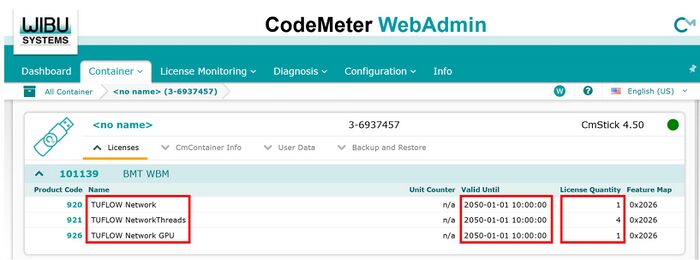
<li> Navigate to the Container section of WebAdmin via the drop menu options. Your licence summary will be displayed. Review the details (the licence types and numbers will be different to the example shown below).<br> |
|||
[[File:Codemeter_Webadmin_HPC_Network.jpg|700px]] <br> |
|||
Note: |
Note: |
||
| ⚫ | |||
* The TUFLOW exe is not an installer. TUFLOW is a standalone console application. As such, with exception of the Codemeter licencing software, no installation is technically required. If you are new to TUFLOW and need advice how to run a TUFLOW simulation, please complete the eLearning training referenced in the following bullet point. |
* The TUFLOW exe is not an installer. TUFLOW is a standalone console application. As such, with exception of the Codemeter licencing software, no installation is technically required. If you are new to TUFLOW and need advice how to run a TUFLOW simulation, please complete the eLearning training referenced in the following bullet point. |
||
| ⚫ | |||
<li> Double click the TUFLOW Executable (for example TUFLOW_iSP_w64.exe) from the Client computer. A console window should open. Review the licence information listed (example shown above). Check the licence types and numbers. If a licence has not been found, the connection between the client computer and network host has not been successful. Return to step 4 above and work through the configuration steps again. |
|||
</ol> |
|||
| ⚫ | |||
| ⚫ | |||
<li> You are now ready to start TUFLOW modelling. There are multiple options available to help you learn TUFLOW:<br> |
<li> You are now ready to start TUFLOW modelling. There are multiple options available to help you learn TUFLOW:<br> |
||
<ol> |
<ol> |
||
| Line 24: | Line 29: | ||
<li> <u>[https://www.tuflow.com/downloads/tuflow-classichpc-models/ TUFLOW Wiki Self-teach Tutorials]</u><br> |
<li> <u>[https://www.tuflow.com/downloads/tuflow-classichpc-models/ TUFLOW Wiki Self-teach Tutorials]</u><br> |
||
<li> <u>[[TUFLOW_Example_Models | Example Models]]</u> <br> |
<li> <u>[[TUFLOW_Example_Models | Example Models]]</u> <br> |
||
This database includes over |
This database includes over 100 example models demonstrating the most commonly used TUFLOW features. Use these models to learn how to implement features not included in the TUFLOW eLearning or Wiki Tutorials. |
||
</ol> |
</ol> |
||
<li> Run TUFLOW using the options listed in the Running TUFLOW section of the Wiki:<br> |
<li> Run TUFLOW using the options listed in the Running TUFLOW section of the Wiki:<br> |
||
Latest revision as of 14:52, 4 August 2026
This page of the Wiki is relevant to people with a TUFLOW Network Software Lock licence.
- Download the latest executable and manual from the Downloads page of the TUFLOW website.
- Install Licencing Dongle Drivers (CodeMeter RunTime Kit) on the Network Host computer.
Note: The Network Host does not need to be a server. It can be a standard computer connected to the Local Area Network of your company. If this is the case, make sure the Host computer remains on at all times and the computer is assigned a static IP address. - Configure Network Host so other (Client) computers will be able to use its available licence(s).
- Obtain your software lock licence file from sales@tuflow.com by following these steps: Request Licence File.
- Import the licence to the Network Host computer.
- After importing the licence update, use Codemeter WebAdmin to review your licence type and count are as expected on the Network Host computer.
- Open Codemeter Control Center via the Windows Start Menu.
- Select the relevant licence container from the lefthand panel, then click WebAdmin.
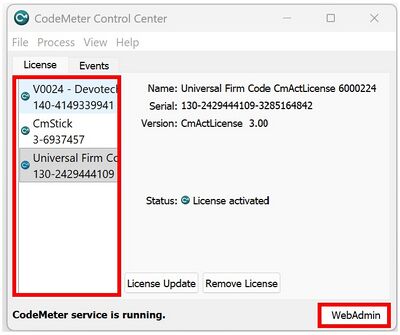
- Navigate to the Container section of WebAdmin via the drop menu options. Your licence summary will be displayed. Review the details (the licence types and numbers will be different to the example shown below).
Note:- The TUFLOW exe is not an installer. TUFLOW is a standalone console application. As such, with exception of the Codemeter licencing software, no installation is technically required. If you are new to TUFLOW and need advice how to run a TUFLOW simulation, please complete the eLearning training referenced in the following bullet point.
- The Licence Update Request and Import steps listed above should only be required once annually to renew the licence and provide access to new major releases of the software (unless licence configuration changes are requested).
- Install Licencing Dongle Drivers (CodeMeter RunTime Kit) on all Client computers wishing to access licences from the Network Host.
- Configure Access to the Network licences on all Client computers.
- You are now ready to start TUFLOW modelling. There are multiple options available to help you learn TUFLOW:
- Free TUFLOW eLearning courses.
These courses are hosted online 24/7. They includes step by step lessons comprising of a combination of written notes, background content videos, demonstration videos and hands-on exercises:
Other paid eLearning courses are also available via the TUFLOW Training Course Catalogue
- TUFLOW Wiki Self-teach Tutorials
- Example Models
This database includes over 100 example models demonstrating the most commonly used TUFLOW features. Use these models to learn how to implement features not included in the TUFLOW eLearning or Wiki Tutorials.
- Free TUFLOW eLearning courses.
- Run TUFLOW using the options listed in the Running TUFLOW section of the Wiki:
- Other resources that may be useful include:
- Other useful information in the Wiki. In particular new users often find the Tips and Tricks section of the homepage and the Modelling Guidance sections useful.
- If you're interested in becoming a part of the TUFLOW User Community please join the TUFLOW LinkedIn User Group.
- Please email support@tuflow.com if you have any technical questions or sales@tuflow.com if you would like to rent additional licences temporarily, purchase additional licences or add-on modules. Price information is available from the Pricing page of the TUFLOW website

